In this article, you'll learn how to use Agent Assist to handle cases in Salesforce and Jira from getting up to speed on a case quickly, to generating responses, capturing knowledge, and querying your knowledge base without leaving your helpdesk.
💡 This article covers usage only. For setup and configuration, see Configure Agent Assist.
Before you start
Agent Assist must be configured and installed in your helpdesk before use. If you haven't completed setup yet, see Agent Assist Installation guides.
It should be available in the case or ticket view in your helpdesk.
Interface overview
When you open a case or ticket, Agent Assist appears in the side panel with two sections:
Recommendation section — Automatically surfaces summaries, AI answers, Relevant sources, and Knowledge blocks based on the open case.
Chat section — an interactive assistant you query directly to explore the case or prepare a response. Visible to the agent only not the customer.
Agent Assist provides the following capabilities during live support work:
Capability
What it does
Case Summary
Automatically summarises the case so you can get context fast
AI Answer
Generates a knowledge-grounded response based on the current case
Relevant Sources
Surfaces similar cases and articles for deeper investigation
Knowledge Generation
Creates reusable knowledge blocks from the case context
Reply Suggestions
Recommends responses based on prior resolutions
Reply Refinement
Rephrases, expands, adjusts tone, or translates draft replies
Ticket Autofill
Extracts key case details and populates ticket fields automatically
Sentiment Detection
Monitors customer sentiment and alerts when it shifts negatively
Chat Assistant
Lets you query knowledge sources directly using conversation starters, custom questions, or customer context
Recommendation section
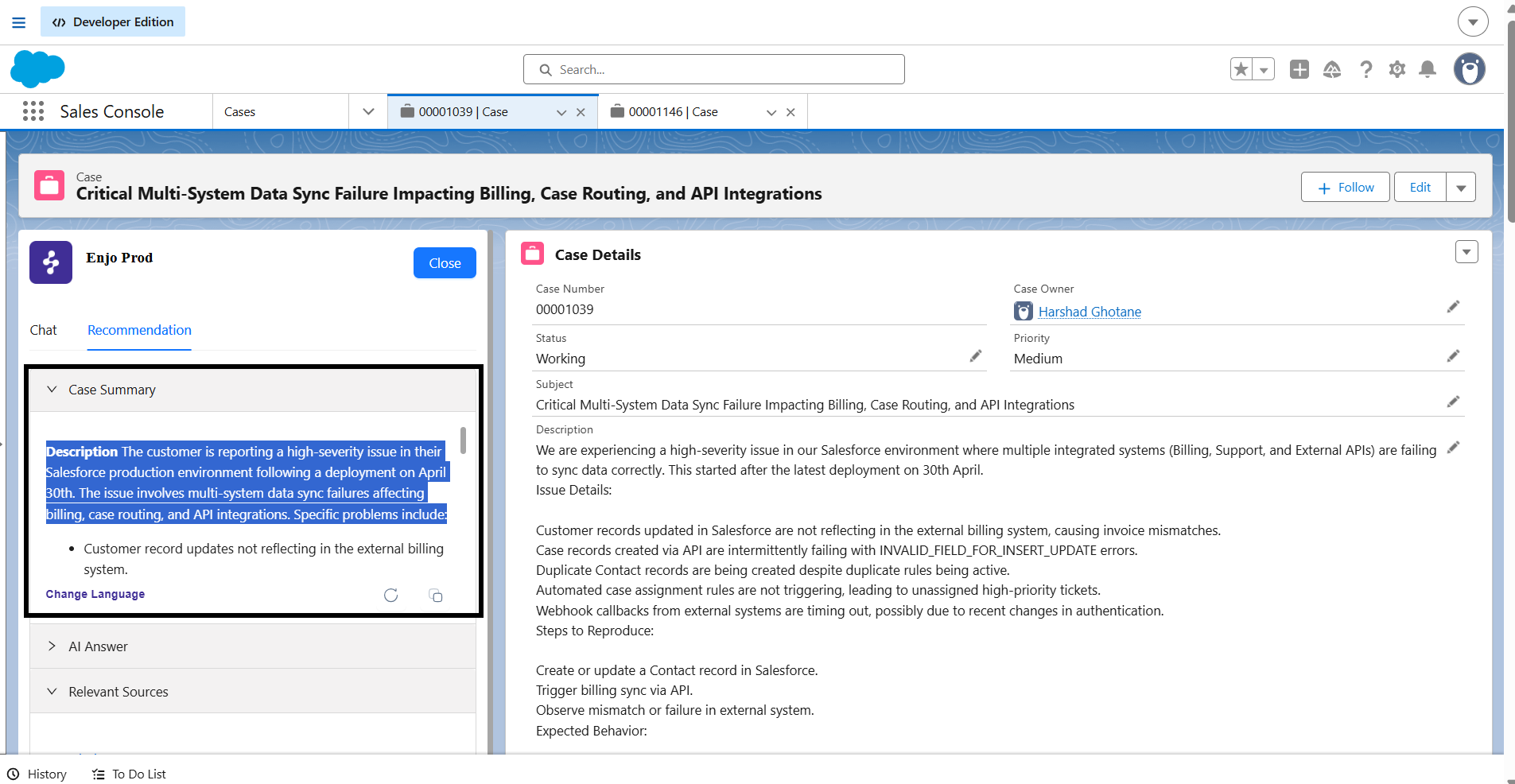
Case Summary
Gets you up to speed on a case without reading through the full conversation history. Generated automatically from the case fields configured during setup.
A case summary includes:
Field
What it shows
Description
The issue and what the customer is experiencing
Actions taken
Key steps already completed and conversation highlights
Next action plan
Recommended next steps for the agent or customer
Recommendations
Additional guidance or suggestions
Last update
When the summary was last refreshed
Refresh Click Refresh to regenerate the summary based on the latest case data.
Copy Click Copy to paste the summary into notes, emails, or internal documentation.
💡 Refresh the summary when picking up a case mid-conversation or after significant new activity.
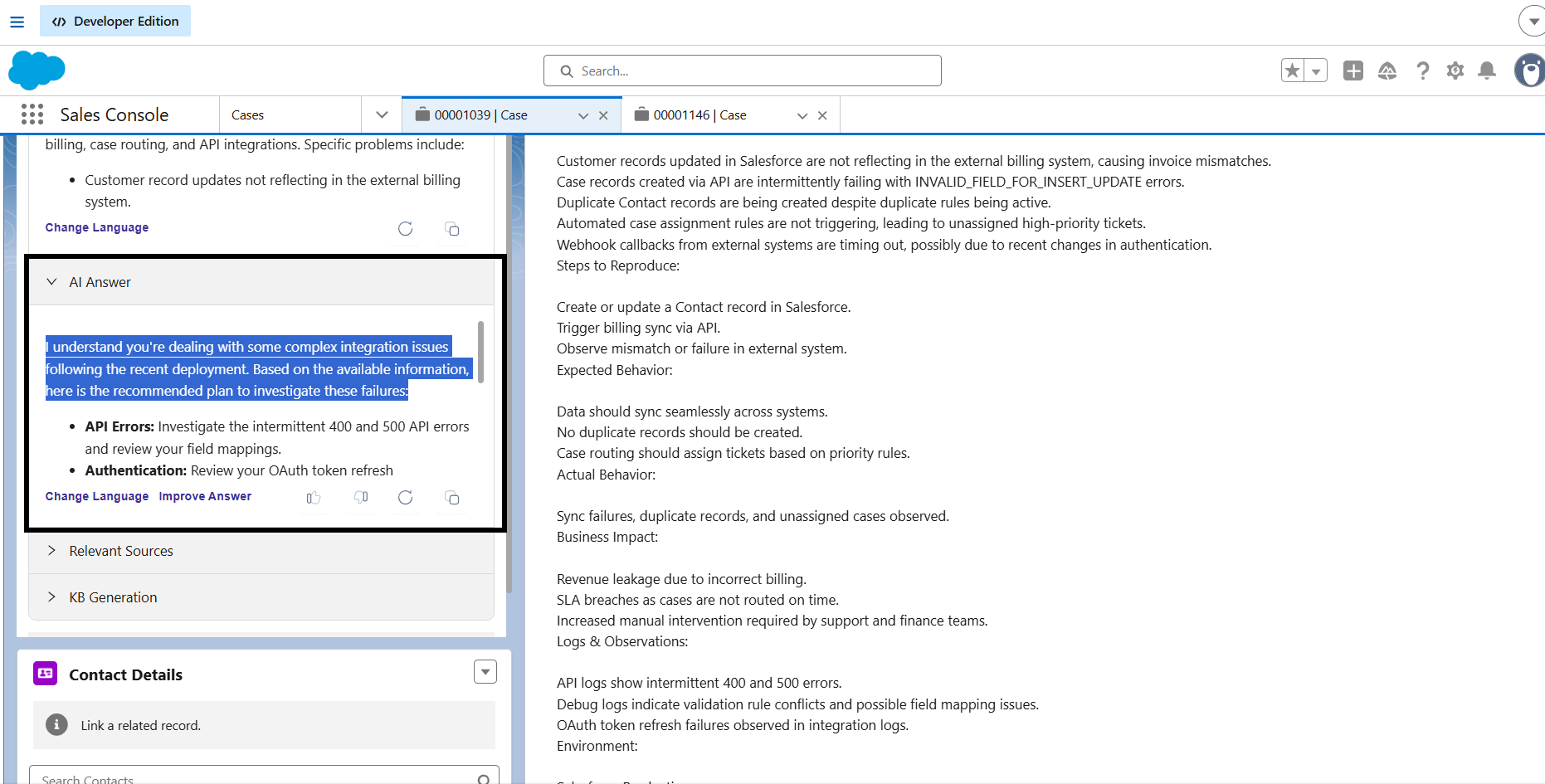
AI Answer
Sends the current case context to the mapped AI Agent, which searches its connected knowledge sources and returns a response.
Each AI answer includes:
An explanation of the issue
Suggested resolution steps
Source references linking back to the knowledge content used
Use the AI answer as a starting point for your customer response, or adapt it before sending.
💡 If AI answers are consistently off-topic or unhelpful, check with your admin that the correct AI Agent is mapped to your helpdesk.
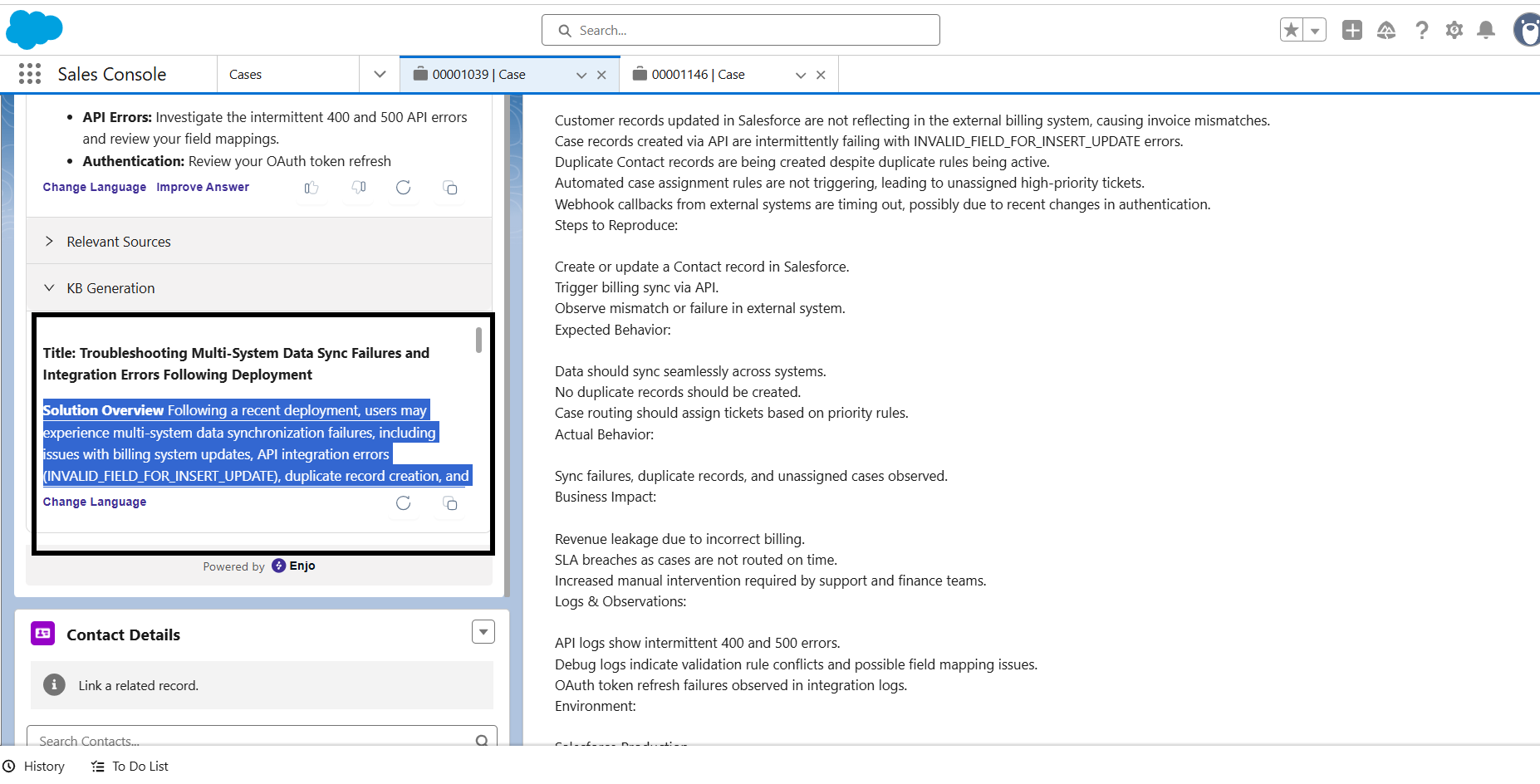
AI Knowledge Generation
Automatically generates structured knowledge blocks from the customer's issue and case context.
Use knowledge blocks to:
Document the resolution while the case is fresh
Turn recurring issues into published knowledge articles
To publish a knowledge block as an article, see Knowledge Gen.
💡 Publishing knowledge blocks helps future agents resolve similar cases without starting from scratch..
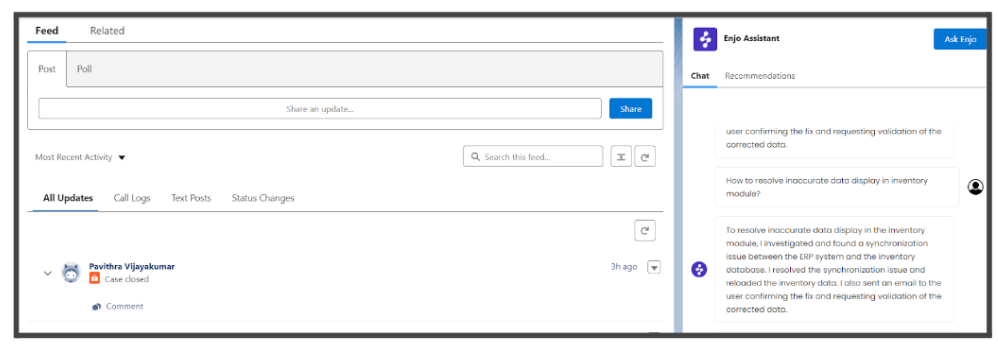
In the “Chat” tab you can interact with the relevant Enjo AI agent for this ticket.
Reply tools
Reply Suggestions
Surfaces recommended responses based on prior resolutions and similar cases.
Select a suggestion to use it as a draft
Edit the suggestion before sending to match the specific situation
Reply Refinement
Refine any draft reply before sending using the following options:
Option
What it does
Rephrase
Rewrites the reply in different words
Expand
Adds more detail
Adjust tone
Makes the reply more formal or conversational
Translate
Translates into another language
💡 Use Adjust Tone when responding to frustrated customers — tone adjustments can help de-escalate before the content of the reply even lands.
Ticket Autofill
Extracts key information from the case conversation and populates ticket fields automatically.
Review the extracted values before saving
Update any fields that need correction before confirming
Sentiment Detection
Monitors real-time sentiment in the customer conversation and surfaces alerts when sentiment shifts negatively.
Use sentiment signals to prioritise de-escalation
Involve a senior agent when sentiment drops significantly
AI Agent Chat
Chat section
Query Agent Assist directly to explore the case further or prepare a more precise response.
💡 The Chat section is for the agent's use only — responses are not visible to the customer.
Conversation Starter
Agent Assist generates suggested follow-up questions based on the current case context.
Select a suggested question to send it to the mapped knowledge source
Review the answer returned to explore the case from a different angle
Use this when you are unsure where to start or want to investigate the issue further.
Question
Enter your own question to query the mapped knowledge sources directly.
Type your question in the chat input
Review the answer returned from the knowledge source
Use this when the AI Answer in the Recommendation section does not fully address the issue or you need more specific information.
Customer Context
Add context about the customer to refine the answers Agent Assist returns.
Enter details such as the customer's account type or previous interactions
Agent Assist uses this context to personalise the response
Use this when standard answers feel too generic for the specific customer situation.
Using Agent Assist in Salesforce
Open a Salesforce case where Agent Assist is enabled. Agent Assist appears in the case view as a recommendation and chat assistant.
All features described above are available in the Salesforce case view:
Use the Recommendation section to get case context, generate responses, and capture knowledge
Use the Chat section to query knowledge sources directly without leaving Salesforce
Use Reply tools to refine and send responses from within the case view
💡 In Salesforce, the Case Summary is generated from the case subject, description, and any additional fields your admin has configured. Make sure these fields are populated for the best results. Relevant Sources
Using Agent Assist in Jira
Open a Jira ticket where Agent Assist is enabled. Agent Assist appears in the ticket view and works the same way as in Salesforce.
Use Case Summary to get context on the ticket quickly
Use AI Answer to generate resolution steps based on the ticket content
Use Knowledge Generation to capture the resolution for future use
Use the Chat section to query knowledge sources directly without leaving Jira
💡 In Jira, the Case Summary reflects the ticket summary, description, and comment fields configured during setup. Make sure these fields are populated for the best results.
.png)