
Guardrails
Guardrails let you control what your AI Agent can and cannot engage with. You can mask sensitive data in conversations, block specific content categories, restrict certain topics entirely, and ban individual words or phrases.
This guide covers all four guardrail settings available under Settings → Guardrails inside your AI Agent.
Before you start
You need Owner or Admin role to configure Global Guardrails.
You need AI Agent Admin role to configure Agent Guardrails.
Step 1: Open Guardrails
From the left sidebar, select AI Agents and open the agent you want to configure.
In the agent's left navigation, expand Settings and click Guardrails.
The Guardrails page has two sections: Data Masking and AI Agent Guardrails.
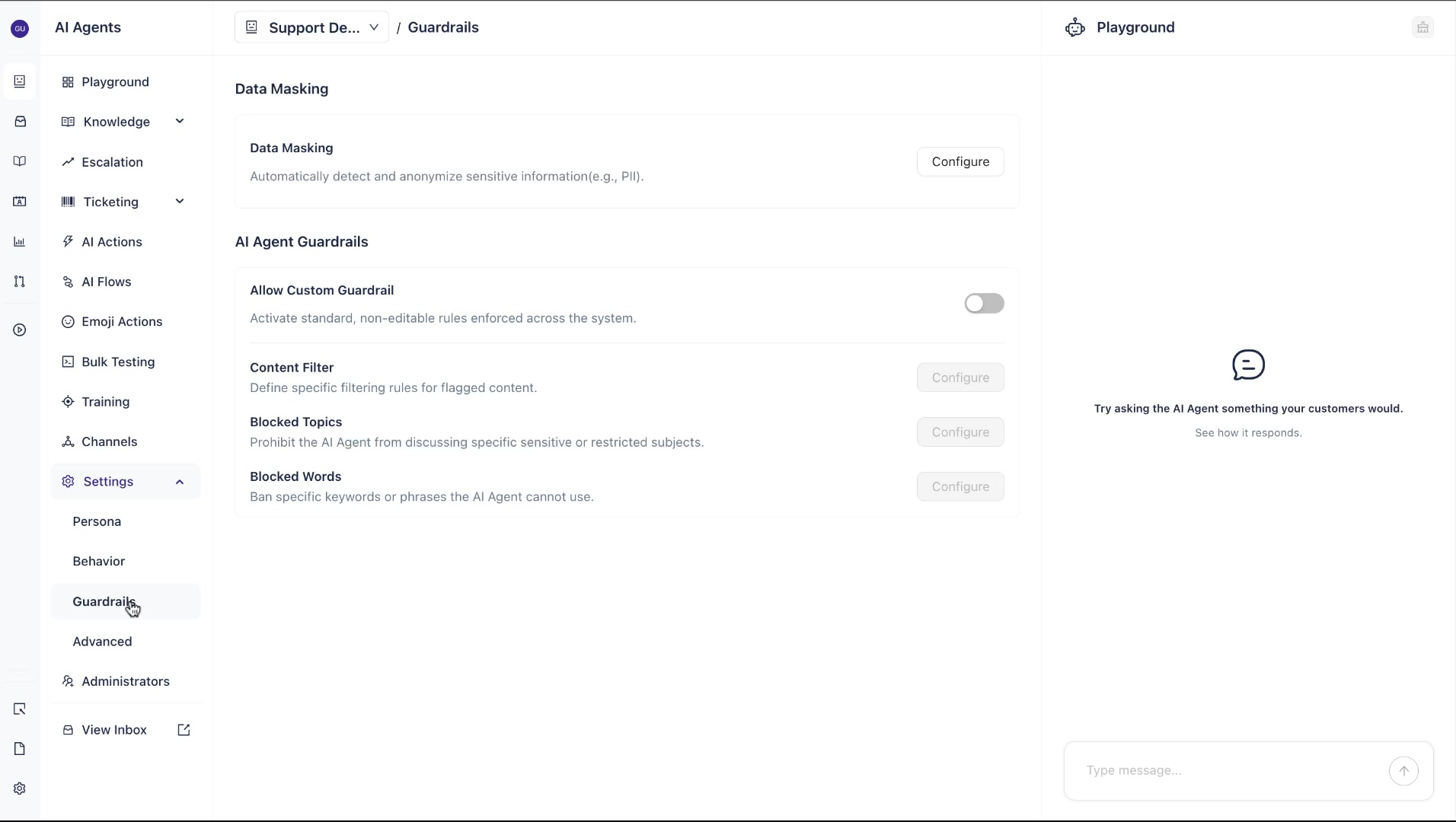
Step 2: Configure Data Masking
Data Masking automatically detects and anonymises sensitive information in conversations before it is processed by the AI Agent.
Click Configure next to Data Masking to open the Customize Masking panel.
Use the toggle at the top to enable identification and anonymisation of sensitive data.
Once enabled, select the entity types you want to mask. Default entities include:
Phone number, Email address
Credit card, US bank number, US passport
Aadhaar, IP address, Crypto, IBAN code
Medical license, US ITIN, US SSN, Date Time
NRP, Location, Person, URL
Checked entities are actively masked. Unchecked entities are not.
Note: When data masking is enabled, the AI Agent will not process or learn from any information matching the selected entity types found in conversations or connected knowledge sources. If a user asks a question involving a masked entity, the agent will decline to respond to that specific element.
Adding a custom entity
If you need to mask a data type not in the default list, click Add Custom Entity and provide:
Name — a label for the entity
Regex Pattern — a pattern to match the data format
Context words — tags that help identify the entity in context
Deny List — specific words or phrases to exclude during text analysis
Click Save to apply.
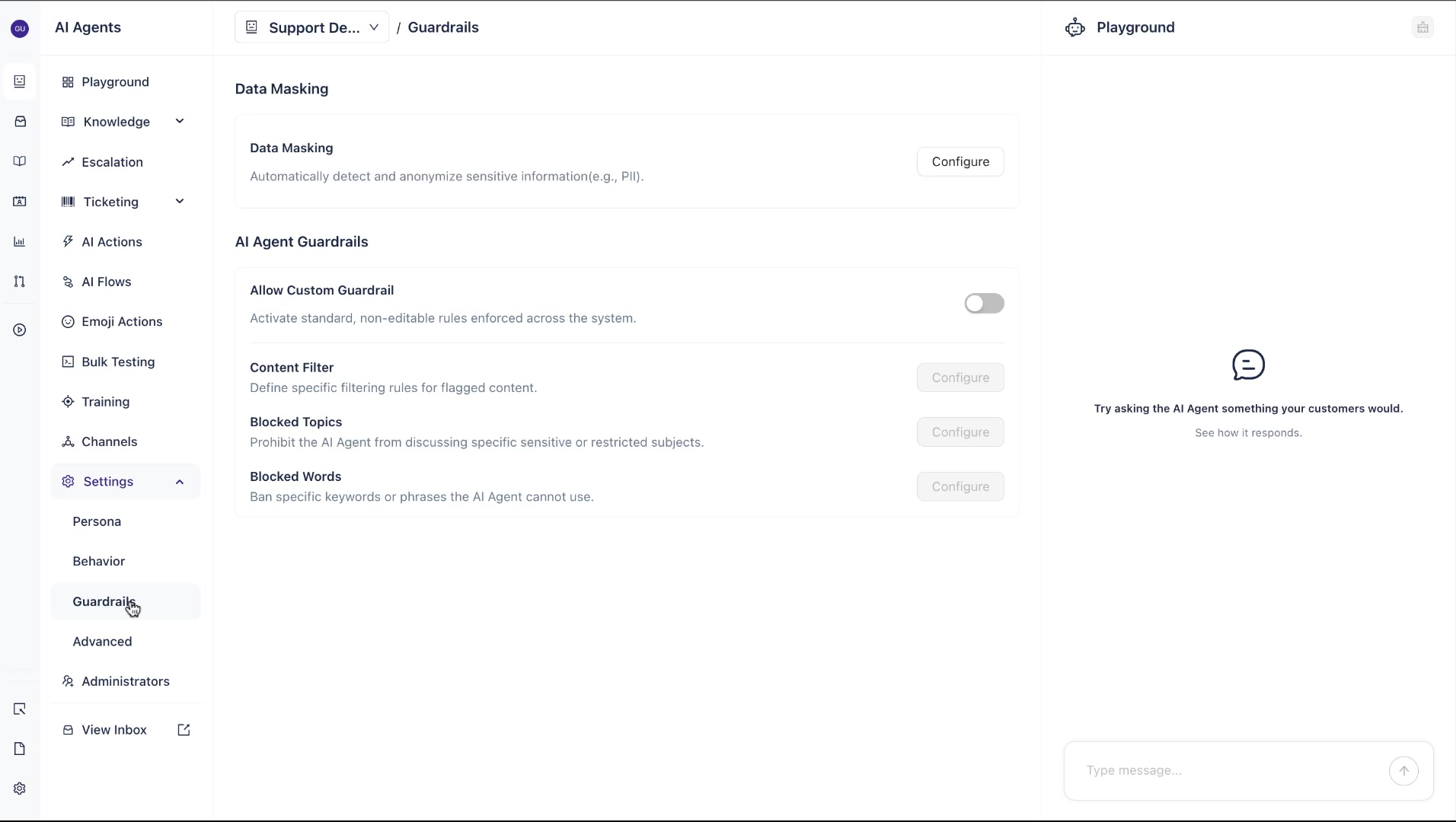
Step 3: Enable Custom Guardrails
Under AI Agent Guardrails, toggle on Allow Custom Guardrail.
This activates the three custom guardrail controls below it — Content Filter, Blocked Topics, and Blocked Words — making them configurable.
Note: When Allow Custom Guardrail is off, these controls remain locked and the Configure buttons are greyed out.
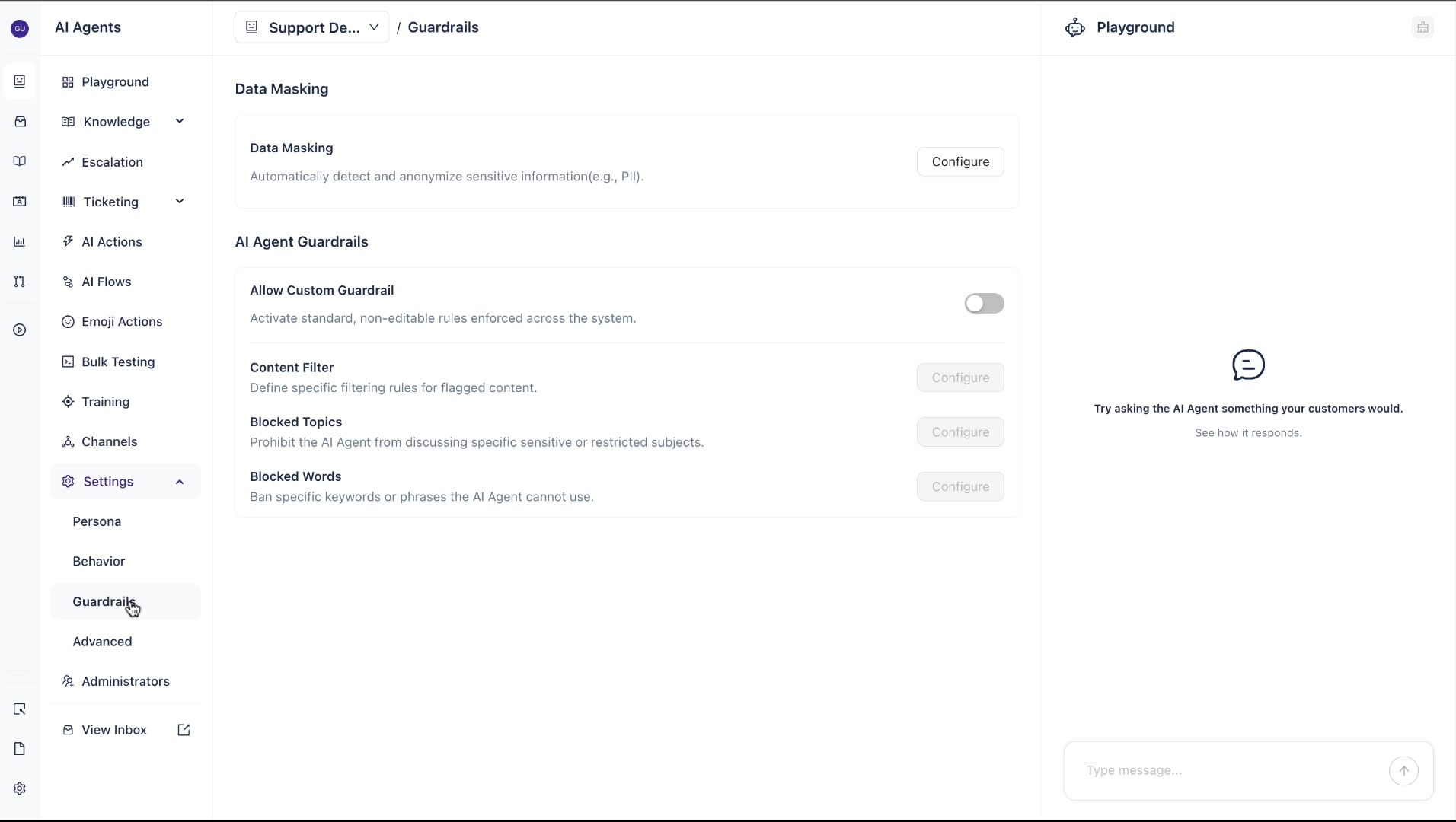
Step 4: Configure Content Filter
Content Filter lets you block the agent from engaging with flagged content categories.
Click Configure next to Content Filter. Select the categories you want to block from the default list:
Hate
Insult
Sexual
Violence
Finance
Fight
You can also add custom topics by clicking Add new on the Blocked Topics page (see Step 5).
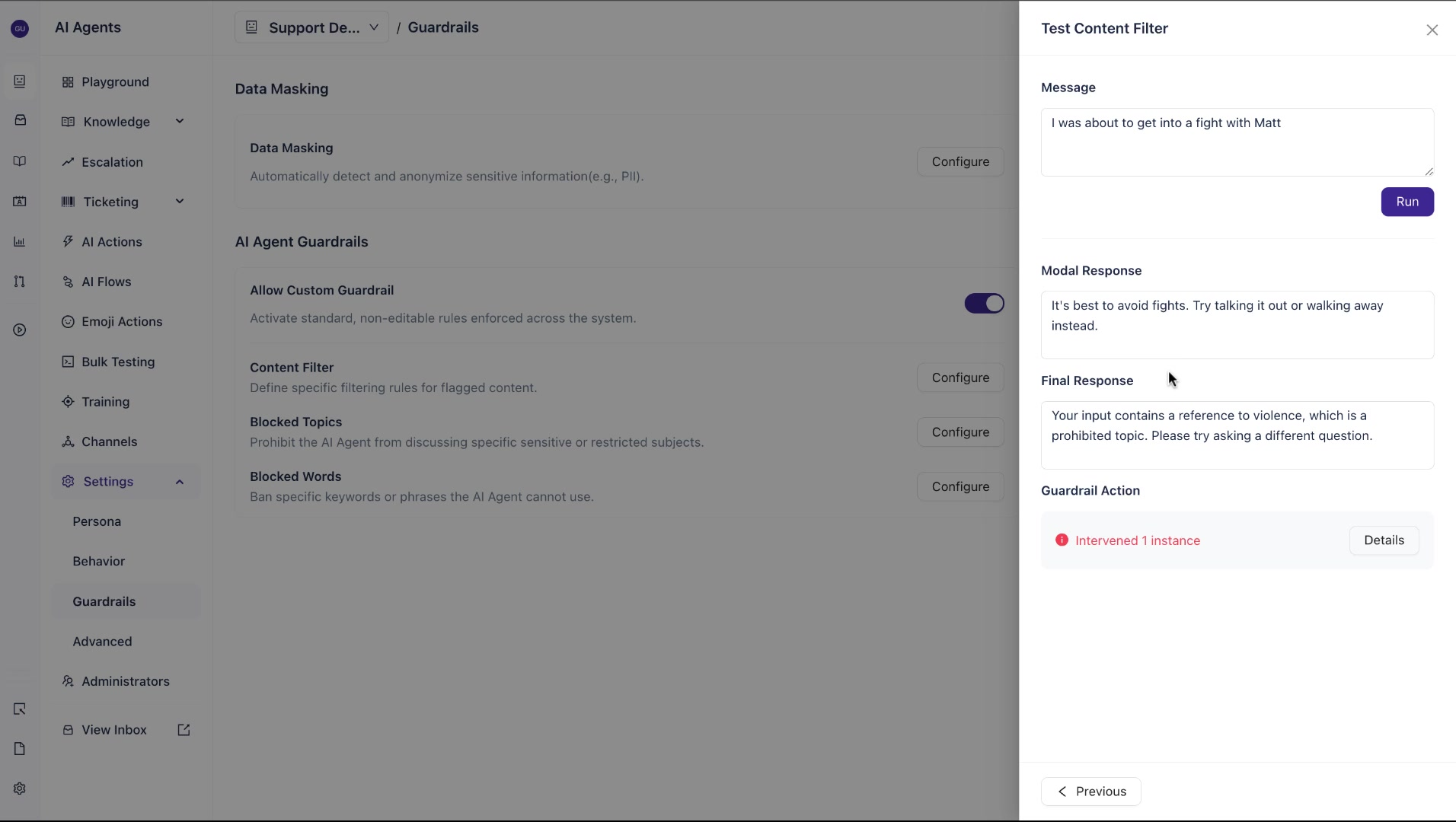
To verify a filter is working, click Test and enter a sample message in the Test Content Filter panel. The panel shows:
Modal Response — what the underlying model would have said without the guardrail
Final Response — what the agent actually returns after the guardrail is applied
Guardrail Action — whether the guardrail intervened and how many instances were caught
Example: A message containing a reference to violence returns a Final Response of "Your input contains a reference to violence, which is a prohibited topic. Please try asking a different question." — rather than the model's unfiltered reply.
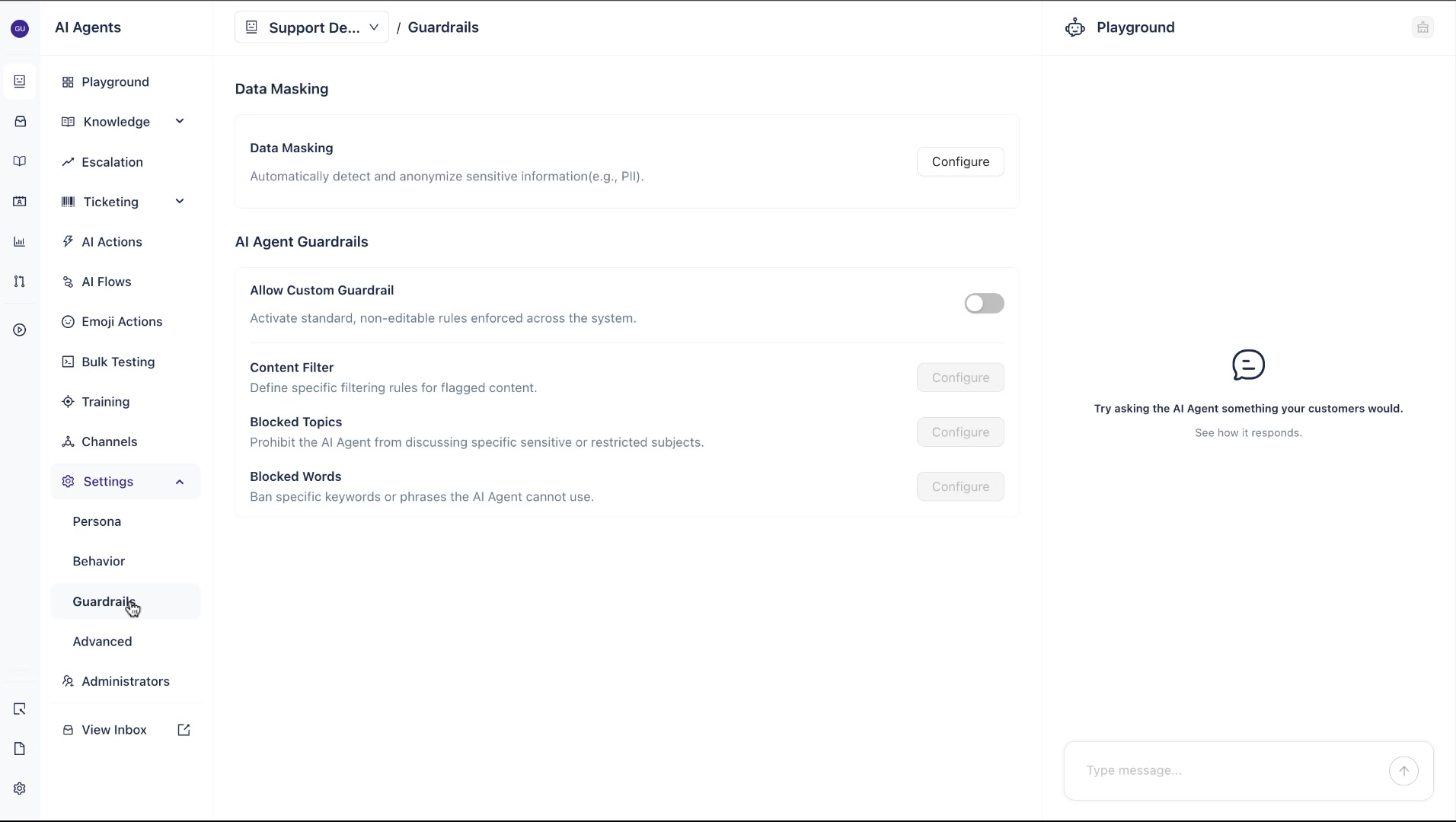
Step 5: Configure Blocked Topics
Blocked Topics prevents the AI Agent from discussing specific subjects entirely, even if the content doesn't match a fixed filter category.
Click Configure next to Blocked Topics. To add a custom topic, click Add new and provide:
Name — the topic label (e.g. "Violence")
Definition For Topic — a plain-language description of what the topic covers (e.g. "any words related to violence, fight, hate")
Add Sample Phrases (optional) — example sentences that represent this topic, to help the agent recognize edge cases (e.g. "I had a fight with Matt recently")
Click Add to save the topic.
Tip: Adding sample phrases improves detection accuracy. The more representative phrases you provide, the better the agent recognises variations of the blocked topic in real conversations.
Step 6: Configure Blocked Words
Blocked Words bans specific keywords or phrases from being used or engaged with by the AI Agent.
Click Configure next to Blocked Words. Enter the words or phrases you want to block in the Blocked words field, separated by commas (e.g. salary, racism).
The Global Blocked Words field displays any words blocked at the workspace level — these apply across all agents and cannot be edited from this panel.
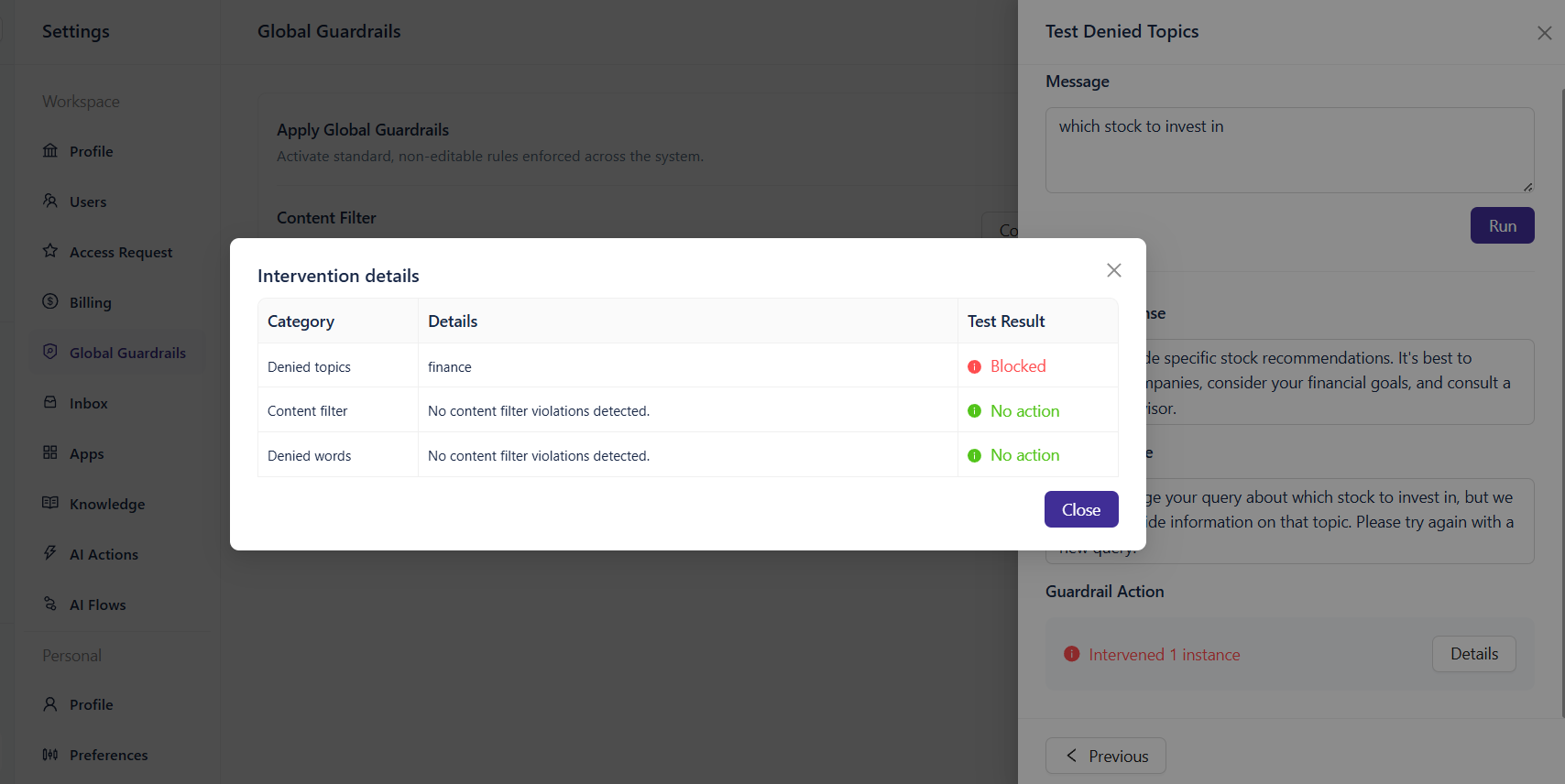
Click Test to verify the filter behaves as expected, then click Save.
What's next
What's next
Configure Advanced Settings for an AI Agent — fine-tune model behavior, response settings, and other advanced configuration options
Manage AI Agent Admins — review, add, or remove administrators for an AI Agent