.png)
Advanced
The Advanced settings section gives you fine-grained control over how your AI Agent retrieves and uses knowledge when responding to users. It also contains the option to permanently delete an agent.
This guide covers the three settings available under Advanced: Knowledge Relevance Threshold, Infer Images, and Delete AI Agent.
Before you begin
You must have Admin access to the AI Agent you want to configure.
Step 1: Open the Advanced settings
Click on the agent you want to configure.
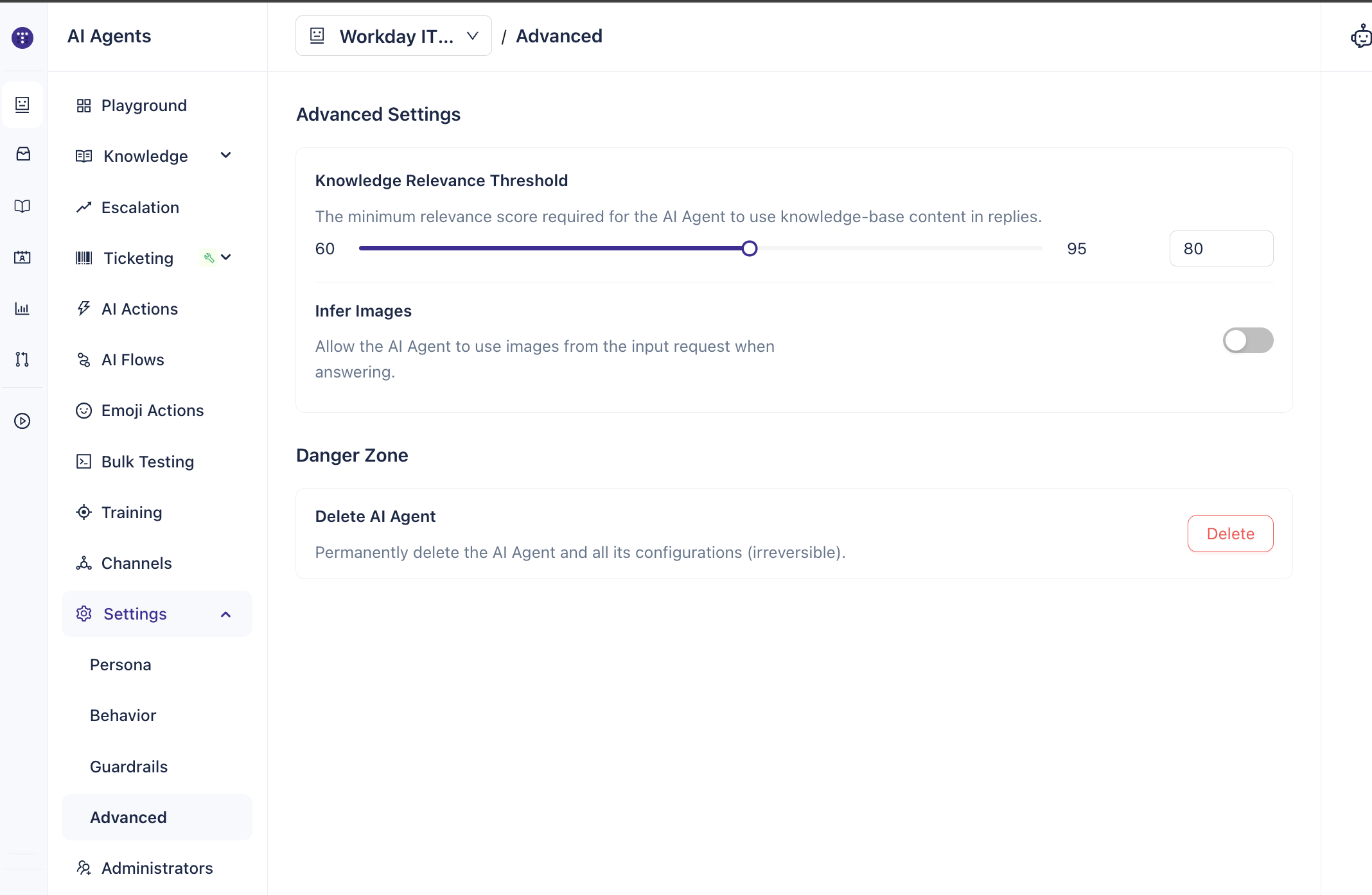
In the agent's left navigation, expand Settings and click Advanced.
Step 2: Set the Knowledge Relevance Threshold
The Knowledge Relevance Threshold controls the minimum relevance score a knowledge source document must reach before the AI Agent uses it to generate a response.
The slider ranges from 60 to 95. The default value is 80.
When a user asks a question, the AI Agent scores all documents in the connected knowledge sources against the query. Only documents that meet or exceed this threshold are used to generate the response.
Lower values (closer to 70) — the agent draws from a broader set of documents, including less closely matched content. Use this if the agent is frequently unable to find answers.
Higher values (closer to 90) — the agent only responds when it finds highly relevant content. Use this to reduce the risk of loosely grounded answers.
Step 3: Enable or disable Infer Images
Infer Images controls whether the AI Agent considers images submitted alongside a user's question when generating a response.
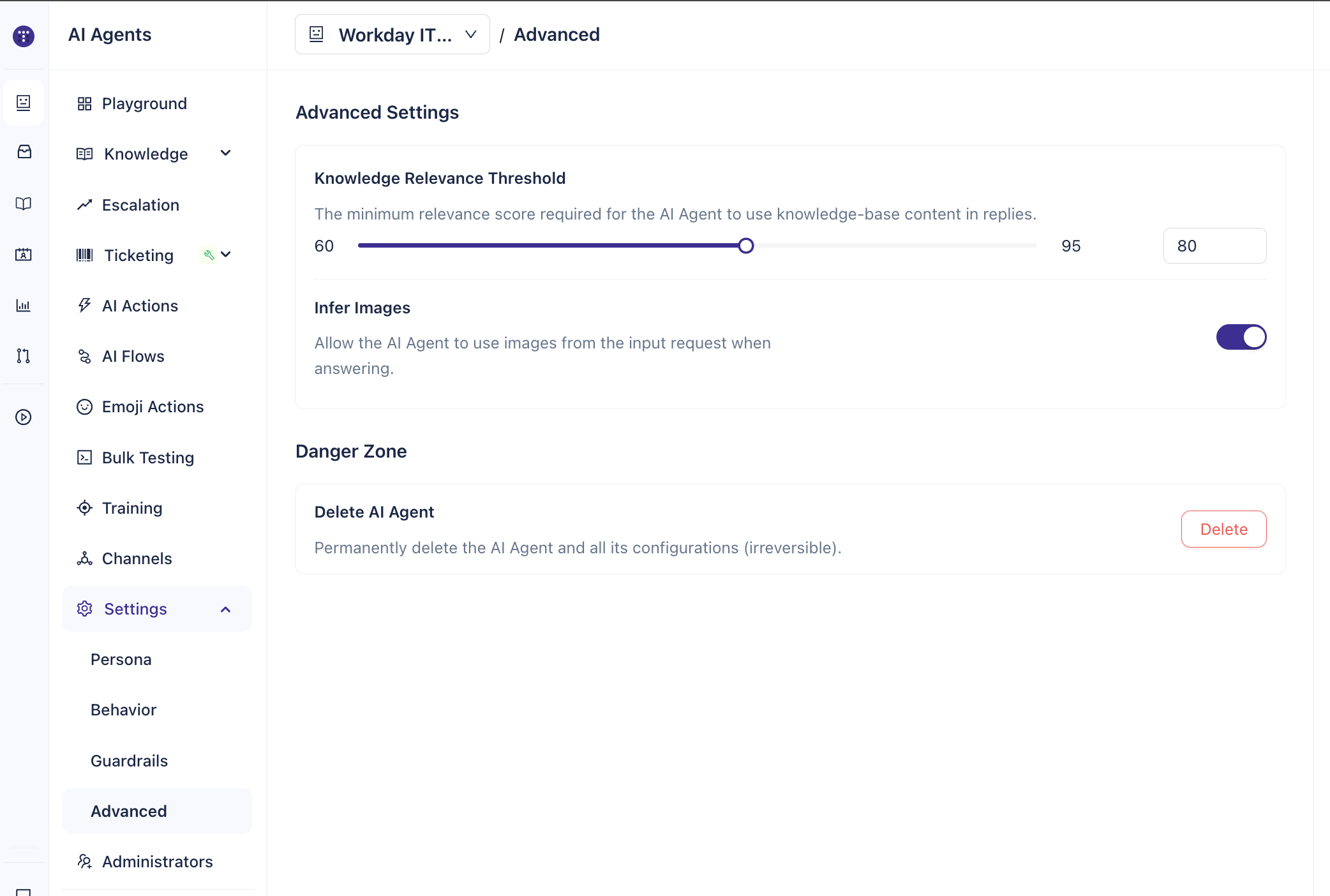
When this toggle is on, users can attach images to their requests and the AI Agent will take the image content into account as part of the query.
When this toggle is off, the AI Agent processes text only and ignores any attached images.
Note: This setting is disabled by default. Enable it if your deployment requires image-based queries.
Step 4: Delete AI Agent (Danger Zone)
The Delete AI Agent option is located in the Danger Zone section at the bottom of the Advanced settings page.
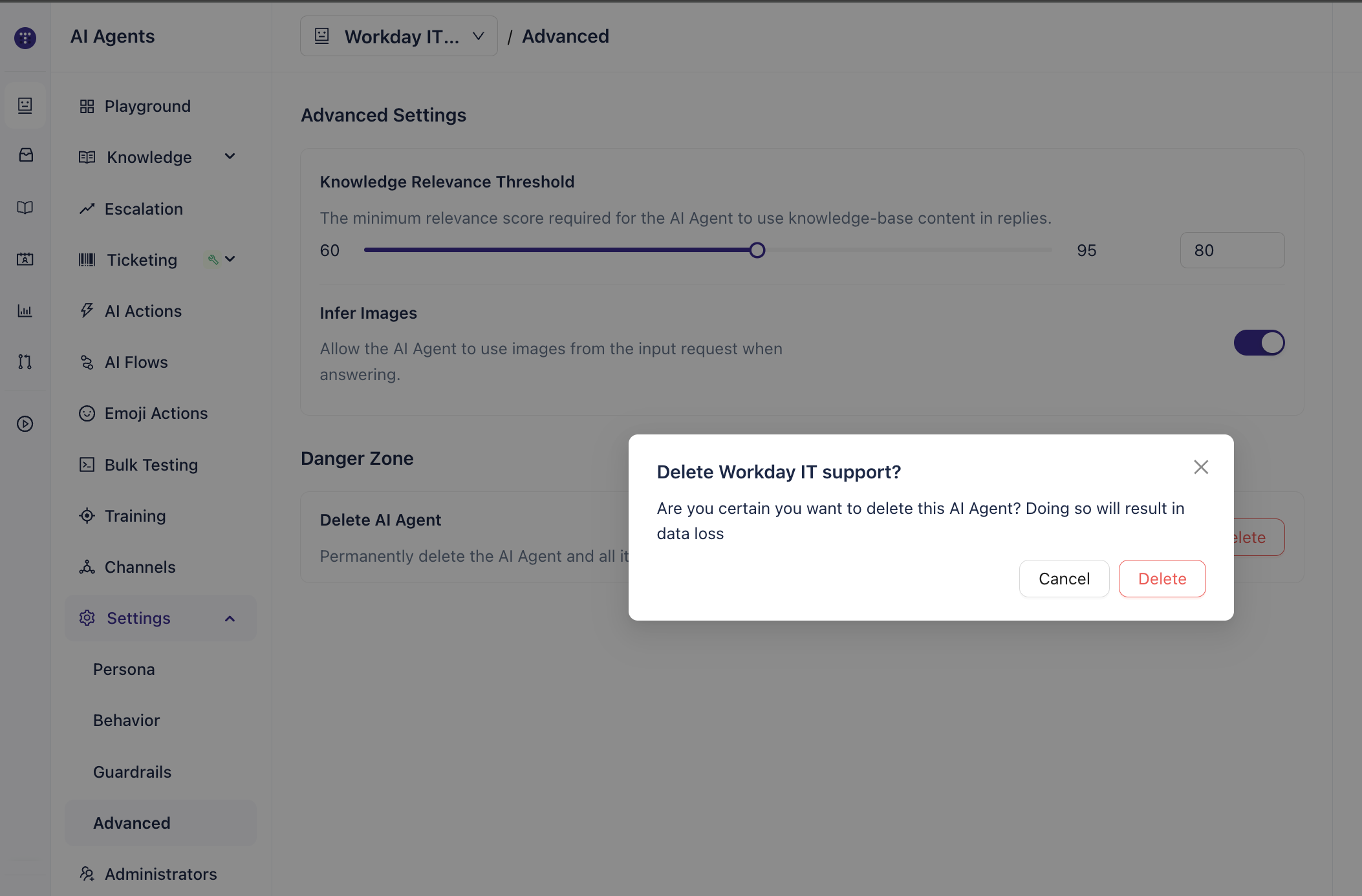
Deleting an agent permanently removes it along with all its configurations — including knowledge sources, channel connections, escalation rules, AI Actions, and training data. This action cannot be undone and the data cannot be restored.
To delete the agent, click Delete and confirm the action when prompted.
Important: Only delete an agent if you are certain it is no longer needed. There is no recovery option after deletion. If you want to pause or reconfigure the agent instead, consider disconnecting its channels or disabling its escalation rules first.
What's next
After reviewing Advanced settings, you may want to configure other settings within the same agent: