.png)
User Roles
Enjo uses a role-based access control system to manage what each person in your workspace can see and do. Roles define a set of permissions across product areas including AI Agents, Inbox,Automation Tools, Reports, Agent Assist, and Settings.
Enjo provides six default roles that cover the most common access patterns. You can use these as-is or use them as a starting point. If your team needs something more specific, you can create custom roles: see Custom Roles in Enjo.
Before You Begin
You must have the Owner or Admin role to manage roles.
Role changes take effect immediately for all users assigned to that role.
Some role management features vary by subscription plan. See Enjo Subscription Plans for details.
Default Roles
Enjo creates six roles automatically when your workspace is set up. To view all roles, go to Settings > Users and select the Roles tab.
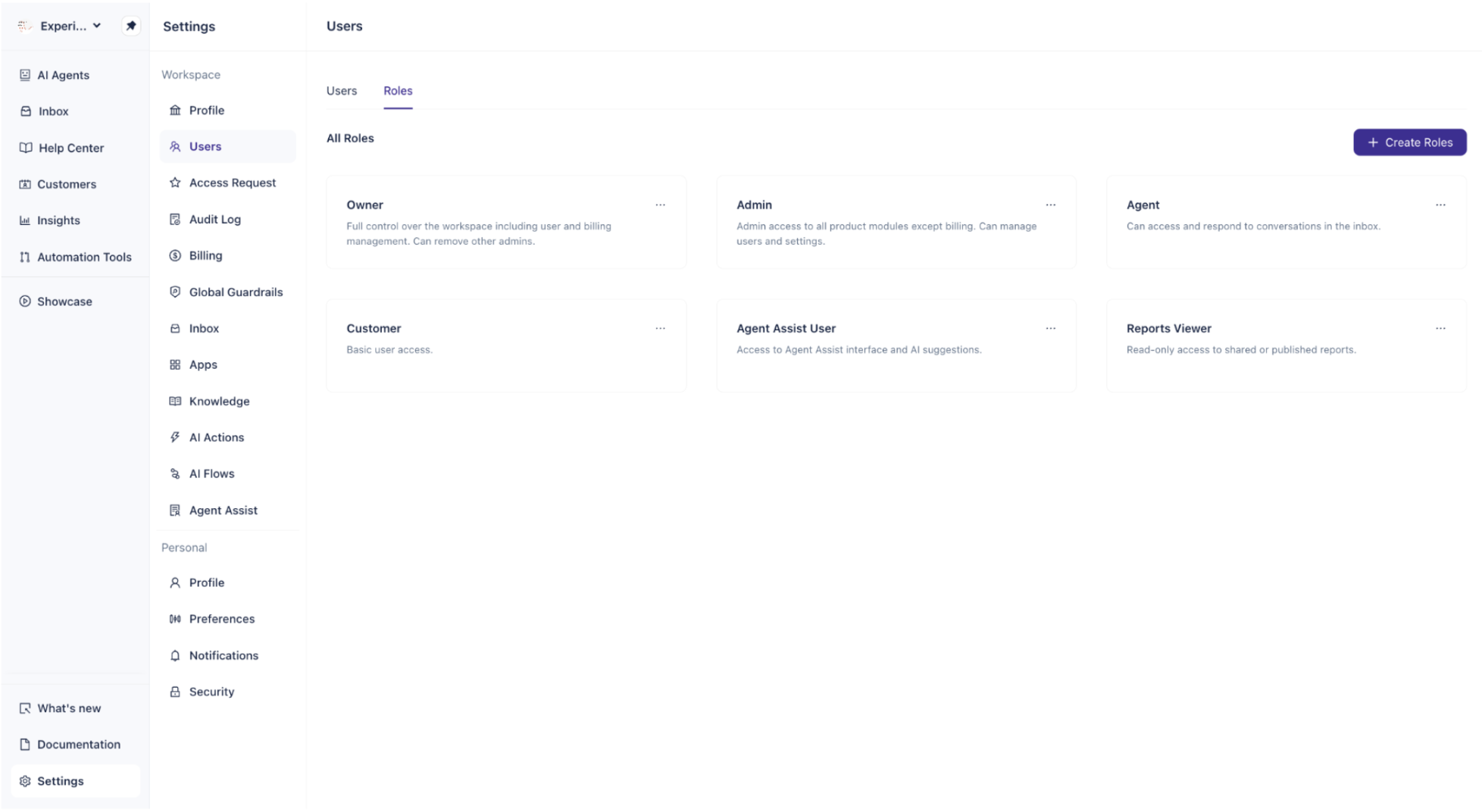
Role | Description |
Owner | Full control over the workspace including user and billing management. Can remove other admins. |
Admin | Admin access to all product modules except billing. Can manage users and settings. |
Agent | Can access and respond to conversations in the inbox. |
Customer | Basic user access. |
Agent Assist User | Access to the Agent Assist interface and AI suggestions. |
Reports Viewer | Read-only access to shared or published reports. |
Note: The Owner and Customer roles cannot be edited or deleted. All other default roles can be edited, and any role except Owner and Customer can be deleted.
Role Permissions
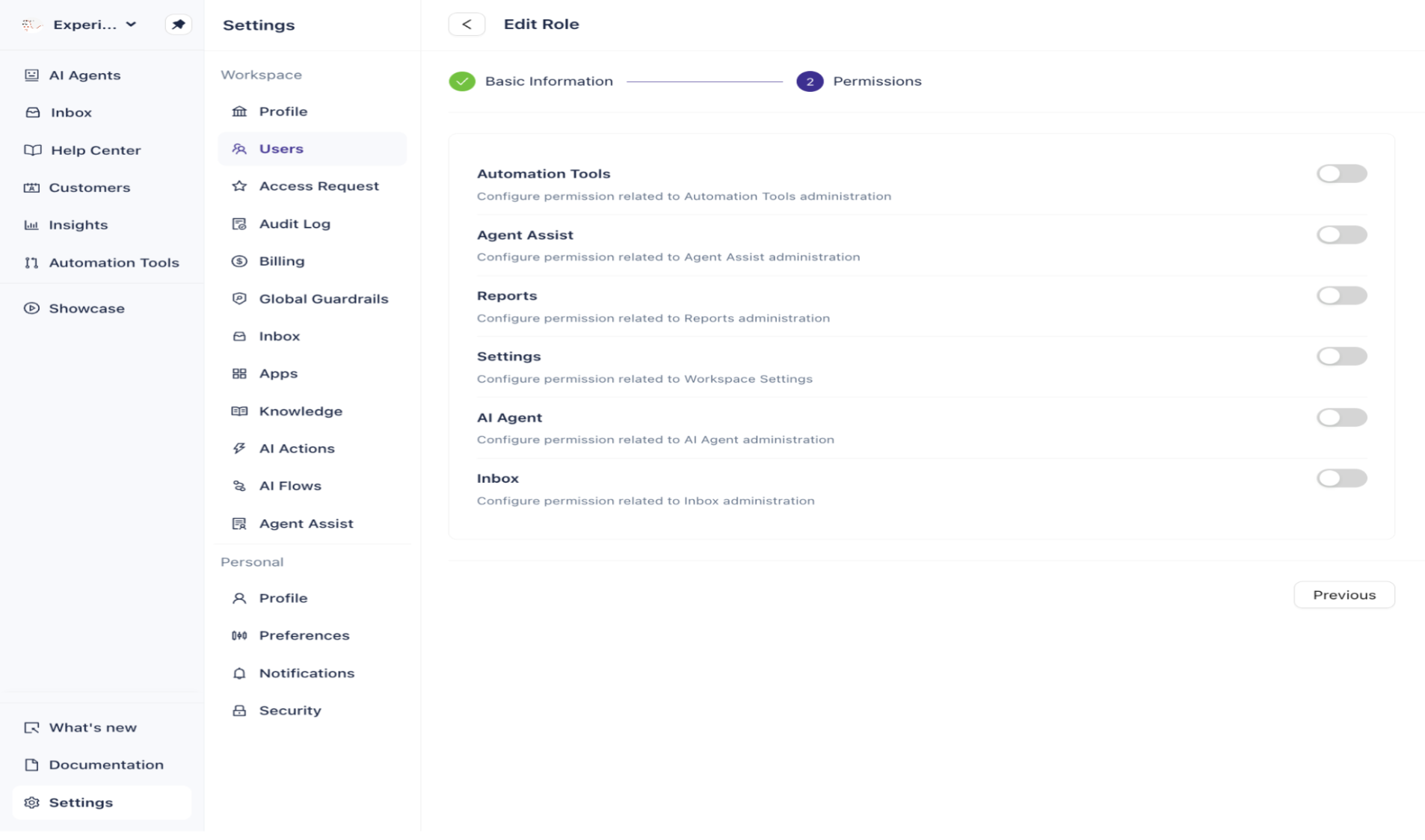
Each role grants a specific set of permissions across six areas: Automation Tools, Agent Assist, Reports, Settings, AI Agent, and Inbox.
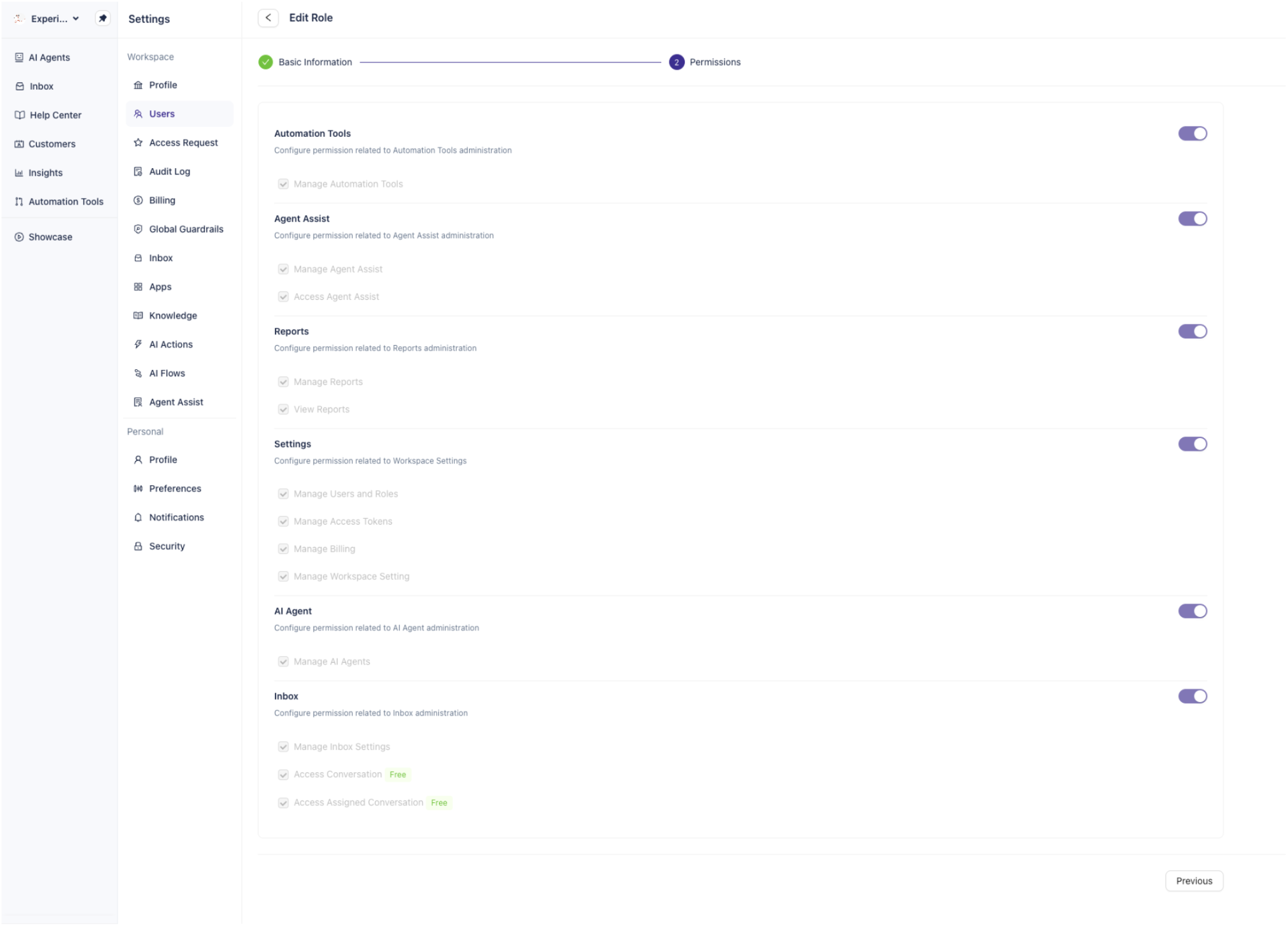
Owner
The Owner role has all permissions enabled across every module:
Automation Tools: Manage Automation Tools
Agent Assist: Manage Agent Assist, Access Agent Assist
Reports: Manage Reports, View Reports
Settings: Manage Users and Roles, Manage Access Tokens, Manage Billing, Manage Workspace Setting
AI Agent: Manage AI Agents
Inbox: Manage Inbox Settings, Access Conversation, Access Assigned Conversation
Admin
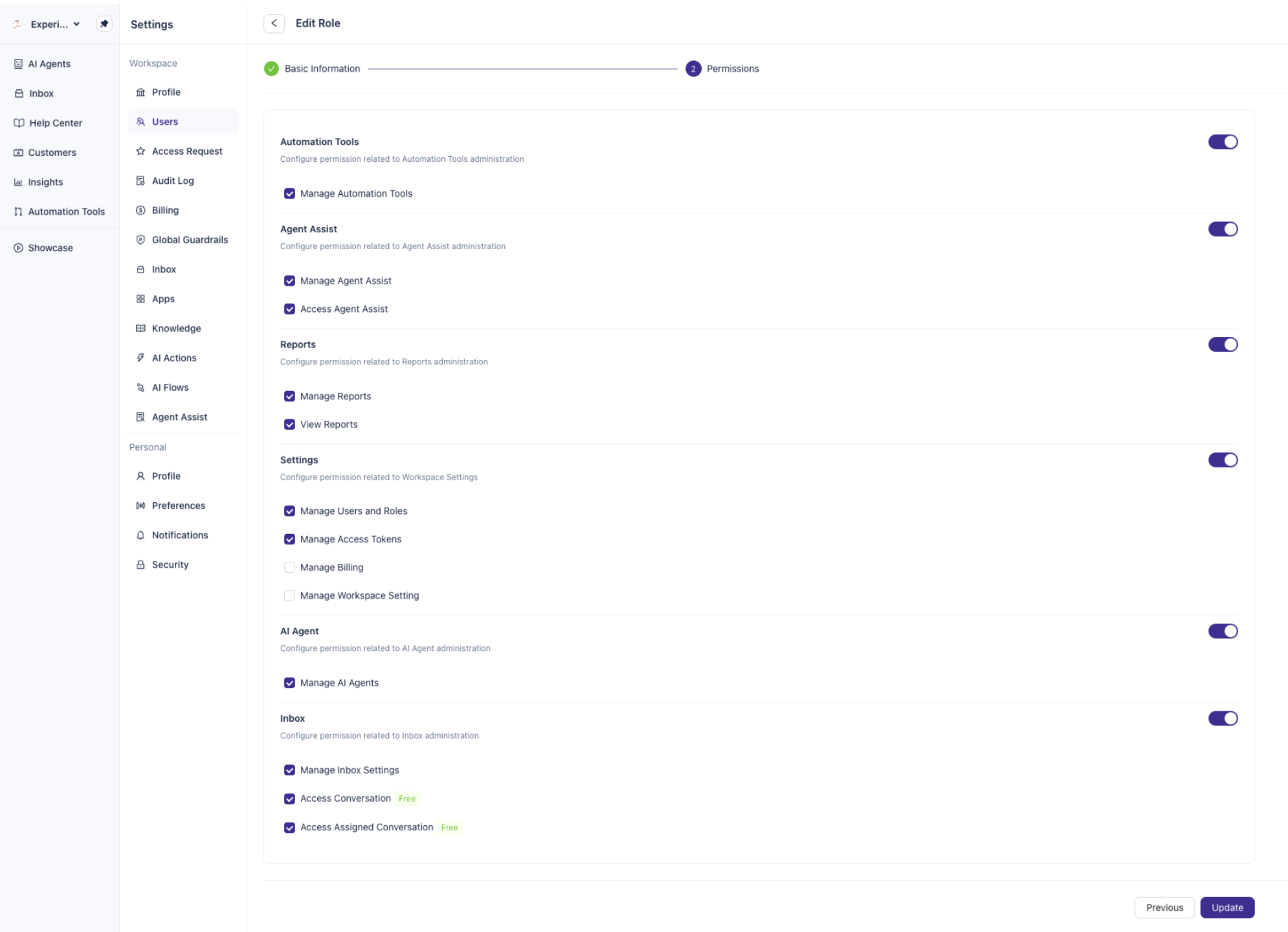
The Admin role has broad access across most modules, with the exception of billing:
Automation Tools: Manage Automation Tools
Agent Assist: Manage Agent Assist, Access Agent Assist
Reports: Manage Reports, View Reports
Settings: Manage Users and Roles, Manage Access Tokens (Manage Billing and Manage Workspace Setting are not enabled by default)
AI Agent: Manage AI Agents
Inbox: Manage Inbox Settings, Access Conversation, Access Assigned Conversation
Agent
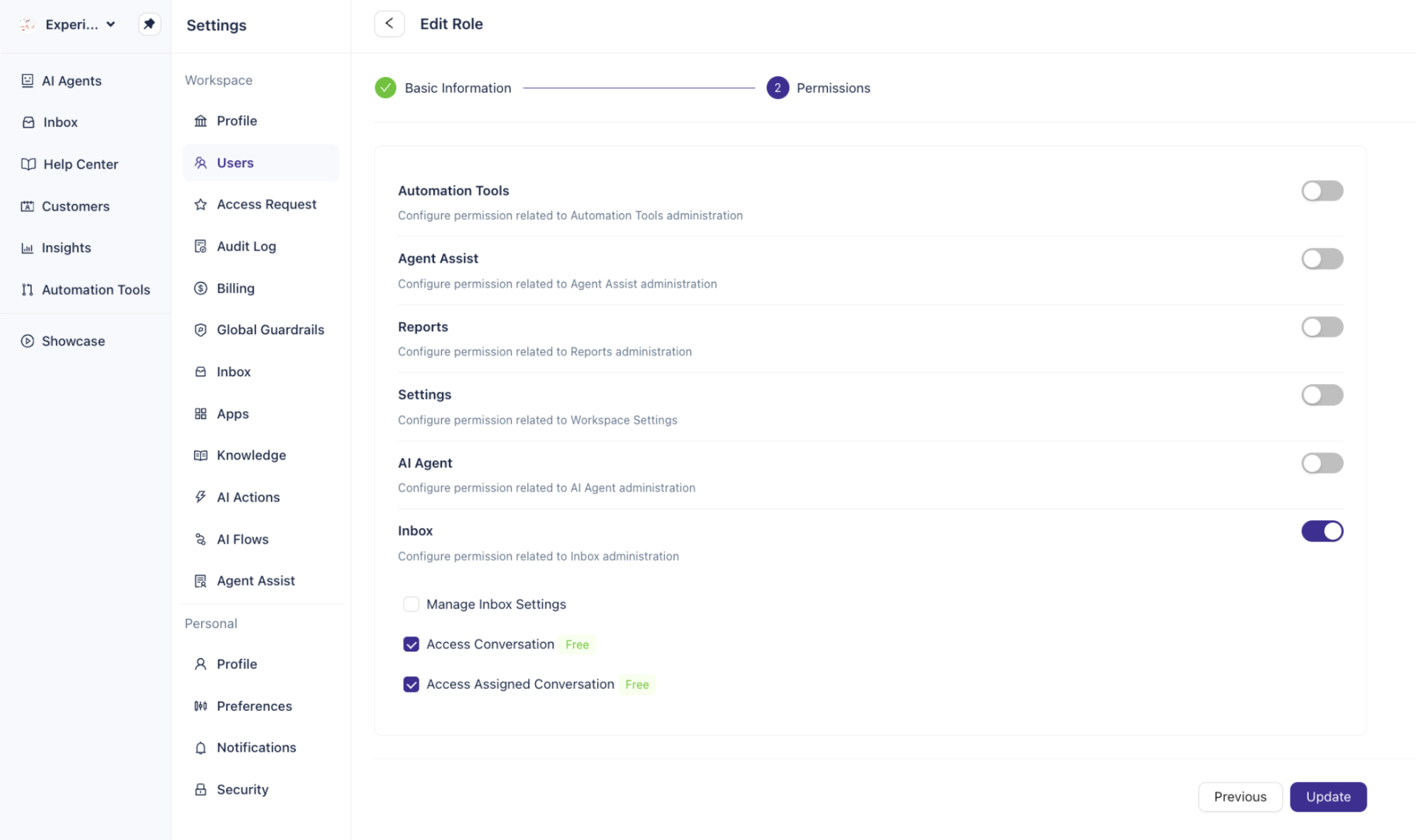
The Agent role is scoped to inbox access only:
Inbox: Access Conversation, Access Assigned Conversation
All other modules (Automation Tools, Agent Assist, Reports, Settings, and AI Agent) are disabled for this role.
Customer
The Customer role has no permissions enabled by default. It provides basic workspace access only. This role cannot be edited or deleted.
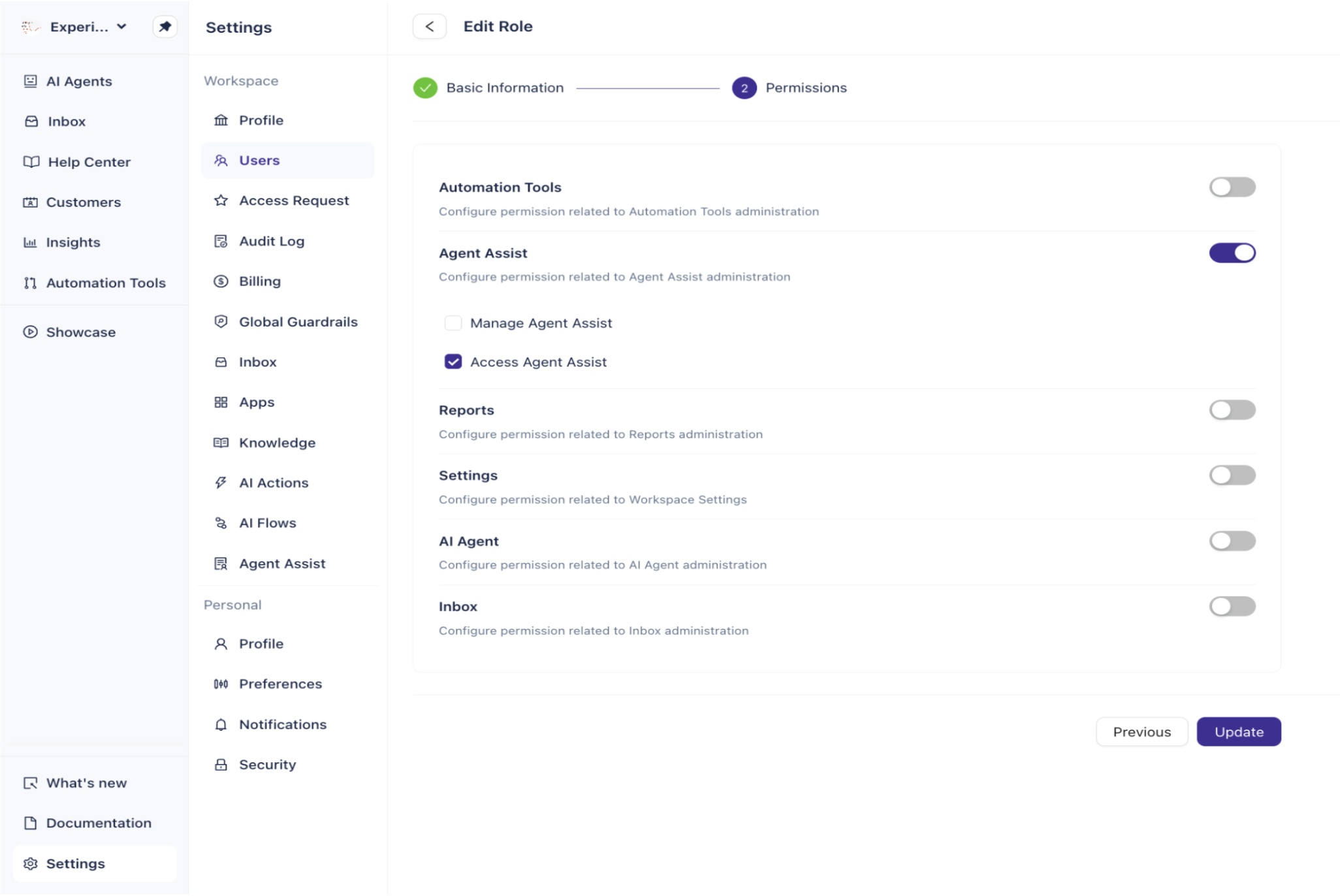
Agent Assist User
The Agent Assist User role is scoped to the Agent Assist module:
Agent Assist: Access Agent Assist (Manage Agent Assist is not enabled by default)
All other modules are disabled for this role.
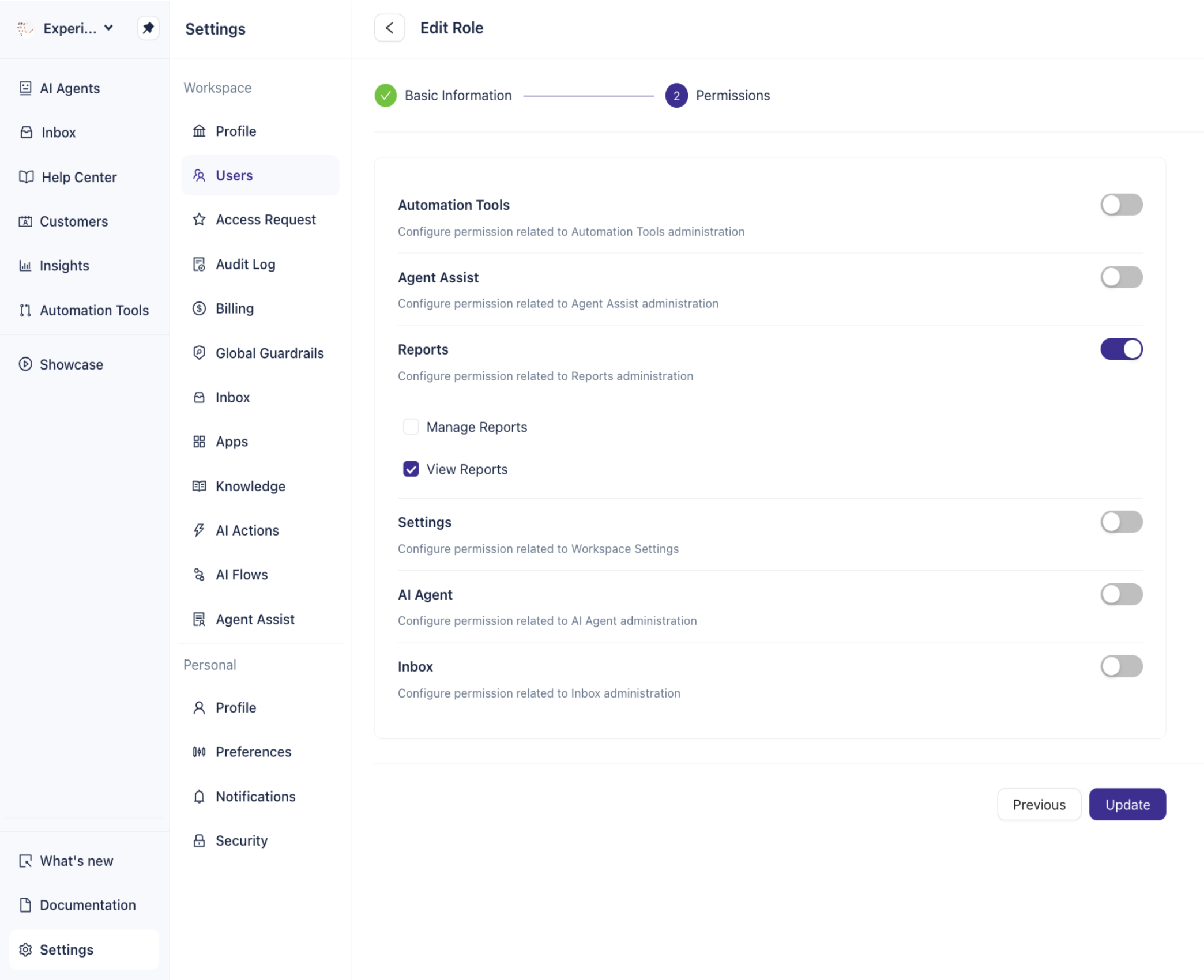
Reports Viewer
The Reports Viewer role is scoped to report viewing only:
Reports: View Reports (Manage Reports is not enabled by default)
All other modules are disabled for this role.
Note: Reports Viewer availability may depend on your plan. If this role does not appear in your workspace, check your Enjo Subscription Plans for details.
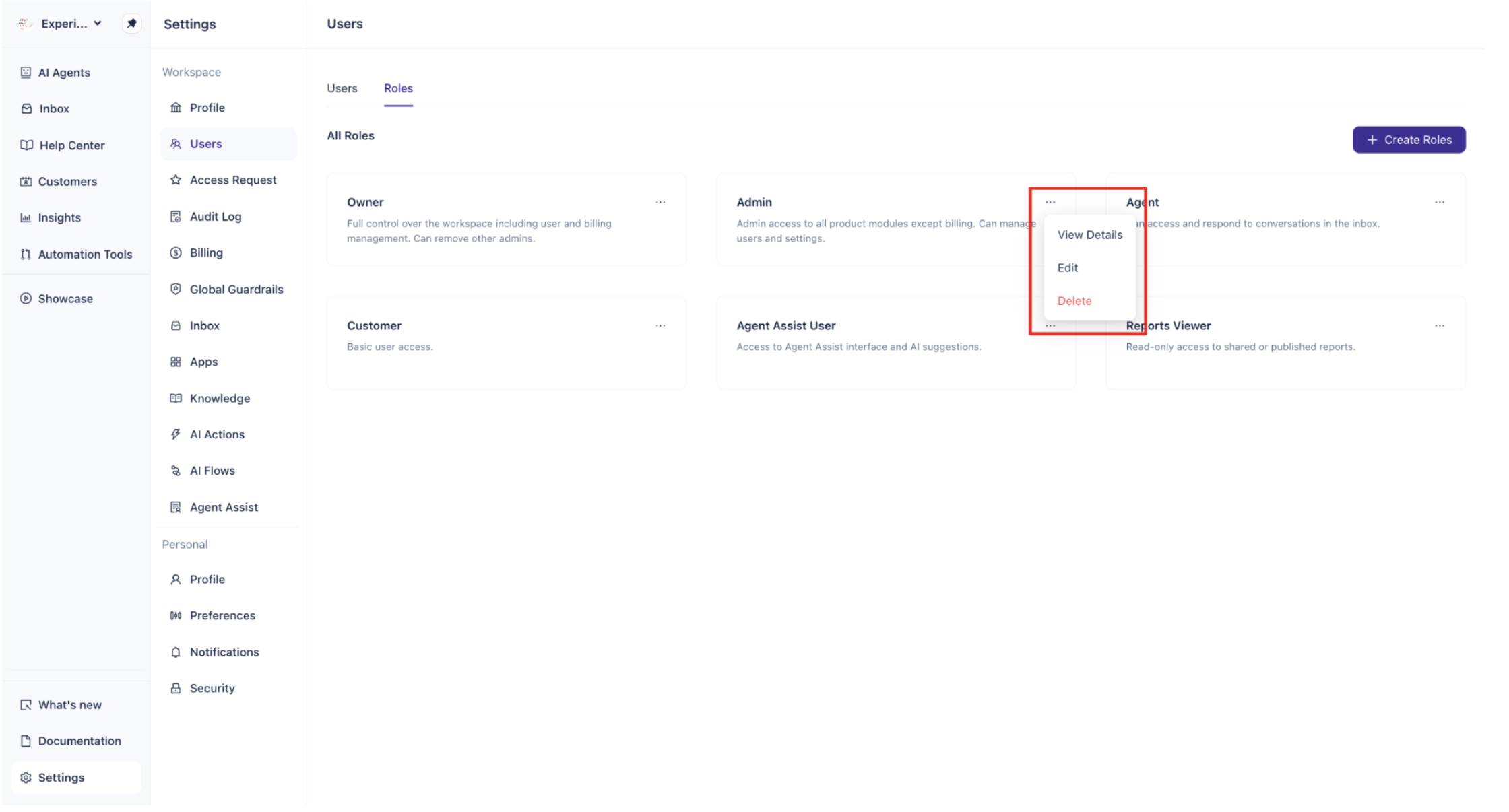
View Role Details
To inspect the full permission set of any role:
Go to Settings > Users and select the Roles tab.
Click the ... menu on the role card.
Select View Details.
The role detail view shows all permission categories with toggles indicating which permissions are active.
Edit a Role
You can edit the Admin, Agent, Agent Assist User, and Reports Viewer default roles, as well as any custom roles, to update their name, description, or permissions. The Owner and Customer roles cannot be edited.
To edit a role:
Go to Settings > Users and select the Roles tab.
Click the ... menu on the role you want to edit.
Select Edit.
Update the role name or description on the Basic Information step, then click Next.
Adjust permissions on the Permissions step.
Click Update to save your changes.
Delete a Role
You can delete any role except Owner and Customer. This includes the Admin, Agent, Agent Assist User, and Reports Viewer default roles, as well as any custom roles you have created.
To delete a role:
Go to Settings > Users and select the Roles tab.
Click the ... menu on the role you want to delete.
Select Delete.
Important: Deleting a role removes it permanently. Make sure no users are actively assigned to the role before deleting it.
What's Next
Custom Roles in Enjo: Create and assign custom roles with a specific combination of permissions for your workspace.
Permissions: See a full reference of every available permission and what it controls across each module.
Invite Users: Add new members to your workspace and assign them a role during onboarding.