
Working with Conversations
In this article, you'll learn how to open, read, reply to, and resolve conversations in the Inbox.
Opening a conversation
Click any row in the conversation list to open it. The detail view has four areas:
Area | What it shows |
|---|---|
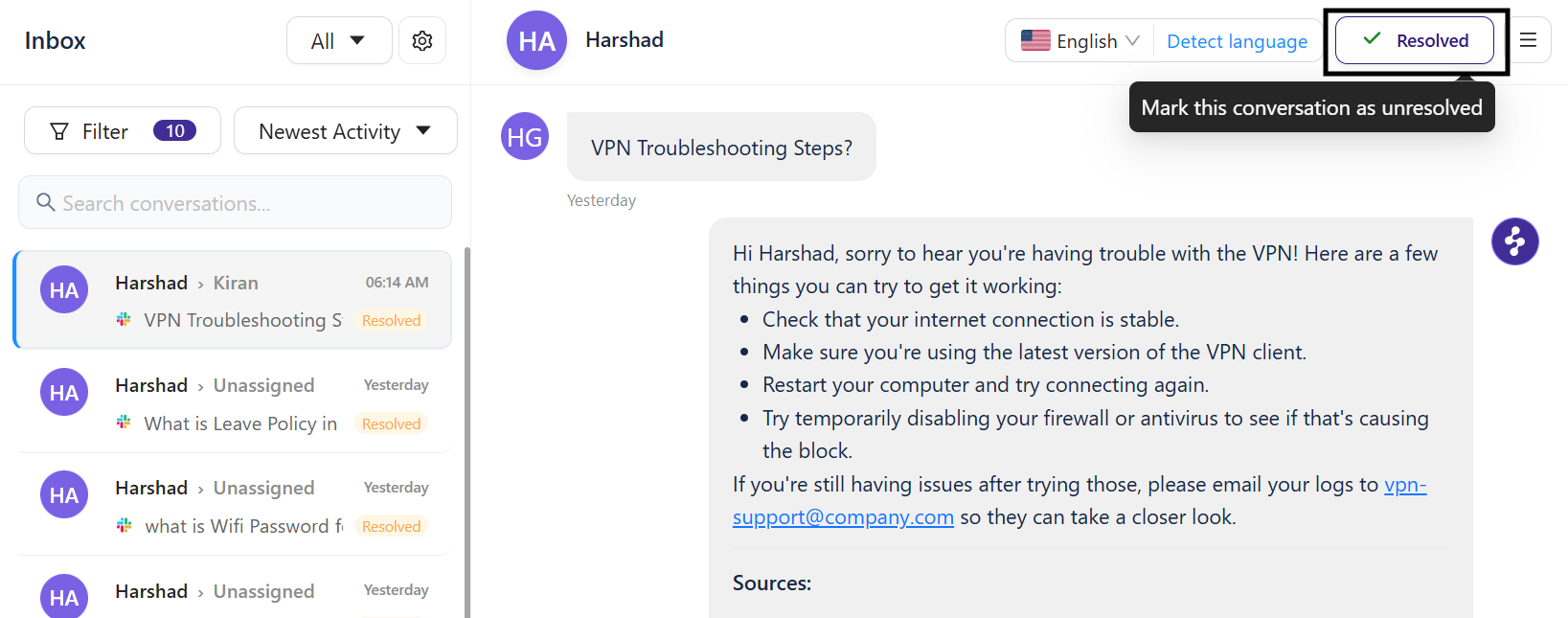
Conversation header | Customer name, avatar, language selector, and resolution status |
Conversation thread | Full message history in chronological order |
Reply composer | Rich text editor at the bottom for drafting responses |
Right panel | Two tabs — Details and Agent Assist — with contextual information |
Conversation statuses
Every conversation has one of two statuses:
Status | Meaning |
|---|---|
Open | Active — waiting for a response or in progress |
Resolved | Closed — no further action expected |
Unresolved |
Click the status badge in the conversation header to toggle between Open and Resolved.
Resolved conversations remain accessible in the Inbox. Use the Closed filter to find them.
Reading the conversation thread
The thread shows all messages in the order they occurred. Each message type is visually distinct:
Customer messages — Shown with the customer's avatar on the left.
AI Agent responses — Shown with the Enjo avatar, indicating the AI handled this part of the conversation.
Human agent replies — Shown with the agent's avatar.
System events — Inline notifications such as
Ticket CS-26 created successfullythat track automated actions.
Hover over any message to reveal additional actions via the three-dot menu.
Replying to a conversation
The reply composer supports:
Rich text formatting — Click the Tt button to toggle the formatting toolbar for bold, italic, code blocks, and more.
Emoji — Click the smiley face icon to insert emoji.
File attachments — Click the paperclip icon to attach files.
Replies are delivered through the same channel the conversation originated from. If a customer reached out via Slack, your reply appears in their Slack thread.
Resolving a conversation
Click the status badge in the conversation header.
Set the status to
Resolved.
The conversation moves to the Closed view and remains fully accessible for reference and audit.
💡TIP: To reopen a resolved conversation, click the status badge again and set it back to Open.
What's next
Conversation Details — View customer context, add private notes, and manage linked tickets.
Using Agent Assist — Get AI-generated answers and summaries while handling a conversation.
Real-Time Translation — Support customers in any language from within the Inbox.