Configuration and Branding
In this article, you'll learn how to brand your Help Center portal, configure its navigation, enable the AI Assistant search widget, and control how the portal appears to search engines.
How configuration works
The Configure and Style panel controls how your Help Center portal looks and behaves for customers. It has four sections:
Section | Controls |
|---|---|
Branding | Logo, name, color, font, display mode, landing page |
Navigation | Top-bar external links and the table of contents |
Domain & SEO | Custom domain and search engine visibility |
AI Assistant | The AI chat widget shown in the portal |
To open it:
Go to Help Center from the left navigation.
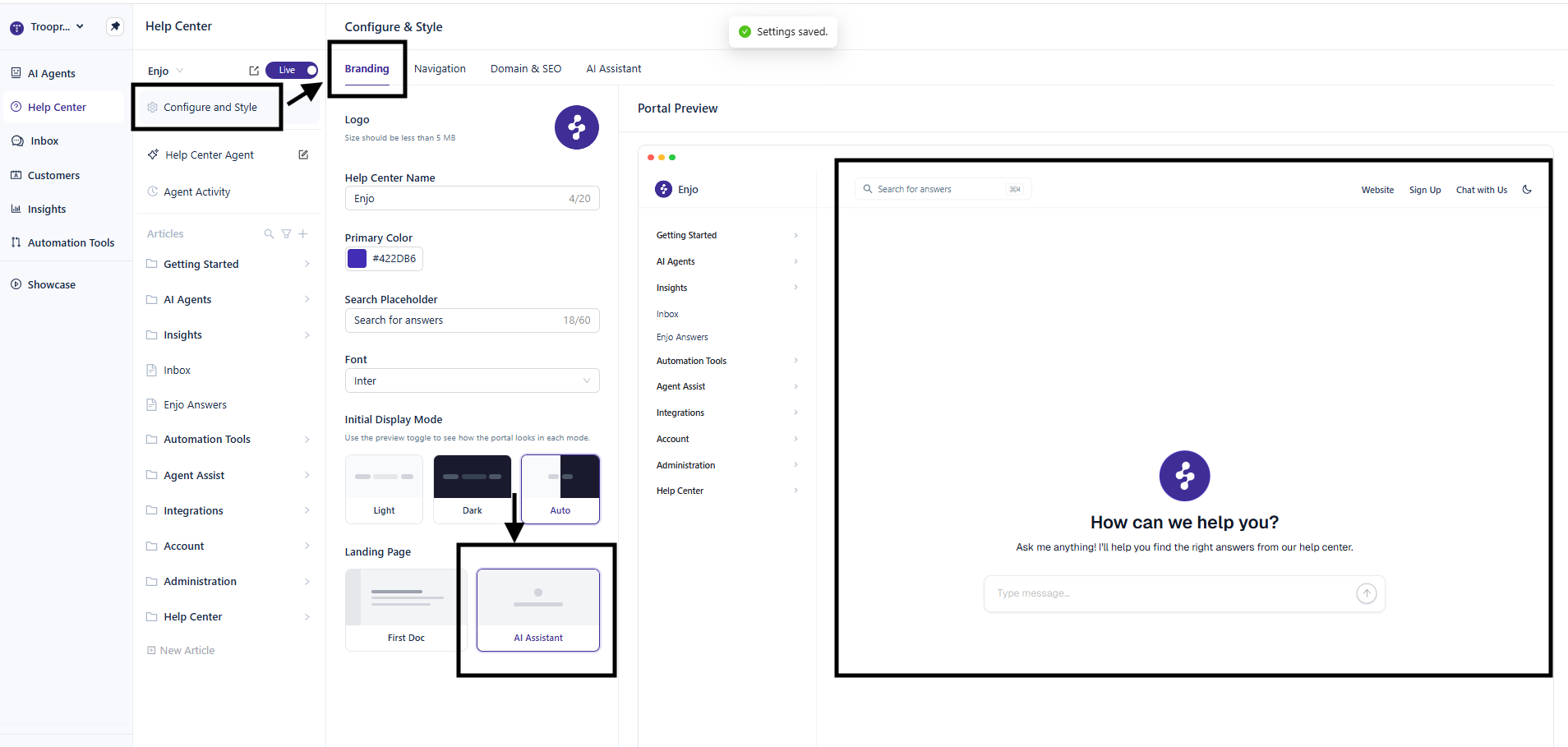
Click Configure and Style.
Changes appear in the Portal Preview on the right as you edit.
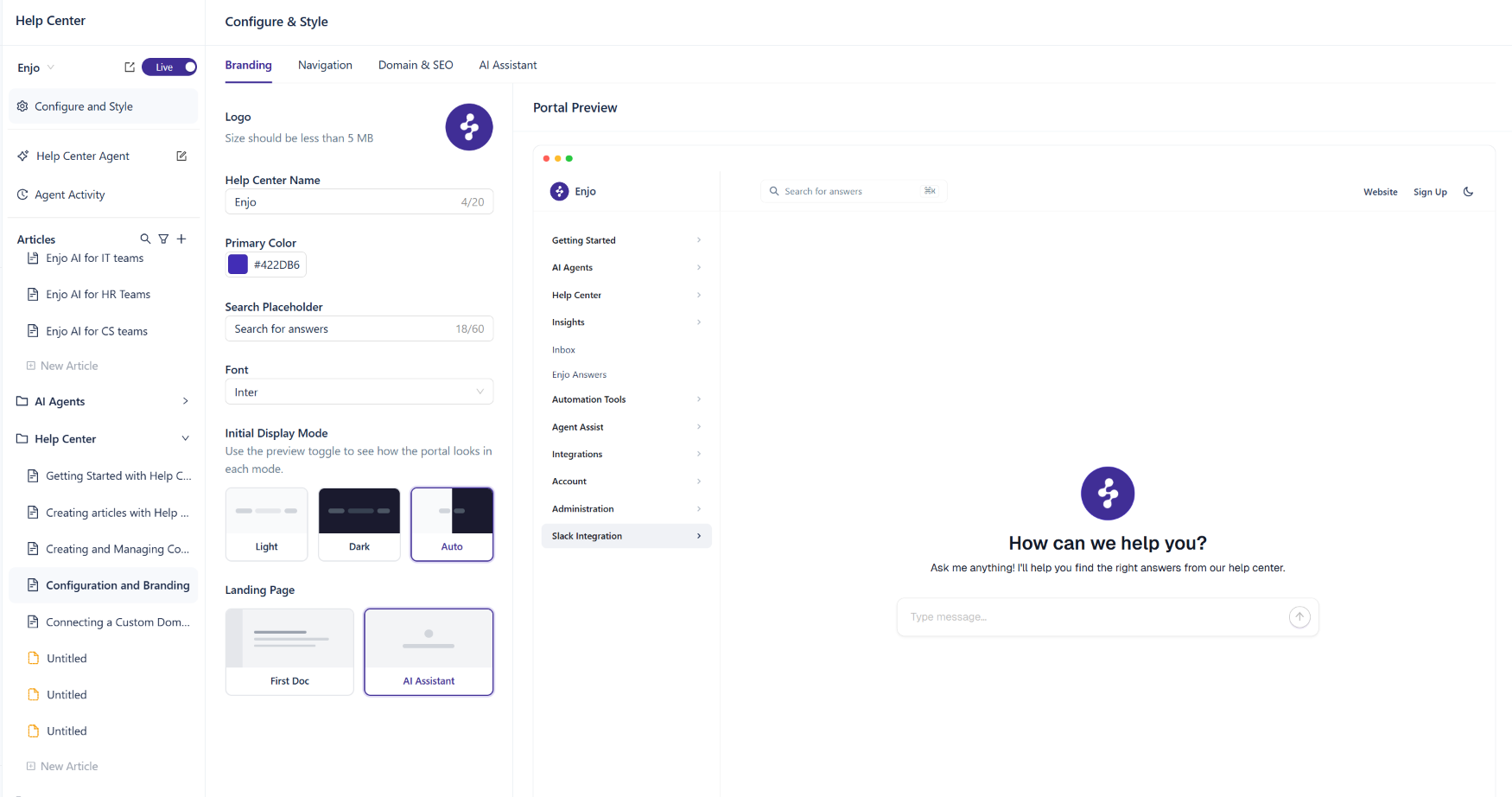
💡 The Portal Preview is interactive. Toggle between light and dark modes, click navigation items, and try the AI Assistant widget before saving changes.
Branding
The Branding tab controls the visual identity of your portal what customers see the moment they land on it.
Open Configure and Style.
Click Branding in the left panel.
Logo
Click the logo placeholder in the Branding panel.
Upload a JPG, PNG, GIF, or WebP file under 5 MB.
The logo appears in the top-left of your portal.
Help Center name
Enter the name shown in the portal header in the Help Center Name field. Maximum 20 characters.
Primary color
The primary color is used for links, buttons, the AI Assistant icon, and accent elements throughout the portal.
Click the color swatch under Primary Color.
Enter a hex value — for example,
#422DB6— or pick a color from the picker.
💡 Use a color with sufficient contrast against both light and dark backgrounds. If you support both display modes, preview the portal in each before saving.
Search placeholder
The Search Placeholder is the gray text shown in the search bar before a customer types. Maximum 60 characters. Default: Search for answers.
Font
Pick the typeface used throughout the portal from the Font dropdown.
Initial display mode
The Initial Display Mode controls how the portal renders when a customer first opens it.
Mode | What it does |
|---|---|
Light | Always opens in light mode |
Dark | Always opens in dark mode |
Auto | Matches the customer's system preference |
Customers can switch modes manually using the toggle in the top-right of the portal regardless of the initial setting.
💡 Auto is usually the safest default. It respects the customer's existing system preference and avoids forcing a jarring switch when they land on your portal.
Landing page
The Landing Page is the first screen customers see when they open your Help Center.
Option | When to use |
|---|---|
First Doc | The customer lands on the first article in your Help Center. Best when you have a clear entry point — a getting-started guide or product overview. |
AI Assistant | The customer lands on the AI Assistant chat interface. Best when most customers come with a specific question rather than to browse. |
💡 The AI Assistant landing page works best when you have enough published content for the assistant to ground its answers in. If your Help Center has fewer than ten articles, the First Doc landing page is usually clearer.
Navigation
The Navigation tab controls the top bar of your portal and the in-article table of contents.
External links
Add up to three external links to the top navigation bar — for example, your main website, sign-up page, or support channel.
Open Configure and Style > Navigation.
Under External Links, enter a label and URL for each link.
Drag the handle to the left of each row to reorder.
Click the trash icon to remove a link.
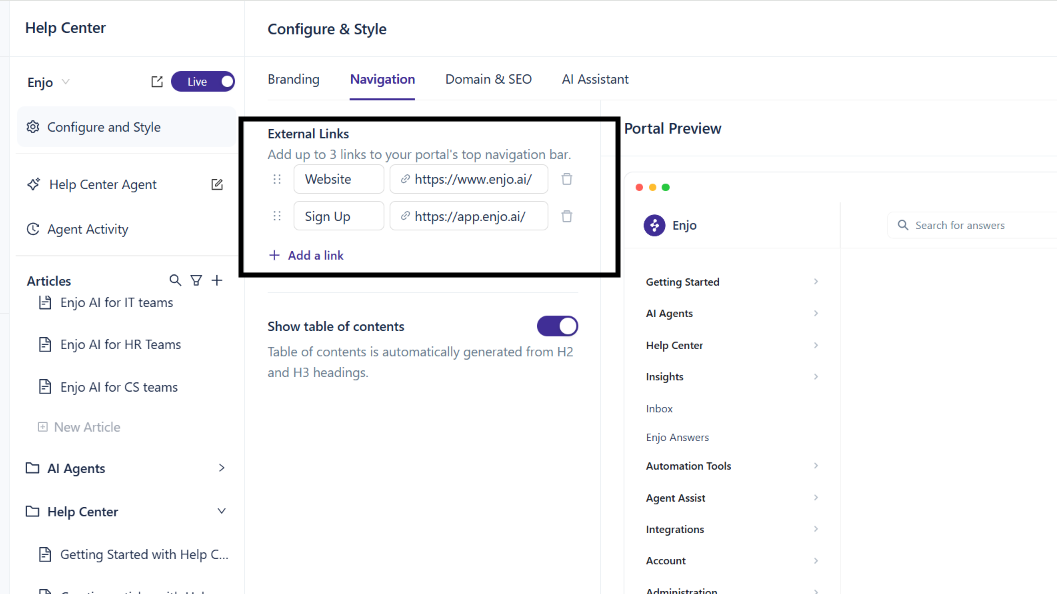
💡 Keep labels short — one or two words. Long labels wrap awkwardly in the top navigation on smaller screens.
Table of contents
The table of contents lists the H2 and H3 headings in an article and appears in a column on the right side of the article page.
Open Configure and Style > Navigation.
Toggle Show table of contents on or off.
The table of contents is generated automatically from H2 and H3 headings — you don't add it manually.
💡 If you turn the table of contents on, keep your article headings consistent and well-scoped. The table of contents is only useful when H2 and H3 headings reflect the article's actual structure.
AI Assistant
The AI Assistant is the AI-powered chat widget customers use to ask questions in natural language and get instant answers from your published articles.
Enable the AI Assistant
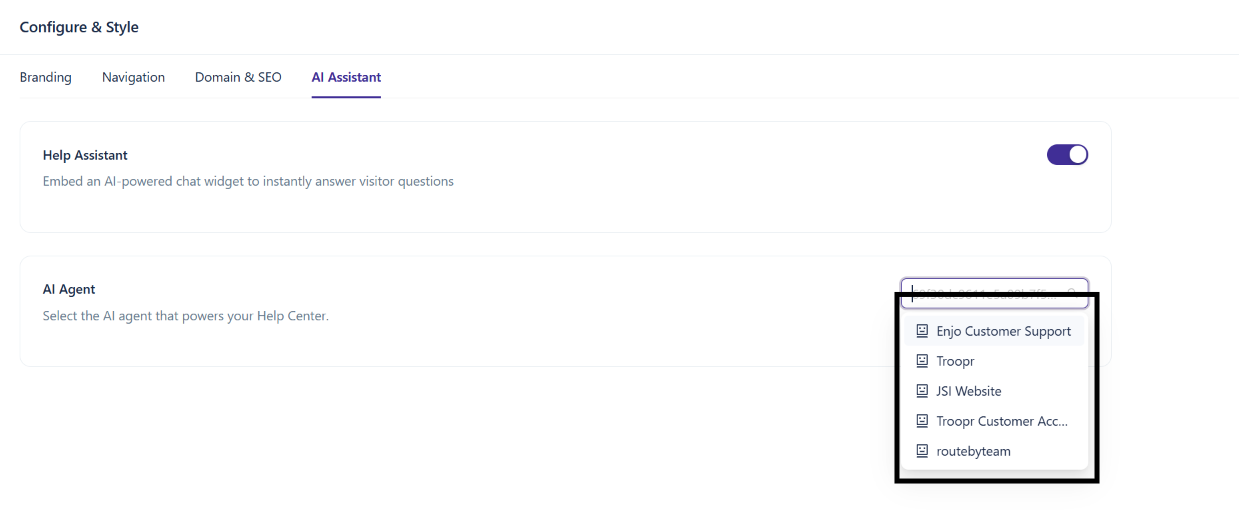
Open Configure and Style > AI Assistant.
Toggle Help Assistant on.
Once enabled, the AI Assistant appears as a chat button in the portal and powers the AI Assistant landing page if you've selected it under Branding.
💡 The AI Assistant is distinct from the AI Agent (the autonomous resolver in Slack, Teams, email, and chat channels) and the Help Center Agent (your internal content authoring assistant). All three can draw from the same knowledge, but each serves a different audience.
What the AI Assistant draws from
The AI Assistant answers customer questions using your published Help Center articles. Drafts and unpublished articles are excluded.
If the assistant can't find a grounded answer, it tells the customer rather than guessing.
💡 If the AI Assistant gives weak or generic answers, the fix is usually content coverage — publish articles for the topics customers ask about. Use the Agent Activity log and customer search queries to find content gaps.
Set the AI Assistant as the landing page
To make the AI Assistant the first thing customers see, set the landing page to AI Assistant under Branding > Landing Page.
Search engine visibility
The Domain & SEO tab controls your portal's URL and whether search engines can index it.
Your portal URL
Your Help Center has a default URL on help.enjo.ai. You can also connect a custom domain — for example, help.yourcompany.com — so the portal lives on your own brand.
To set up a custom domain, see Connecting a Custom Domain.
⚠️ Once a custom domain is verified, the default help.enjo.ai URL permanently redirects (301) to your custom domain. Make sure DNS is pointed and verified before going live. Visitors hitting the default URL will see a redirect until the switch is complete.
Search engine indexing
The Visibility toggle in the Domain & SEO tab controls whether your Help Center is publicly accessible.
State | What it does |
|---|---|
On | The portal is public and search engines can crawl and index it. |
Off | The portal is not publicly accessible. Search engines cannot index it. |
💡 Keep visibility off until your initial content is published and reviewed. Search engine indexes are slow to update — a premature public launch can leave incomplete pages in search results for weeks.
What's next
Connecting a Custom Domain — Add your own domain to your Help Center portal.
Creating and Managing Content — Create articles, organize them into collections, and manage the publishing lifecycle.