.png)
Zammad
In this article, you'll learn how to connect Zammad to your Enjo workspace by creating an application in Zammad, retrieving the required credentials, and completing the setup in Enjo.
Before you start
You need Owner or Admin role in Enjo.
You need access to your Zammad instance with permission to manage API applications in Settings.
Step 1 — Start the connection in Enjo
Go to Settings > Apps.
Click Connect Apps.
Find Zammad in the list and select it.
Click + Add New.
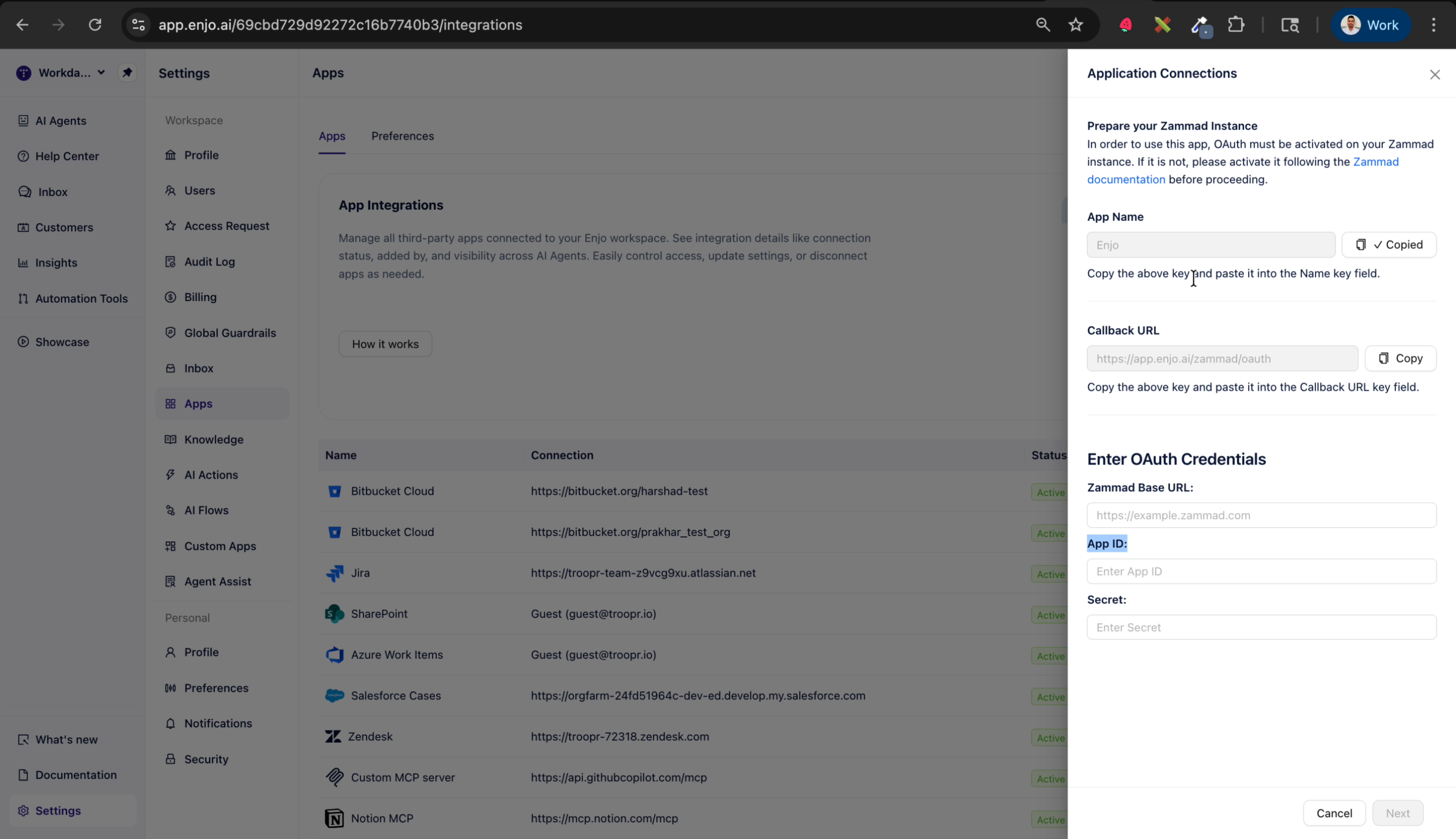
The configuration screen shows the following fields:
App Name
Callback URL
App ID
Secret
Base URL
Keep this screen open you will need the Callback URL when creating the application in Zammad.
Step 2 — Create an application in Zammad
Log in to your Zammad instance.
Go to Settings > API.
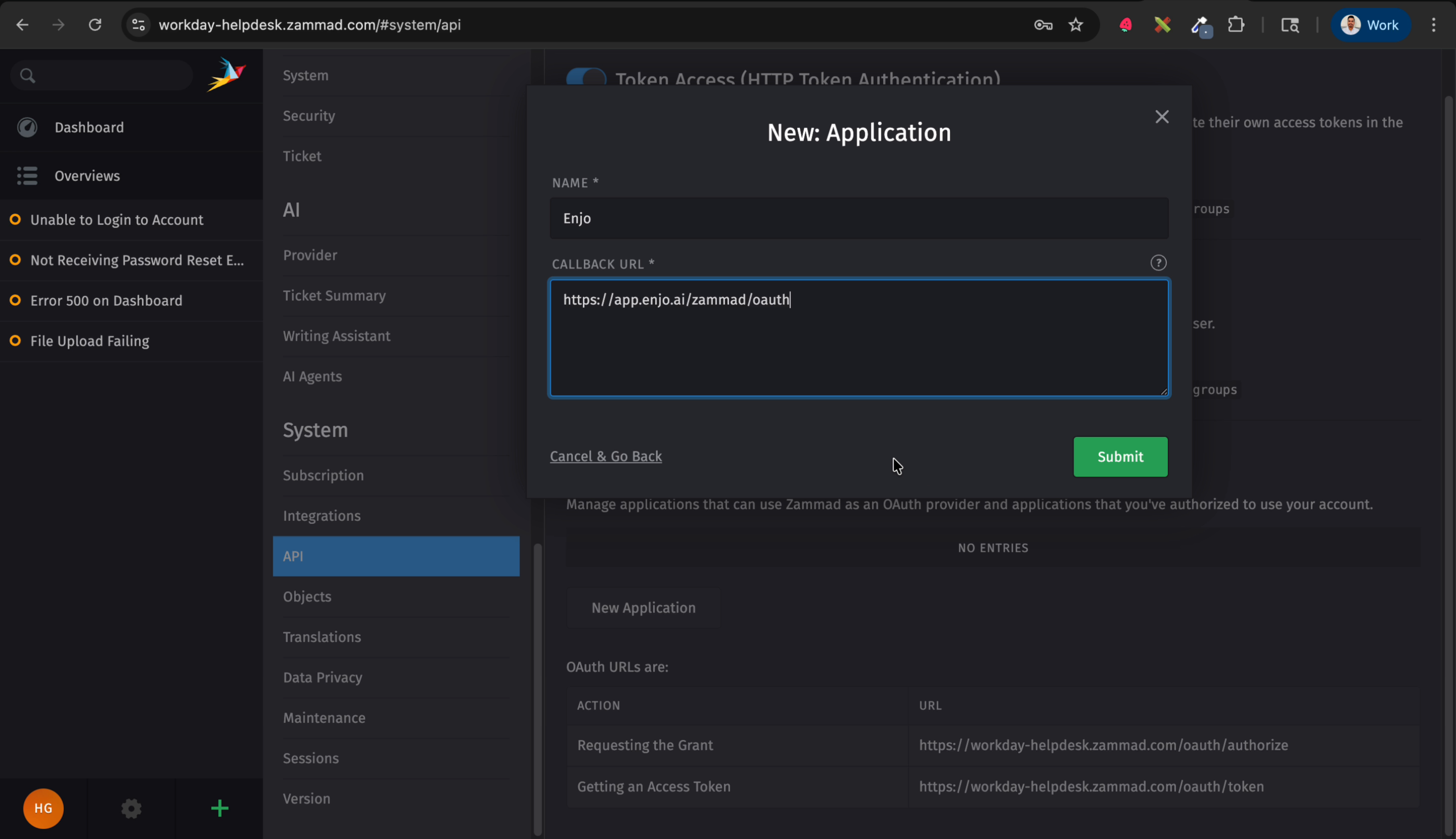
Click New Application.
Fill in the form:
Name : enter a recognisable name for the application
Callback URL : paste the exact Callback URL from the Enjo configuration screen
Click Submit.
⚠️ The Callback URL must match exactly what is shown in Enjo. Any difference will cause the connection to fail.
Step 3 — Copy credentials from Zammad
Find your newly created application in the list and click on it.
Click View to see the application credentials.
Copy the App ID and Secret ID.
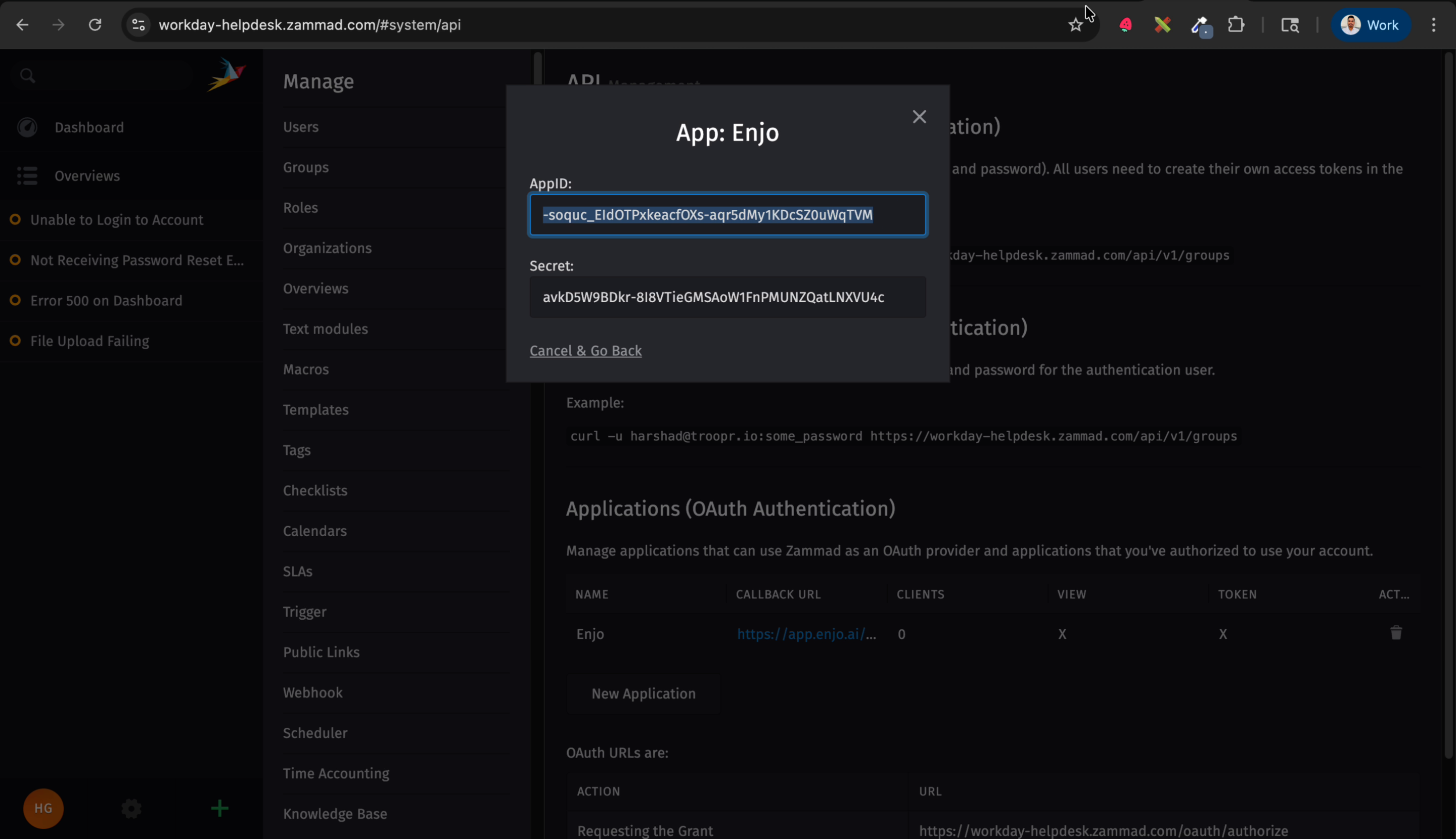
💡 If the credentials do not appear immediately after saving, close the details view, refresh the page, and open the application again.
Step 4 — Enter credentials in Enjo
Return to the Enjo configuration screen.
Paste the App ID into the App ID field.
Paste the Secret ID into the Secret field.
Enter your Zammad Base URL : copy your Zammad helpdesk URL and make sure it ends with
.com.Click Next.
Step 5 — Set visibility and connect
Enter a name for this connection — for example, Zammad.
Choose the visibility:
Workspace : available to all AI Agents in your workspace
Specific AI Agents : available only to selected agents
Click Connect.
Step 6 — Authorise the connection
When prompted in Zammad, click Authorize to approve the access request.
Once authorised, the Zammad connection appears under Settings > Apps showing:
Zammad URL
Connected by
Visibility setting
💡 You can update the visibility or delete the connection at any time from Settings > Apps.
What's next
AI Agent Knowledge — Add Zammad ticket data as a knowledge source for your AI Agent.
Enjo App Integrations — Connect other platforms to your Enjo workspace.
AI Agent AI Actions — Configure actions your AI Agent can take in connected systems.
Audit Log — Track integration changes across your workspace.