
Managing Contacts
In this article, you'll learn how to view, create, edit, block, and manage Contacts, the known individuals your team supports in Enjo.
Before you start
You need Owner or Admin role to create, edit, block, or delete contacts.
Agents can view contact profiles linked to their conversations but cannot modify records.
The Contacts tab
Go to Customers from the left navigation and select the Contacts tab.
Four summary cards at the top give you a workspace-wide view:
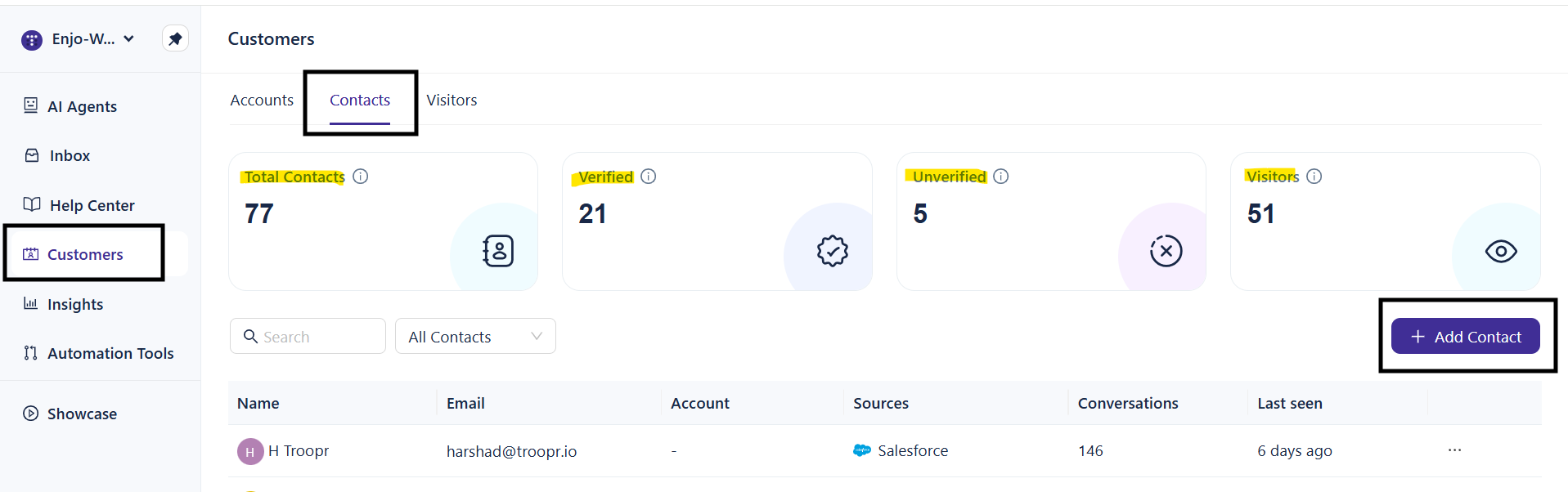
Card | What it shows |
|---|---|
Total Contacts | Total number of persisted contacts in your workspace |
Verified | Contacts with confirmed email ownership |
Unverified | Contacts whose email has been captured but not yet verified |
Visitors | Anonymous session-based users not yet converted to contacts |
Each contact entry shows:
Column | Description |
|---|---|
Name | Contact name with avatar initial |
The contact's email address | |
Account | The associated account, if any |
Sources | Where this contact was created from |
Conversations | Number of conversations with this contact |
Last seen | When this contact was last active |
Use the search bar to find contacts by name or email. Use the filter dropdown to narrow the view by identity state — All Contacts, Verified, Unverified, or Visitors.
Create a contact
Go to Customers > Contacts.
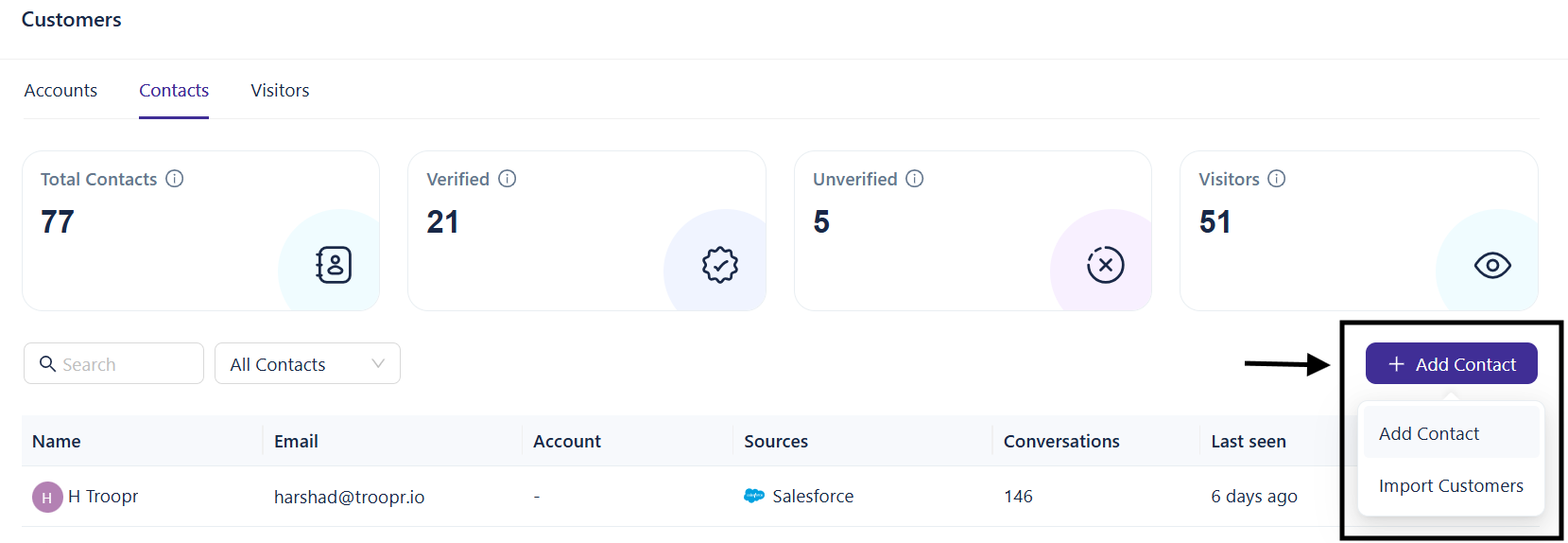
Click + Add Contact in the top right.
Fill in the form:
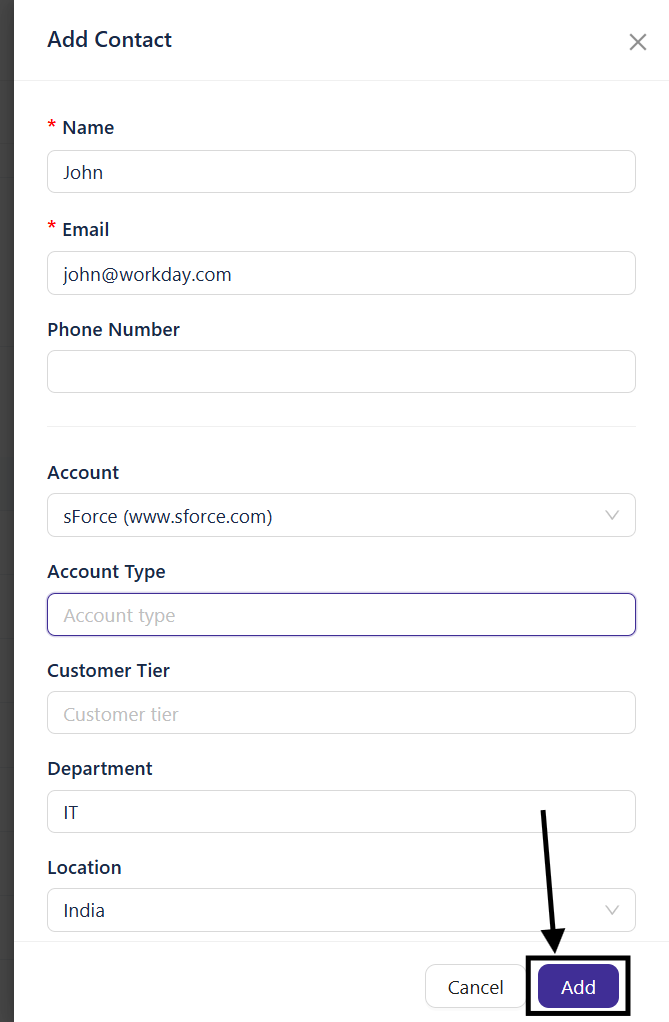
Field | Required | Description |
|---|---|---|
Name | Yes | The contact's full name |
Yes | Must be unique across the workspace | |
Phone Number | No | Optional phone number |
Account | No | Search and select an existing account to associate this contact with |
Account Type | No | Label for the account relationship — for example, Customer, Partner, or Trial |
Customer Tier | No | Service tier — for example, Enterprise, Standard, or Free |
Department | No | The contact's department within their organization |
Location | No | Geographic location |
Timezone | No | The contact's timezone |
Language Preference | No | Preferred language for communication |
Click Add.
💡TIP: Contacts created manually are automatically set to Verified status since an admin is providing the information directly.
Contact detail page
Click any contact in the list to open their detail page. The header shows the contact's name, verification badge, and email. An Edit button and ··· menu are available in the top right.
Conversations tab
Shows all conversations this contact has had with your AI Agents and human support team. Each row shows:
User
Last message
Status — Open or Resolved
Total messages
Last seen
Click any conversation to open it in the Inbox.
Metadata tab
Shows the complete profile for this contact in a read-only structured layout.
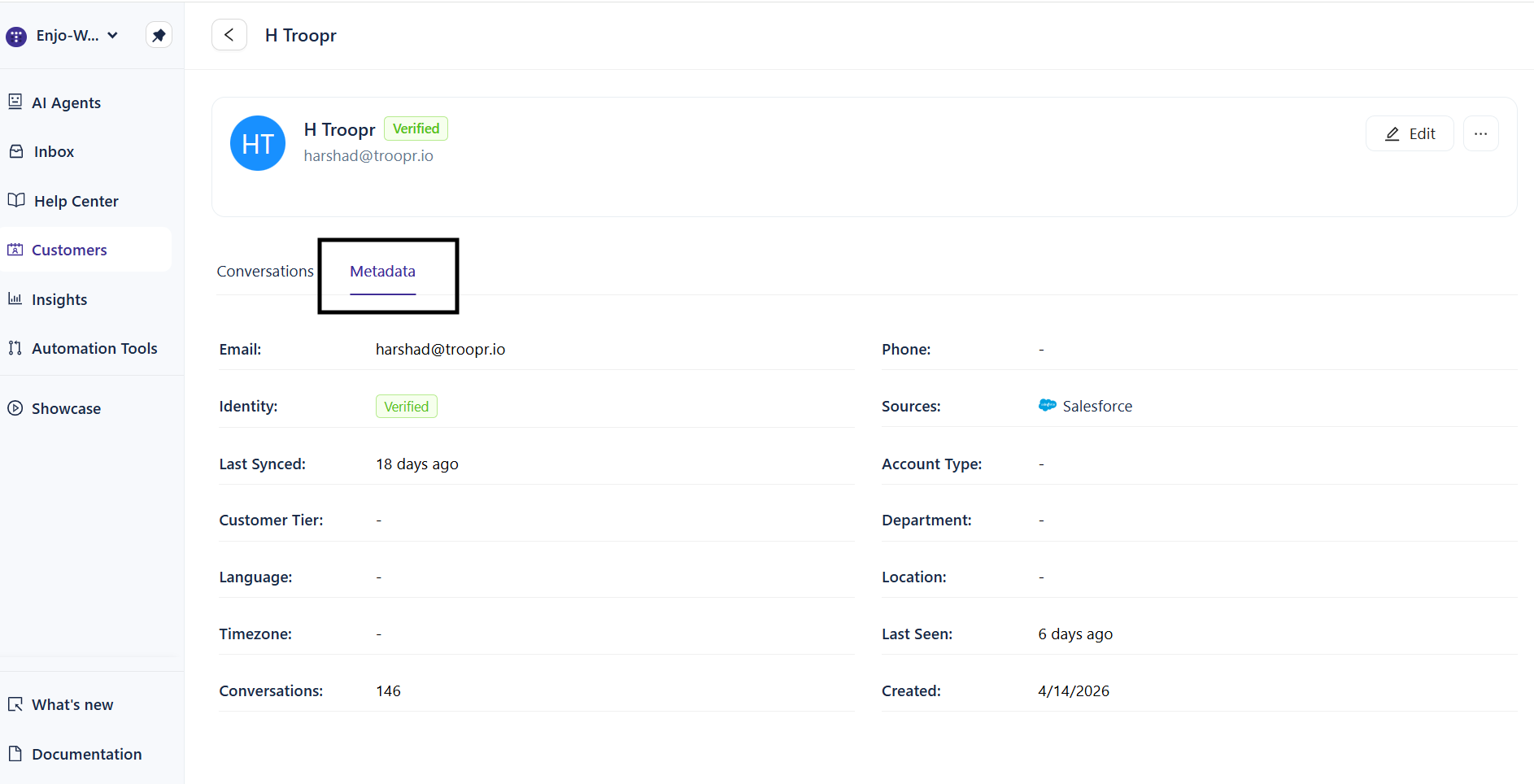
Field | Description |
|---|---|
The contact's email address | |
Phone | Phone number, if provided |
Identity | Current identity state — Verified or Unverified |
Sources | Where this contact originated |
Last Synced | When this contact was last updated via an external sync |
Account Type | The account relationship type |
Customer Tier | Service tier label |
Department | The contact's department |
Language | Preferred language |
Location | Geographic location |
Timezone | The contact's timezone |
Last Seen | Last interaction timestamp |
Conversations | Total conversation count |
Created | When this contact was created in Enjo |
Edit a contact
Open the contact detail page.
Click Edit.
Update any field name, email, phone, account association, or metadata.
Changes save immediately.
Block a contact
Click ··· on the contact row or detail page.
Select Block.
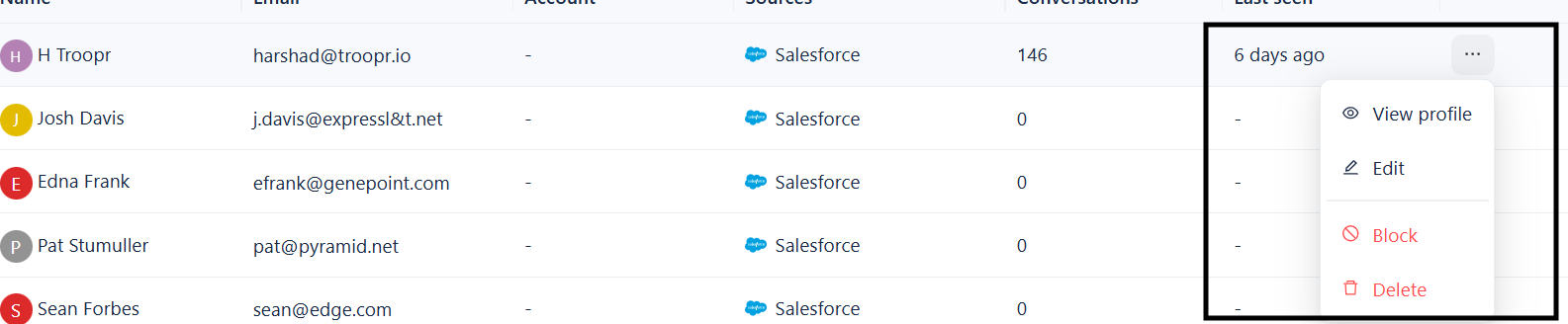
When a contact is blocked:
They cannot start new conversations
Existing conversation history is preserved
The block reason, who blocked them, and the timestamp are logged
To unblock, use the same ··· menu and select Unblock.
⚠️ Only Owners and Admins can block or unblock contacts.
Delete a contact
Click ··· on the contact row or detail page.
Select Delete.
⚠️ Deleting a contact permanently removes the contact record. Conversation history linked to this contact is preserved in the Inbox but is no longer linked to a contact identity. This action cannot be undone.
What's next
Managing Accounts — Associate contacts with B2B organizations.
Understanding Visitors — Learn how anonymous users are tracked and how they become contacts.
Importing Customers — Bulk-import contacts from CSV or Salesforce.