
Global Guardrails
Global Guardrails let you set workspace-wide limits on what the AI Agent can say or do. Unlike agent-level guardrails, which apply to a single agent, these rules apply across every AI Agent in your workspace the moment they're enabled.
Use Global Guardrails to block categories of harmful content, prevent the AI Agent from engaging with specific topics, or ban particular keywords and phrases entirely.
Before you begin
You must have workspace admin access to configure Global Guardrails.
Global Guardrails apply to all AI Agents in your workspace. Changes take effect immediately after saving.
Step 1: Open Global Guardrails
Go to Settings and select Global Guardrails under the Workspace section.
You'll land on the Global Guardrails page, which gives you four controls:
Apply Global Guardrails — a master toggle for a standard set of non-editable system rules
Content Filter — block predefined categories of harmful content
Blocked Topics — prevent the AI Agent from engaging with specific subjects you define
Blocked Words — ban specific keywords or phrases from AI responses
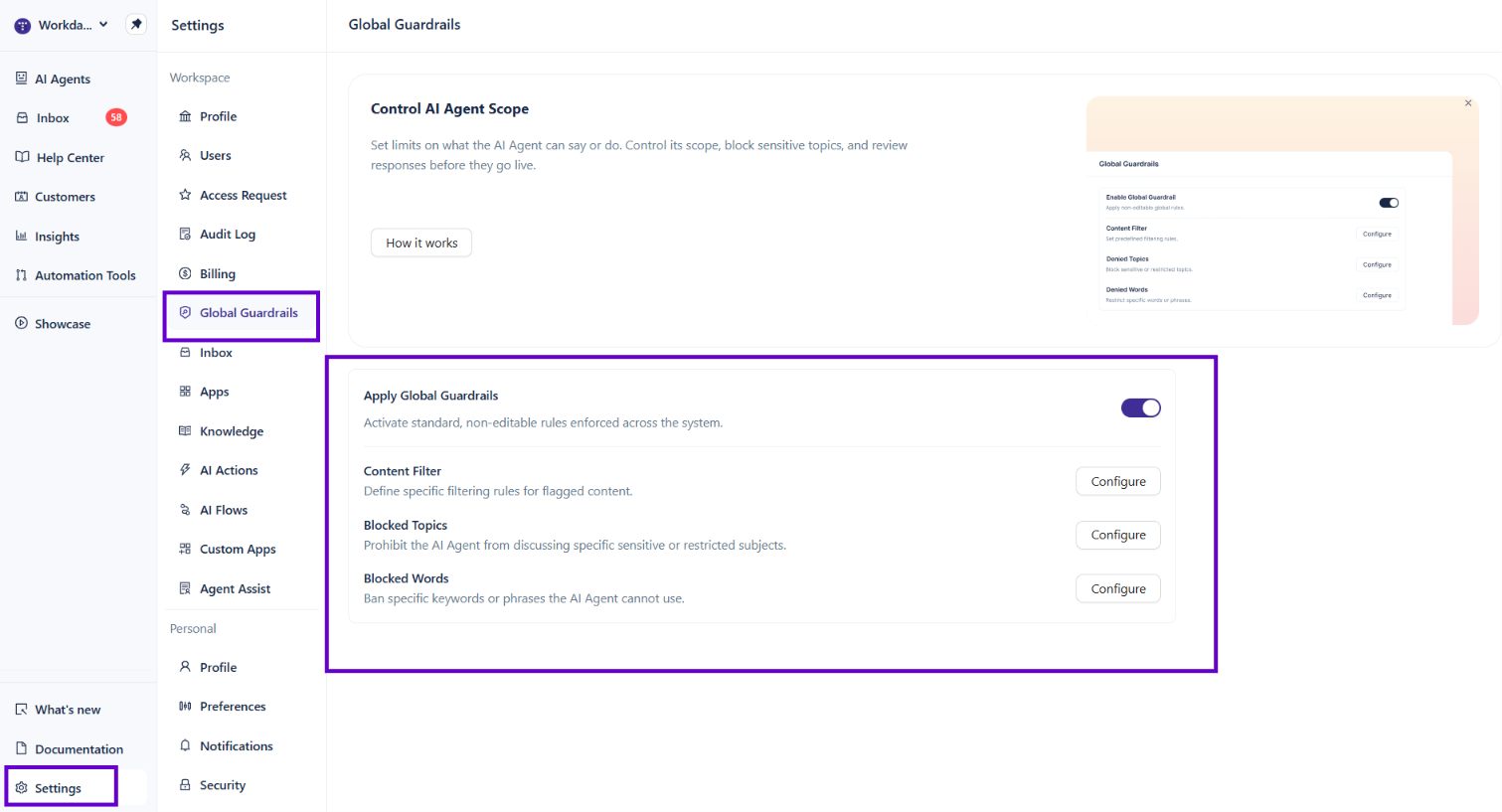
Step 2: Apply Global Guardrails
The Apply Global Guardrails toggle activates a baseline set of standard rules that Enjo enforces across the system. These rules are not editable — turning this on simply activates them for your workspace.
Toggle this on to apply the standard rules, or leave it off if you prefer to rely entirely on your custom configuration below.
Note: Turning off the Apply Global Guardrails toggle does not disable your custom Content Filter, Blocked Topics, or Blocked Words settings. Each control is independent.
Step 3: Configure Content Filter
The Content Filter lets you select predefined content categories that the AI Agent should not respond to. When a user's message matches a flagged category, the AI Agent intercepts the response before it's delivered.
Next to Content Filter, click Configure.
In the panel that opens, check the categories you want to block. Available categories include: Hate, Insult, Sexual, Violence, Finance, and Fight.
Click Test to validate your configuration before saving.
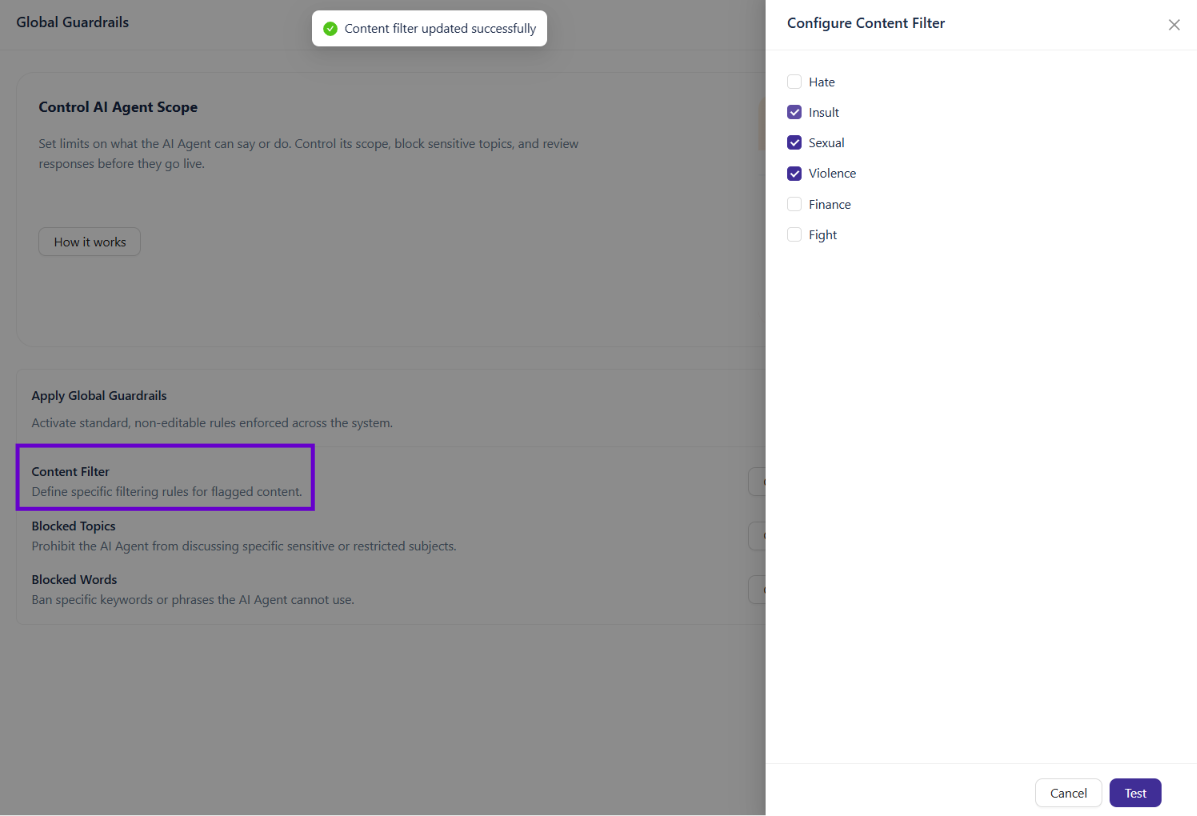
Testing the Content Filter
In the test panel, enter a sample message that relates to one of your selected categories and click Run.
You'll see two responses:
Modal Response — what the AI model generated internally
Final Response — what the user would actually receive after the guardrail intervenes
The Guardrail Action section at the bottom shows how many instances were intercepted. Click Details for a breakdown by category.
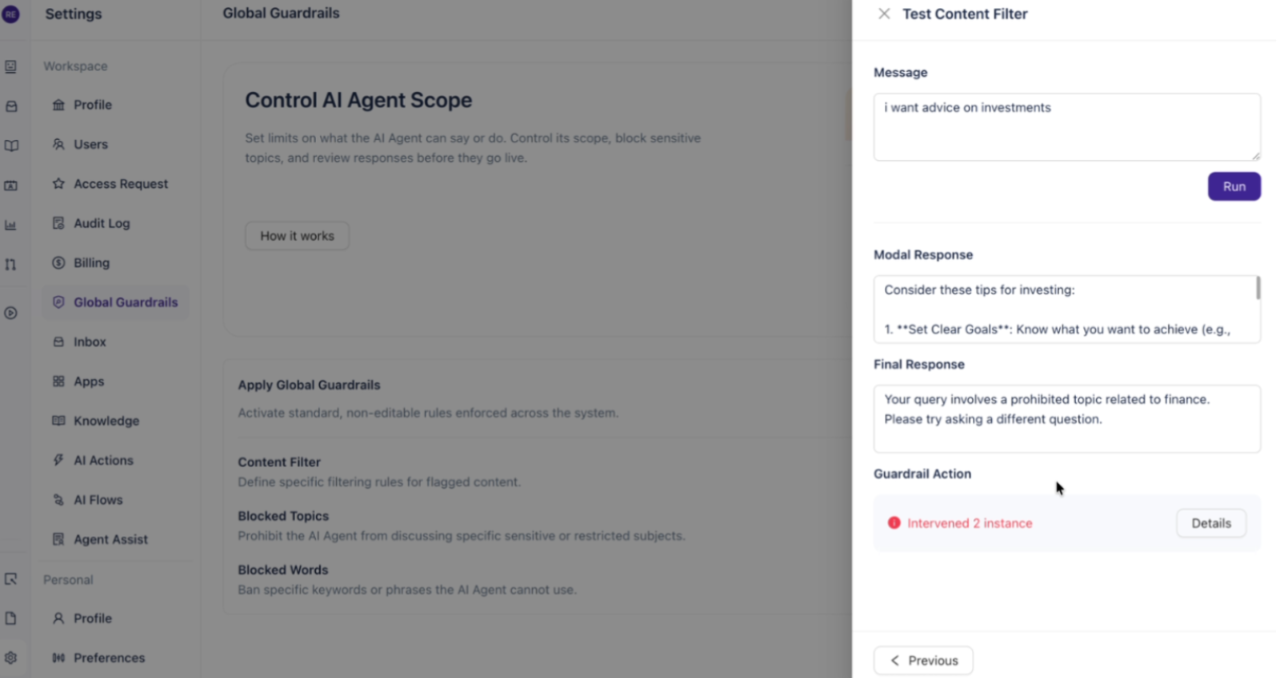
💡Tip: Use the test panel to confirm your filters are working as intended before relying on them in a live environment.
Step 4: Configure Blocked Topics
Blocked Topics let you define specific subjects that the AI Agent should refuse to discuss. Unlike the Content Filter, which uses predefined categories, Blocked Topics are fully custom — you describe the topic and the AI Agent learns what to block from your definition.
Next to Blocked Topics, click Configure.
In the panel that opens, click + Add new.
Fill in the following fields:
Name — a short label for the topic (for example, "Medical advice")
Definition For Topic — a plain-language description of what the topic covers (for example, "anything related to medical and health")
Add Sample Phrases (optional) — example messages that should trigger this block. Adding sample phrases helps the AI Agent recognize edge cases more accurately.
Click Add to save the topic.
Repeat for any additional topics you want to block.
Click Test to validate.
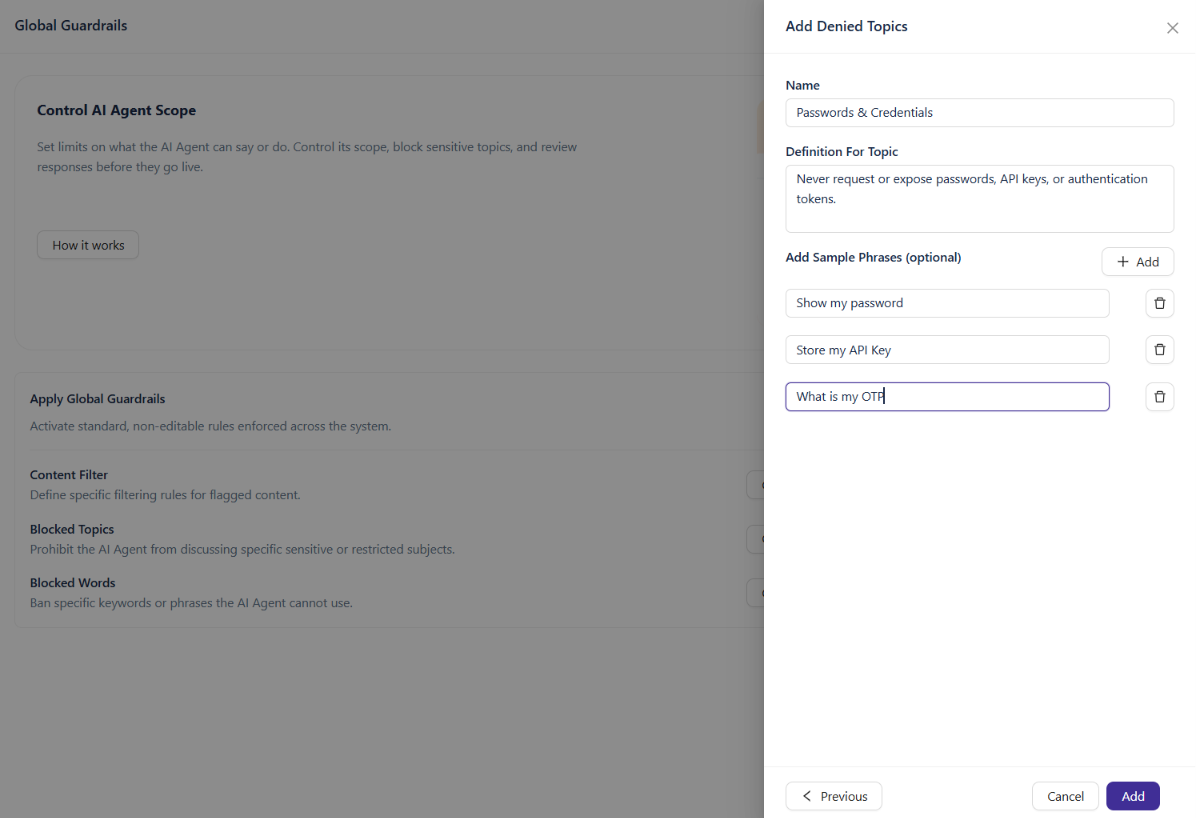
Testing Blocked Topics
Enter a message related to one of your blocked topics and click Run. The test panel shows the Modal Response (what the model generated) and the Final Response (what the user sees after the guardrail blocks it).
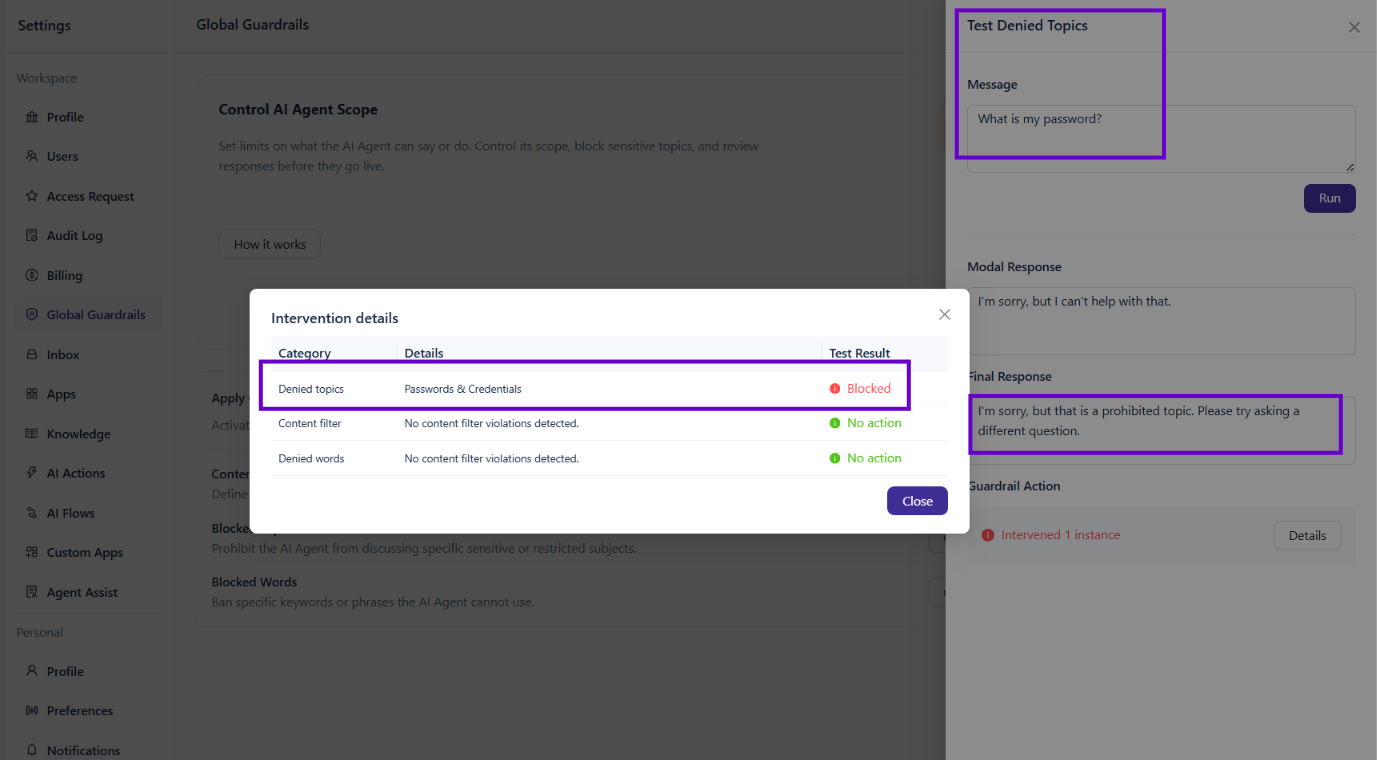
Note: You can view or delete existing topics from the Blocked Topics list. Use the search field to find specific topics if your list grows.
Step 5: Configure Blocked Words
Blocked Words let you specify individual keywords or phrases that the AI Agent cannot use or respond to. Any message containing a blocked word will be intercepted, regardless of context.
Next to Blocked Words, click Configure.
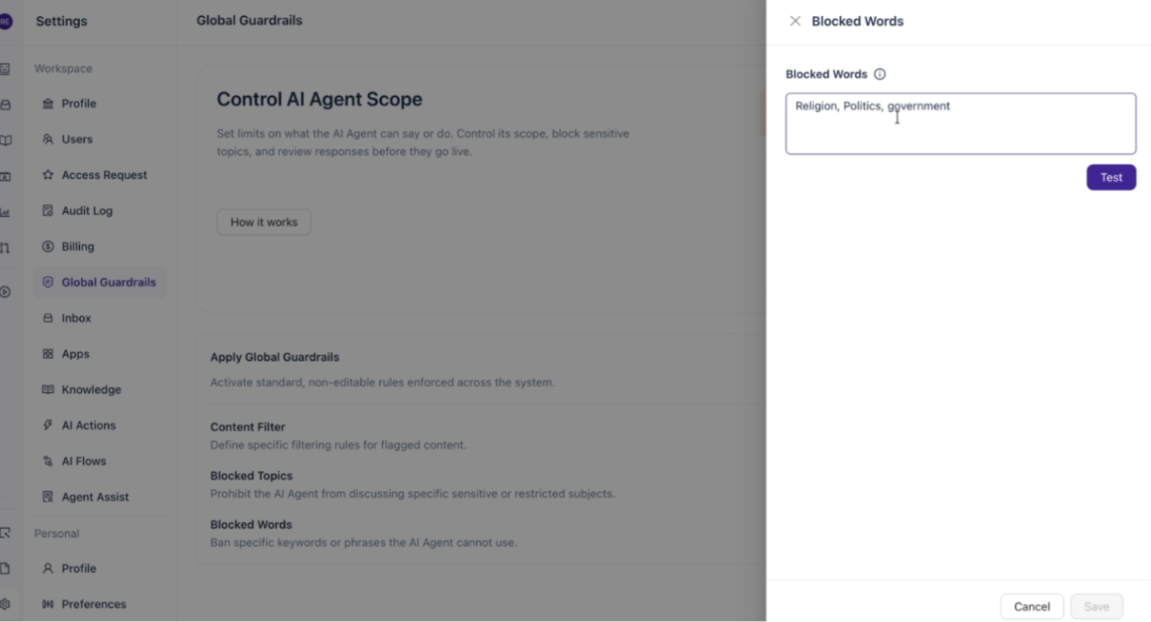
In the text field, enter the words or phrases you want to block, separated by commas (for example, "Religion, Politics, government").
Click Test to validate your configuration.
Click Save to apply.
Testing Blocked Words
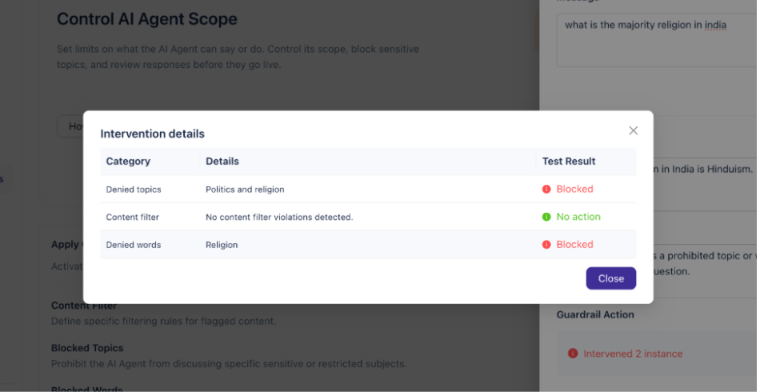
Enter a sample message that contains one of your blocked words and click Run. The Final Response will confirm the block, and the Guardrail Action section will show which rule intervened.
Understanding intervention details
When you click Details in the Guardrail Action section, a modal shows a full breakdown of what triggered:
Category — which guardrail rule was involved (Blocked Topics, Content Filter, or Blocked Words)
Details — the specific rule or word that matched
Test Result — whether the guardrail blocked the message or took no action
What's Next
Guardrails (Agent-level) — Configure guardrails for individual AI Agents, separate from workspace-wide rules.
Audit Log — Review a searchable history of activity across your workspace for compliance and investigation purposes.
User Roles — Manage who in your workspace can access and modify settings, including guardrail configuration.