
AI Agent Admins
By default, members with the relevant account-level permissions can manage any AI Agent. Adding administrators to a specific agent limits management access to only the members you designate.
Prerequisites
You must have account-level admin access to Enjo.
The member you want to assign must already exist in your Enjo workspace.
Steps
1. Select the AI Agent
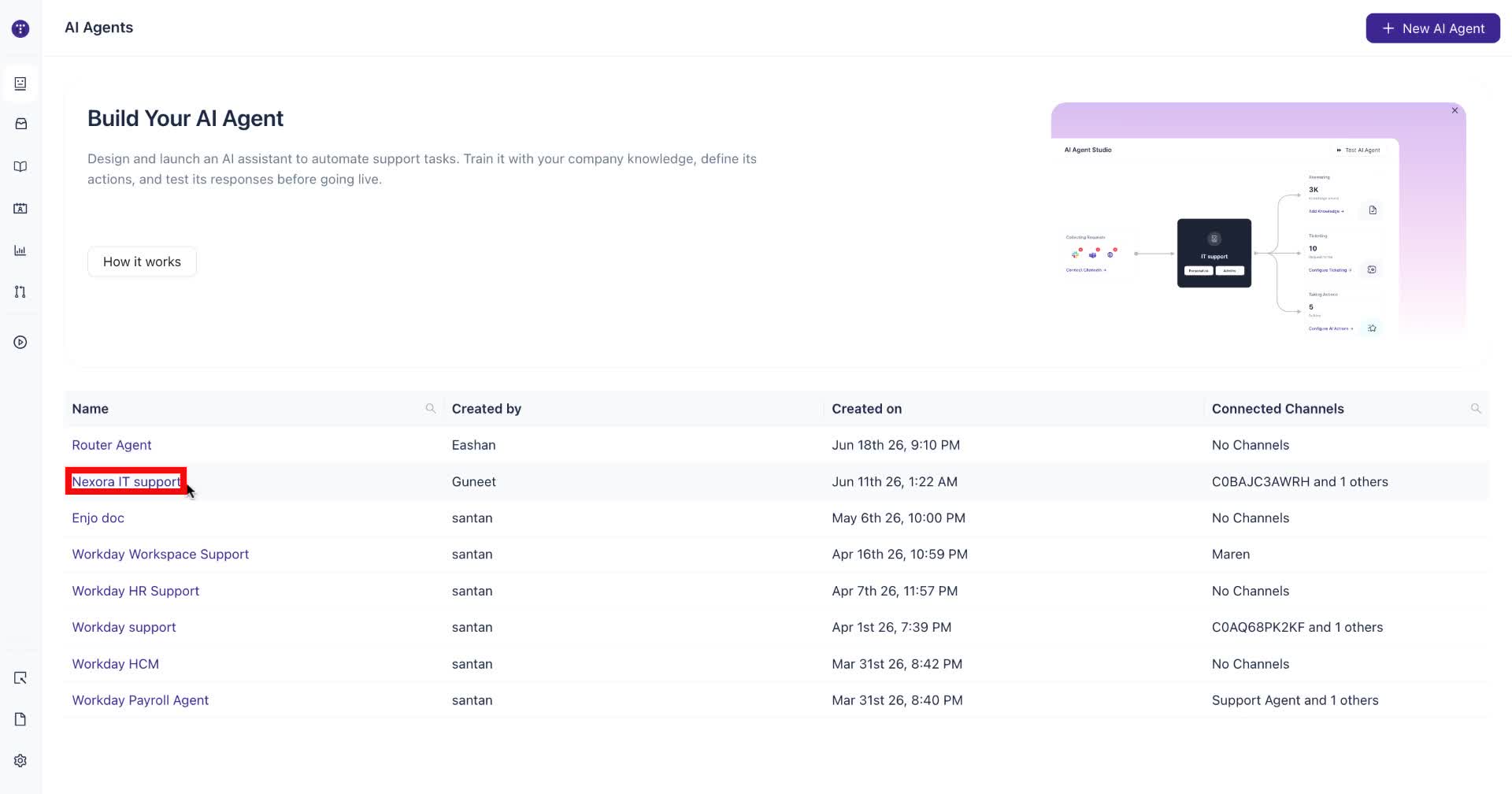
Navigate to AI Agents from the main sidebar. From the list of agents, click the name of the agent you want to manage.
2. Open the Administrators tab
In the agent's left sidebar, click Administrators.
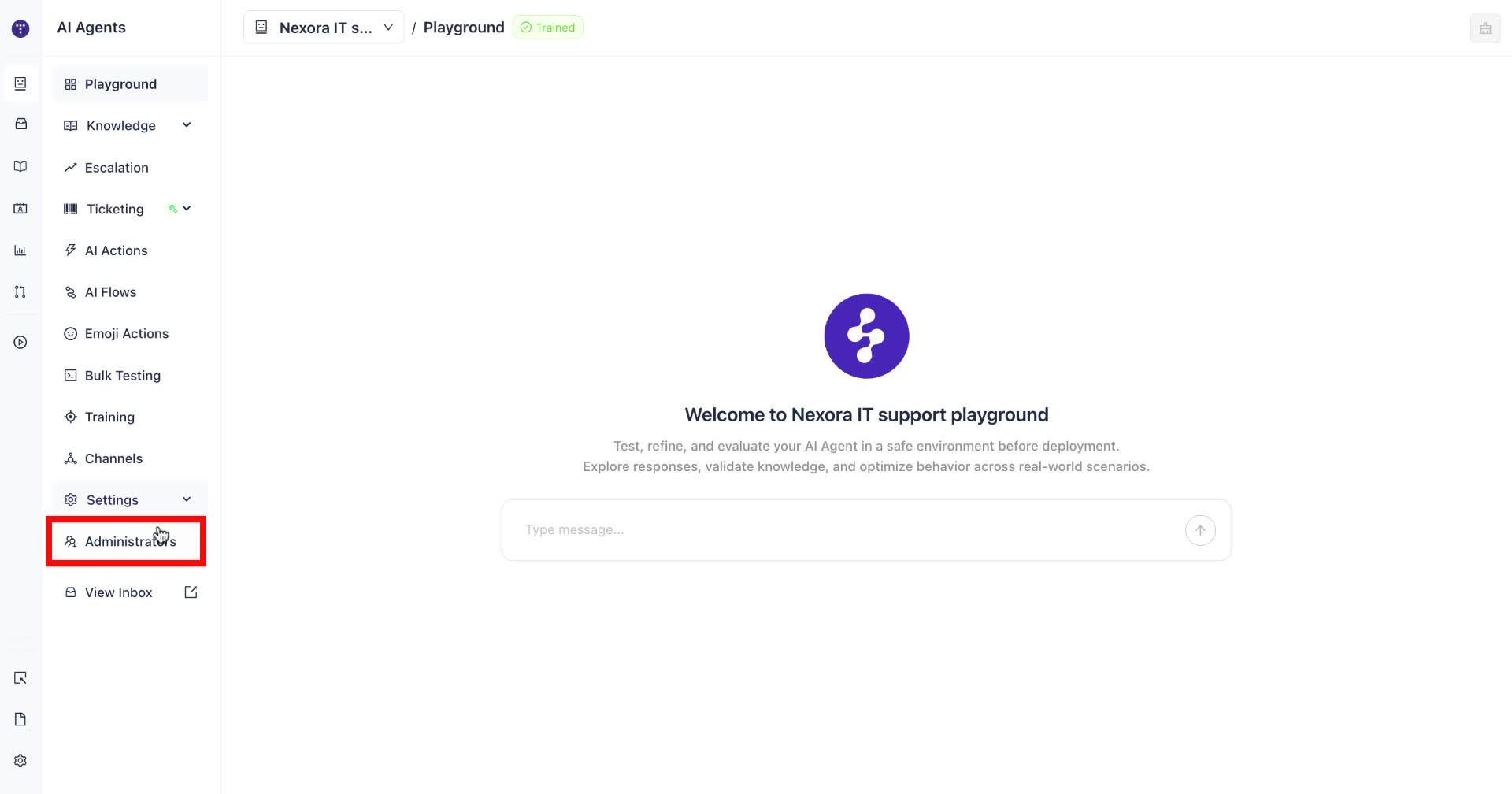
The AI Agent Admins page opens. If no admins have been added yet, the page shows the note: "Members with relevant permissions can manage this AI agent. Add administrators to limit who can manage it."
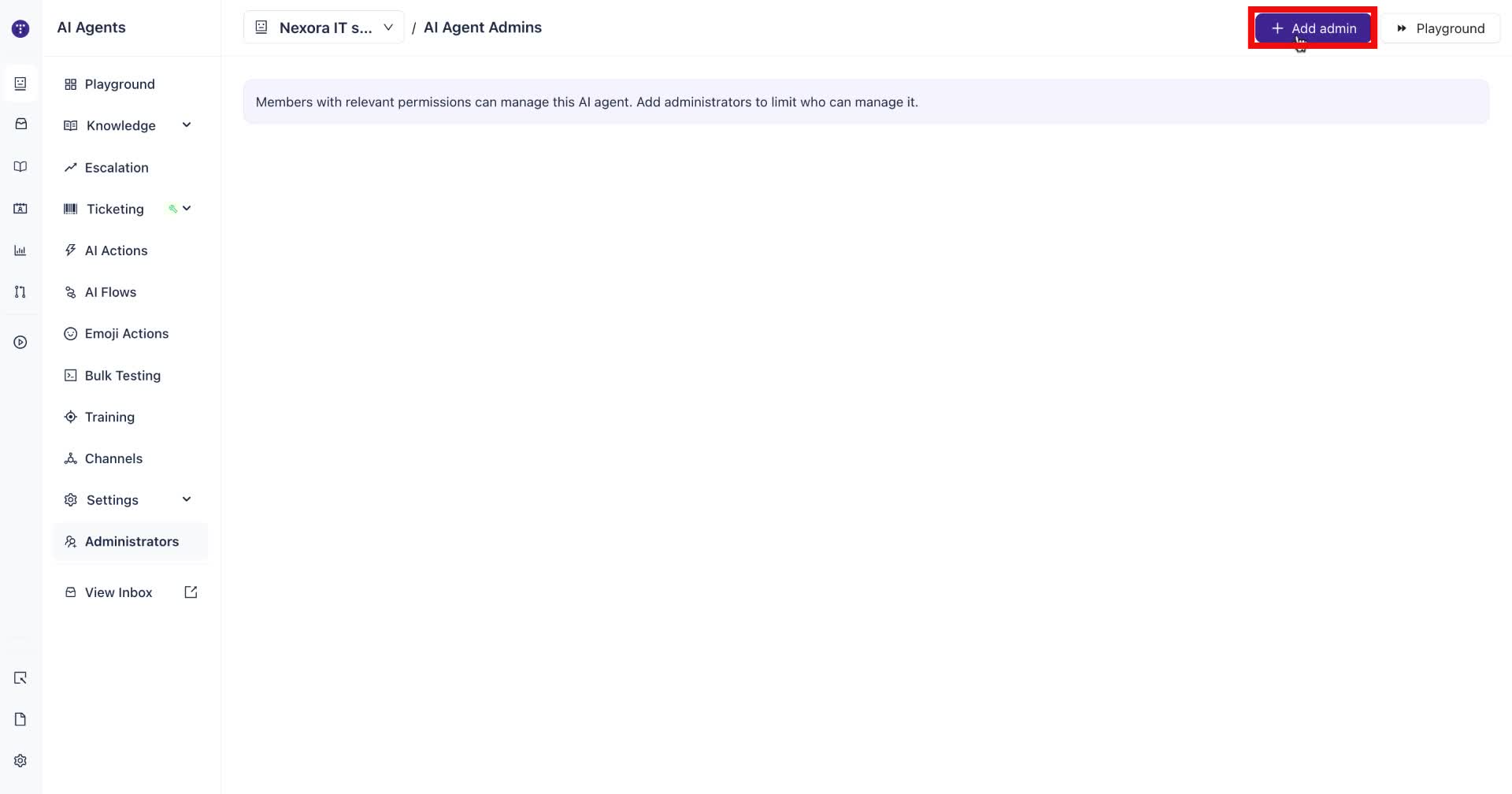
3. Click Add admin
Click + Add admin in the top right of the page.
4. Search for the member
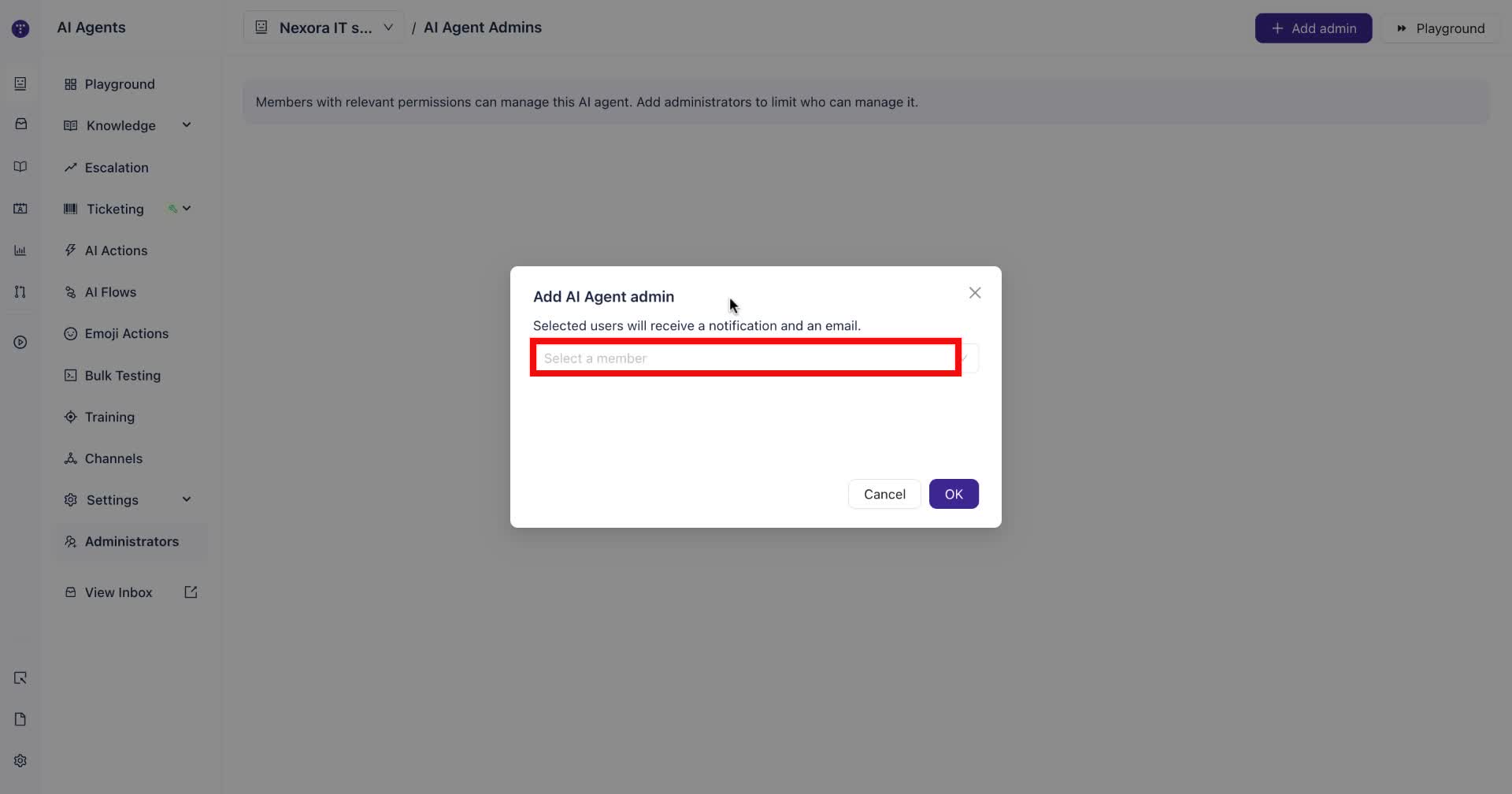
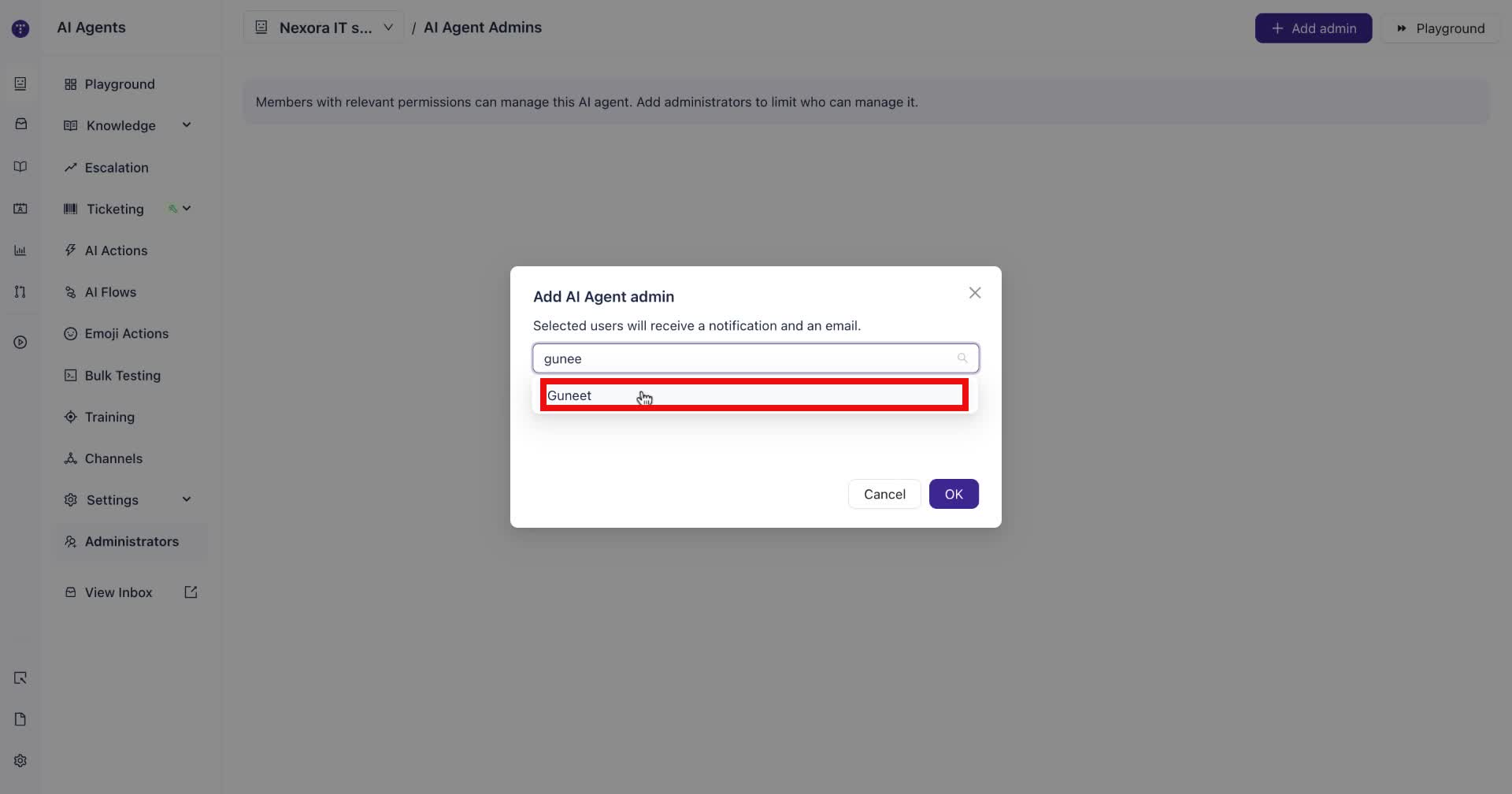
In the Add AI Agent admin modal, click the Select a member field and type the name of the person you want to add. Matching members from your workspace appear in the dropdown below the search field.
5. Select the member
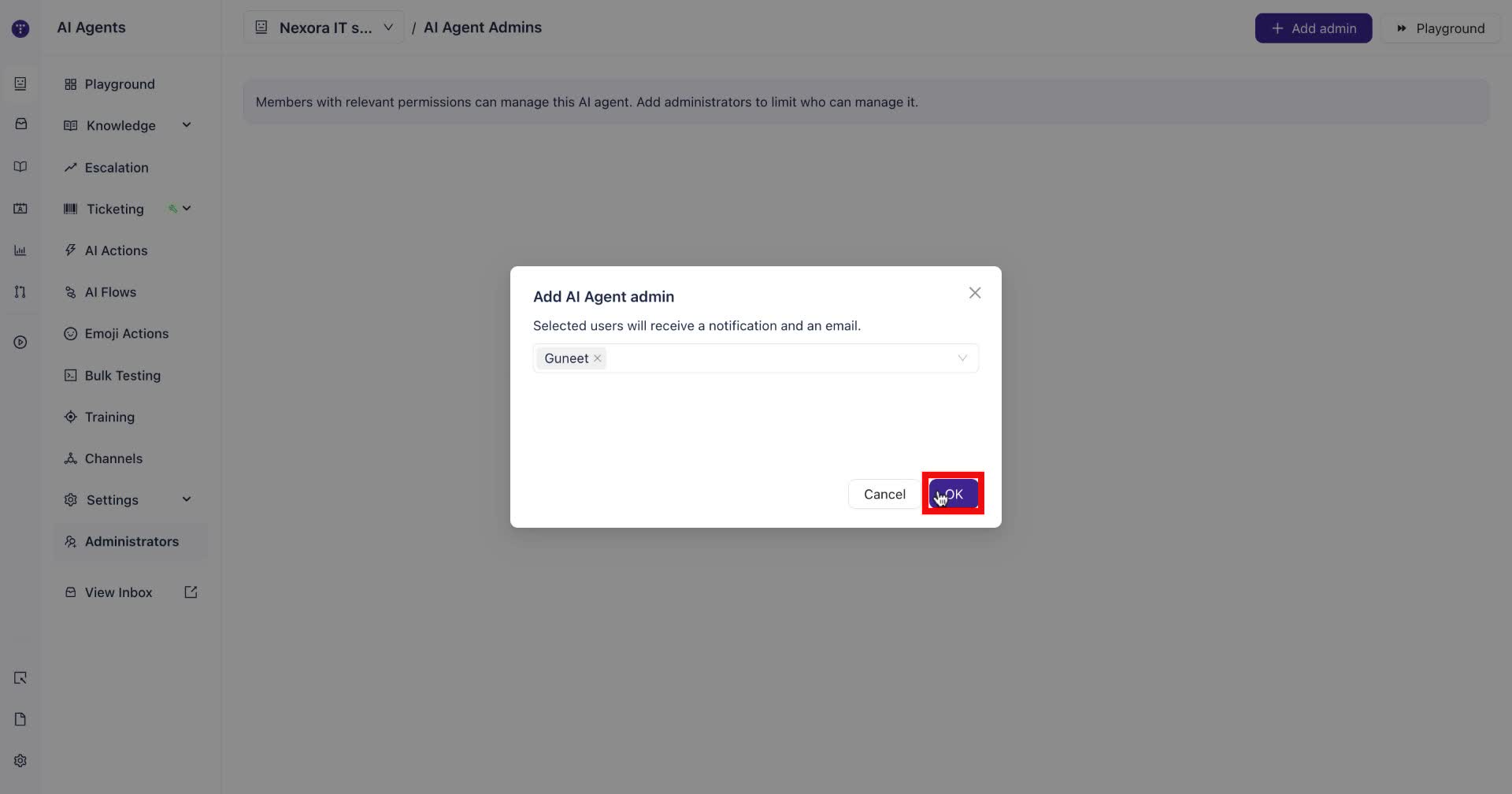
Click the member's name in the dropdown to select them. Their name appears as a tag in the selection field with a checkmark confirming the selection.
6. Confirm the assignment
Click OK to confirm. The selected member is added as an AI Agent admin.The member now appears in the AI Agent Admins list for that agent.
What's next
AI Agent Testing — validate your agent's responses using the Playground
Training— add approved answers, question variations, and tuning signals to improve response accuracy