
How Agent Context works
In this article, you'll learn what Agent Context is, how it's populated during onboarding, what each section controls, and how to tune it so the Help Center Agent generates articles that match your product, your audience, and your voice.
What Agent Context is
Agent Context is the input that shapes how the Help Center Agent writes. Every time you ask the agent to draft or update an article, it reads your Agent Context first your company description, the products this Help Center covers, the voice you want, and any reusable snippets you've added and grounds its output in that information.
If Agent Context is wrong or out of date, every article the agent generates carries the same drift. If it's accurate and specific, every article starts on the right foundation.
💡 Agent Context shapes the Help Center Agent — your internal content authoring assistant. It does not change the AI Agent (the autonomous resolver in Slack, Teams, email, and chat channels) or the AI Assistant (the customer-facing search widget in your portal).
How Agent Context gets populated
Enjo auto-populates Agent Context the first time you sign up.
Source | What it fills |
|---|---|
Your work email domain | Company name and an initial company description |
Your website (crawled automatically) | Industry, product list with descriptions, default tone |
This means a working starting point is in place before you do anything. You can edit any field at any time.
⚠️ The auto-detected values are a starting point, not the final answer. The website crawl often misses parts of your product, picks up dated marketing copy, or describes only one of several things your company does. Review every field once before generating your first article.
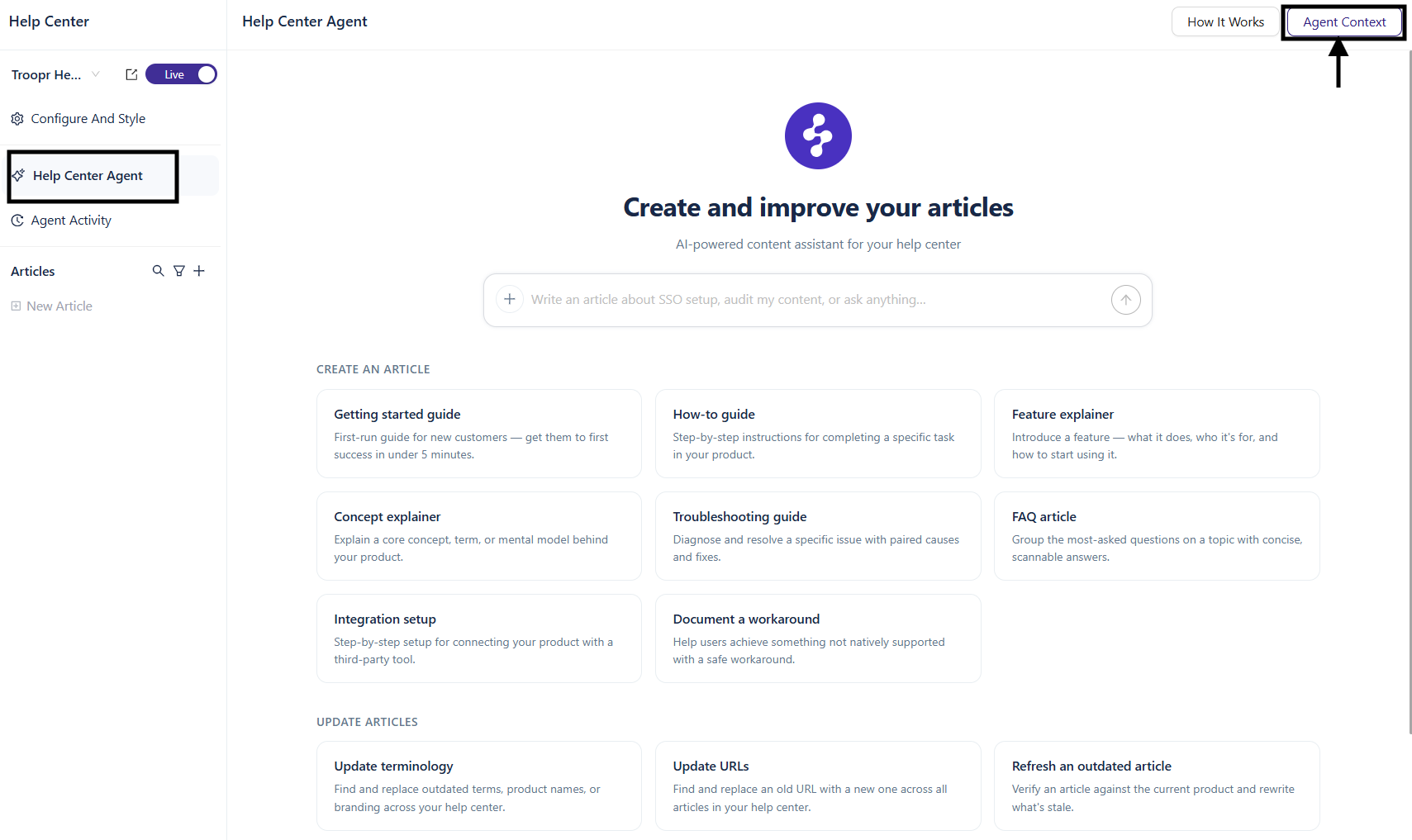
Steps to Open Agent Context
Go to Help Center from the left navigation.
Click Help Center Agent.
Click Agent Context in the top right.
The panel opens on the right side of the screen. Changes save automatically the header shows Saved once a change is applied.
What you can configure
Agent Context has four sections.
Company context
The high-level description of who your company is and what you do.
Field | What it does |
|---|---|
Company name | Used in articles when referencing your organization |
Company description | A short paragraph describing your product and audience. The agent uses it as background context for every article. |
Industry | The vertical you serve (for example, B2B SaaS / Customer Service Automation) |
⚠️ The auto-detected company description often describes only one part of what your product does. Read it carefully — if it misses a major capability or audience, the Help Center Agent will silently omit those things from every article it writes.
Products & services
The products and services your Help Center covers. This is not your full company catalog — only what's relevant to the articles in this Help Center.
To add a product:
Click + Add product.
Enter the product name.
Enter a short description one or two sentences explaining what it is and what it does.
To remove a product, click the trash icon next to it.
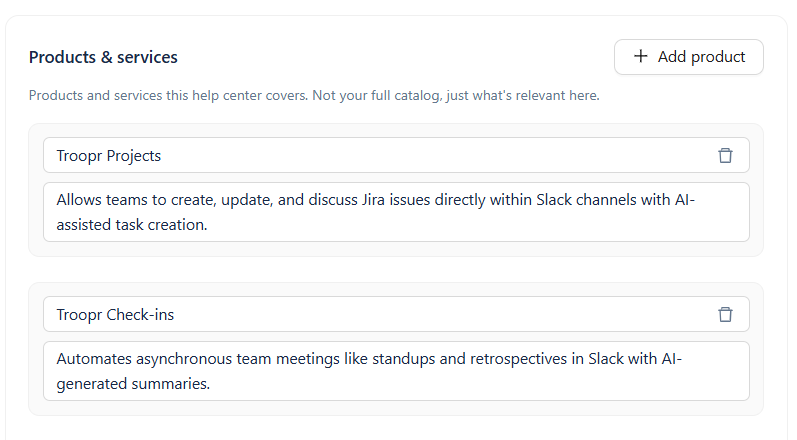
💡 If the Help Center Agent keeps referencing the wrong product or invents features your product doesn't have, the fix is here. Trim the list to what this Help Center actually covers, and tighten descriptions to remove wording you don't want copied into articles.
Brand voice & tone
How you want the Help Center Agent to sound.
Setting | Options | What it controls |
|---|---|---|
Tone | Pick 2–3 from: Professional, Friendly, Casual, Authoritative, Empathetic, Technical, Conversational, Playful | The general feel of the writing |
Formality | Formal, Balanced, Casual | How relaxed or buttoned-up the language is |
Person / voice | We, You, Impersonal | Who the article speaks as and to |
Sample content URL | Any public URL | A reference article or post the agent reads to learn your existing voice |
The tone settings stack. Picking Technical + Professional with Formal formality and the "You" voice produces a noticeably different result than picking Friendly + Conversational with Casual formality and the "We" voice.
💡 If you have published articles you like the voice of, add the URL of your best one as the Sample content URL. The agent uses it as a reference for sentence rhythm and word choice — usually closer to your real voice than the preset tone options alone.
Knowledge snippets
Reusable context the Help Center Agent references when generating articles. Use snippets for product details, policies, FAQs, style guides, or any standing instruction the agent should always know.
Each snippet has two fields:
Field | What it is |
|---|---|
Label | A short name describing what the snippet covers for example, Support escalation policy, Refund policy, or Documentation style guide. The label is how you identify the snippet in the list, and it also helps the agent recognize when the snippet applies to what it's writing. |
Content | The actual information or instruction the agent should reference. Can be prose, bullet points, or rules written in plain language. The placeholder hint reads "The content the agent should reference when relevant" — the agent decides per article whether to apply a given snippet based on the label and content together. |
To add a snippet:
Click + Add snippet.
Enter a Label that describes what this snippet is about.
Enter the Content — what you want the agent to know or follow.
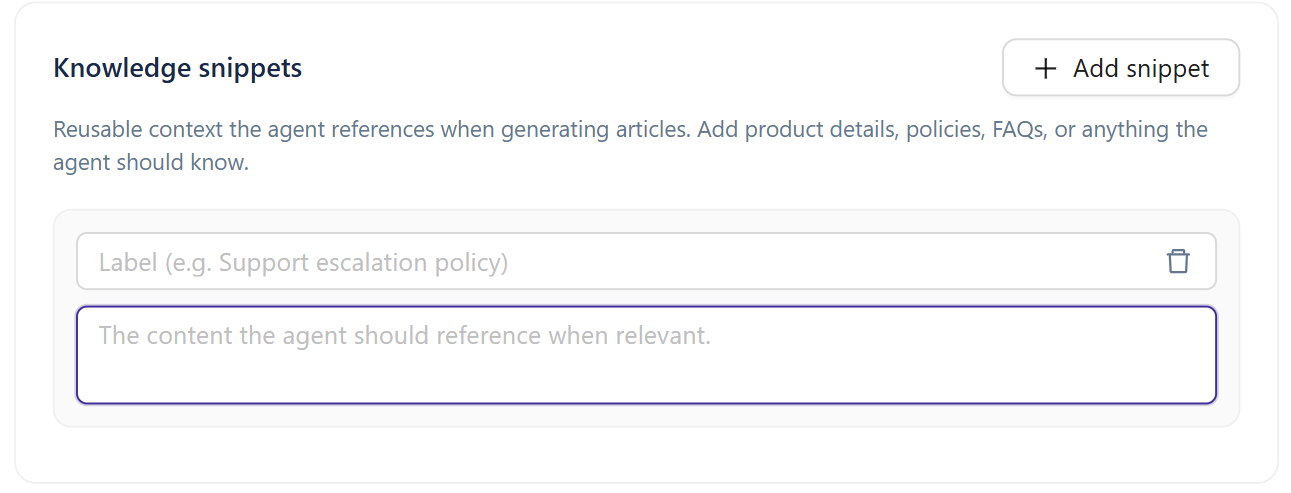
The agent reads all snippets every time it generates an article and applies them when relevant.
💡 Write labels like search terms, not titles. Support escalation policy tells the agent when to use the snippet better than Snippet #3 or Important info does. The clearer the label, the more reliably the agent picks the right snippet for the right article.
Use snippets as standing instructions
Snippets aren't only for facts — they're also where you set rules the agent should follow.
For example,
Label: Documentation Style Guide
Content:
Structure: Start by telling readers what they'll accomplish, then explain the feature.
Avoid marketing language like "resolve issues faster," "autonomous resolution," or "prove value."
The Help Center Agent applies these rules to every article it drafts going forward.
💡 Knowledge snippets are the right place for anything you'd otherwise repeat in every prompt — naming conventions, banned words, the format of headings, who articles are written for. Add it once as a snippet and every future article inherits it.
Draft from website
If your website, product, or positioning has changed since you signed up, you can re-run the auto-detection at any time.
Open Agent Context.
Click Draft from website in the Company context header.
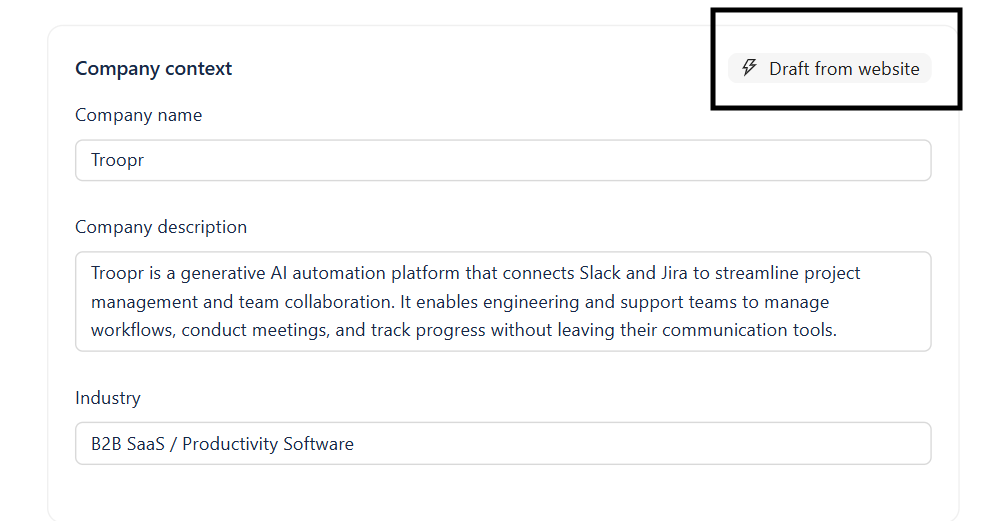
Enter your website URL — your homepage is usually best.
Optionally, add context to focus the crawl, for example "Focus on our enterprise plan" or "We mostly serve SMB customers".
Click Generate.
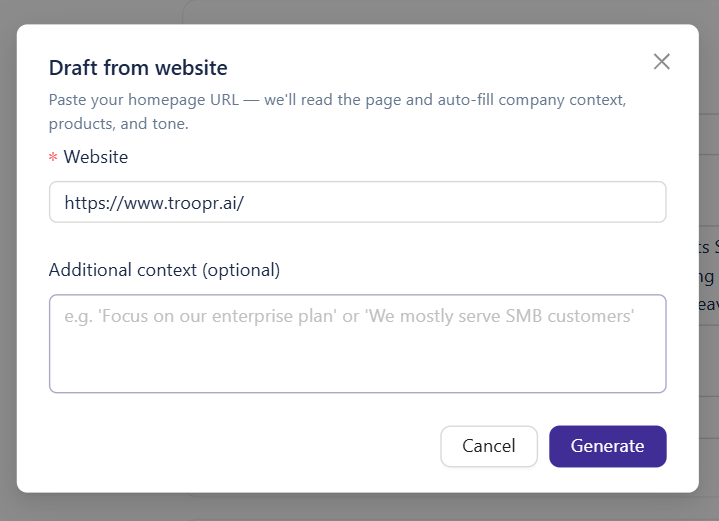
Enjo reads the page and rewrites the company context, product list, and default tone. Review the changes before continuing.
⚠️ Drafting from website overwrites your existing Company context and Products & services. Any manual edits will be replaced. Copy anything important before regenerating.
When the Help Center Agent uses Agent Context
The Help Center Agent reads your full Agent Context at the start of every article generation — whether you're creating a new article from a template, writing from a free-form prompt, or updating an existing article.
This means:
Changes to Agent Context apply to future articles, not past ones.
To apply a context change to articles you've already published, run Refresh an outdated article on them. See Creating and Managing Content for the update workflow.
What's next
Creating articles with Help center Agent — Generate articles with the Help Center Agent and manage them through the publishing lifecycle.
Configuration and Branding — Configure the portal logo, navigation, AI Assistant widget, and domain.
Getting Started with Enjo Help Center — Quick start walkthrough if you haven't created your Help Cente