In this article, you'll learn how to run an Assessment Report, review the topics it surfaces from your past tickets/cases, and turn those topics into knowledge articles.
An Assessment Report looks at the requests your team has already handled in Jira, Salesforce, or ServiceNow and groups them into common topics. This gives you a clear picture of where automation could help most, and lets you generate knowledge articles directly from the patterns it finds.
Before you start
You need access to Insights in your workspace.
The helpdesk you want to assess (Jira, Salesforce, or ServiceNow) must be connected to Enjo. If it isn't connected yet, follow the setup guide for that integration first.
You need permission to connect apps, or an existing connection that's already been authorized by an admin.
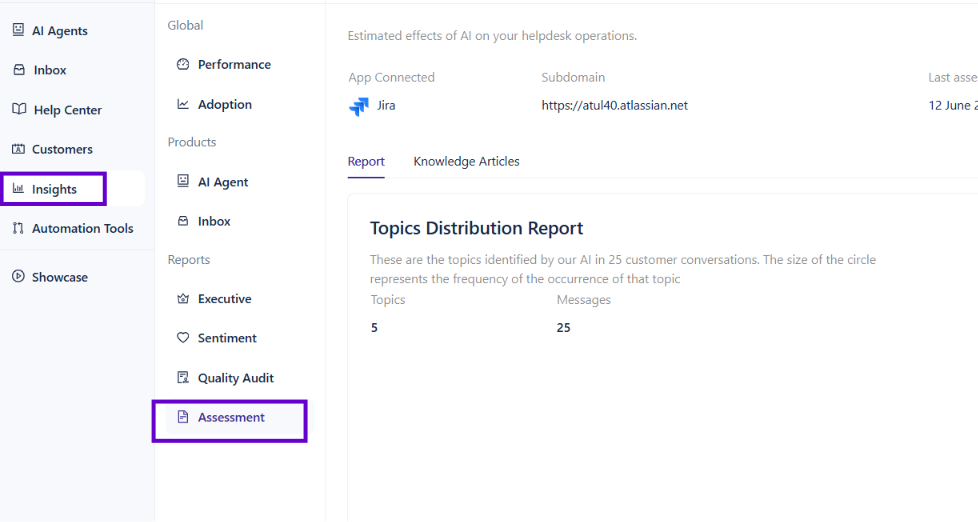
This opens the Assessment Report screen, where you can see any reports that have already been created and their status (Processing or Completed).
Start a new assessment
Select Connect in the top right.
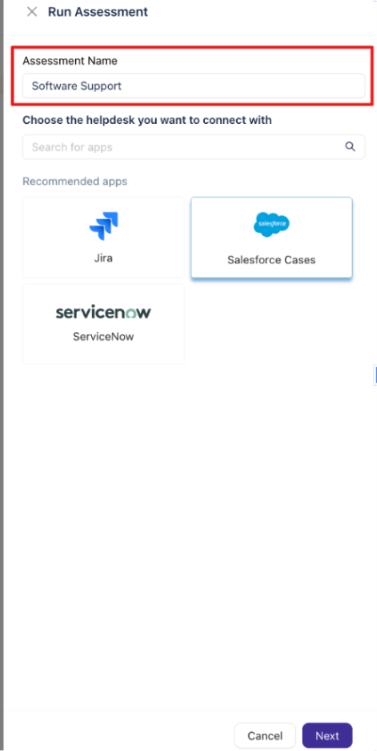
Choose the helpdesk you want to assess: Jira, Salesforce Cases, or ServiceNow.
Enter a name for the assessment that reflects what you're analyzing, for example "Hardware Support" or "Q2 Billing Cases."
💡 Tip: Use a name that makes it easy to identify the assessment later, especially if you plan to run more than one.
Connect or select an account
Select the connection account you want to pull tickets/cases from.
If the account you need isn't listed, select Add new and connect it, or enter the relevant instance URL (for example, a Salesforce sandbox URL).
Once you've selected an account, select Next.
Note: If you don't see the account you're looking for, you may need an admin to connect it first. See the setup guide for that integration.
Narrow the scope of the assessment
You can choose to assess all available tickets/cases or narrow the results to a specific subset.
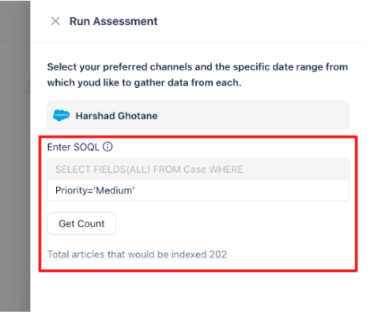
Enter a query to filter tickets/cases by criteria such as priority, status, or date range. For Salesforce, this is written as a SOQL query.
Select Get Count to see how many tickets/cases match your filter before running the assessment.
Select Run Assessment.
⚠️ Important: The number of tickets/cases included affects both processing time and the quality of the topics generated. A very small sample may not produce meaningful patterns.
Wait for the report to process
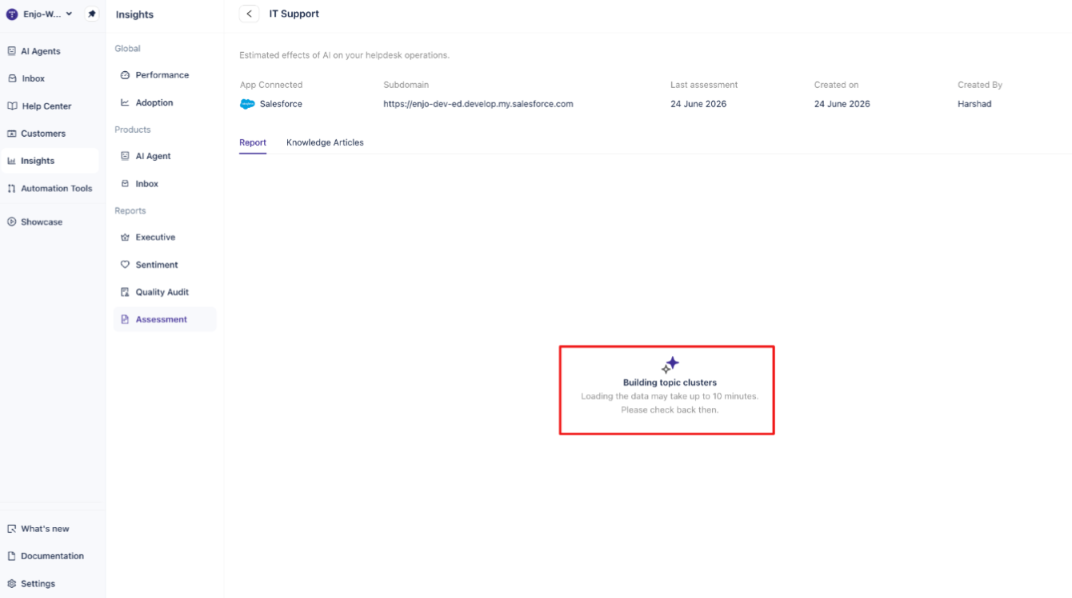
Once you select Run Assessment, the report moves into a Processing state.
Open the report to see its progress.
Enjo first pulls in the matching tickets/cases, then builds topic clusters from them.
Building topic clusters can take a few minutes, depending on how many tickets/cases are included. You can close this screen and come back later. The report's status will update to Completed once it's ready.
Review the topics
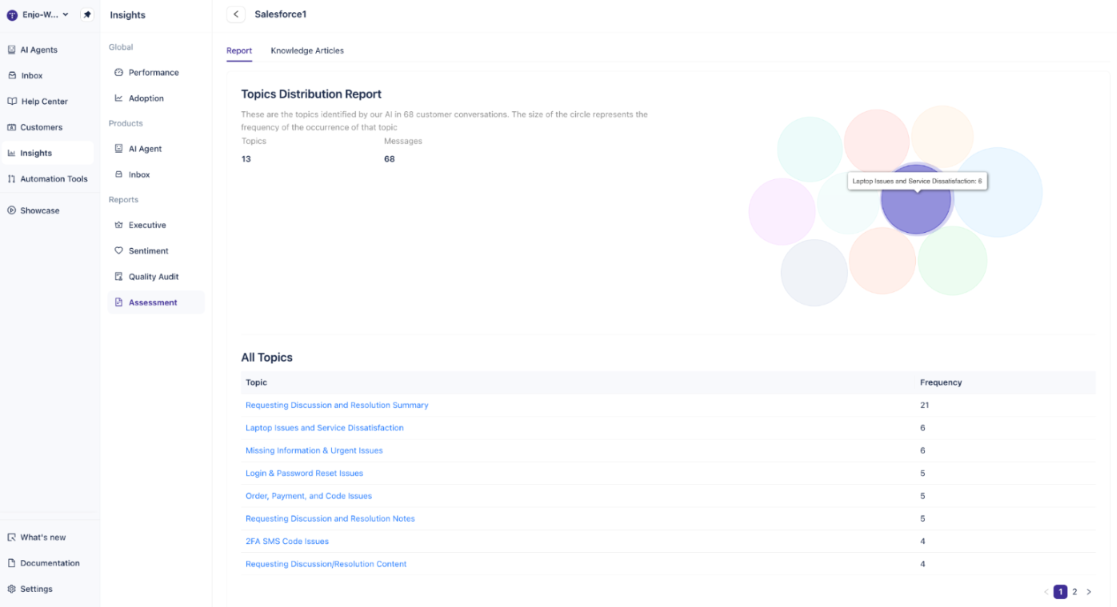
Once the report is complete, open it to see the Topics Distribution Report.
Each topic represents a recurring pattern Enjo found across your tickets/cases.
The size of each topic reflects how frequently it appeared.
Select a topic to see the list of individual tickets/cases used to identify it.
This view helps you understand where requests cluster, which is often a strong signal for where an AI Agent could resolve issues automatically.
Generate a knowledge article from a topic
For any topic, you can generate a knowledge article based on the tickets/cases behind it.
Open the topic you want to turn into an article.
Select Generate.
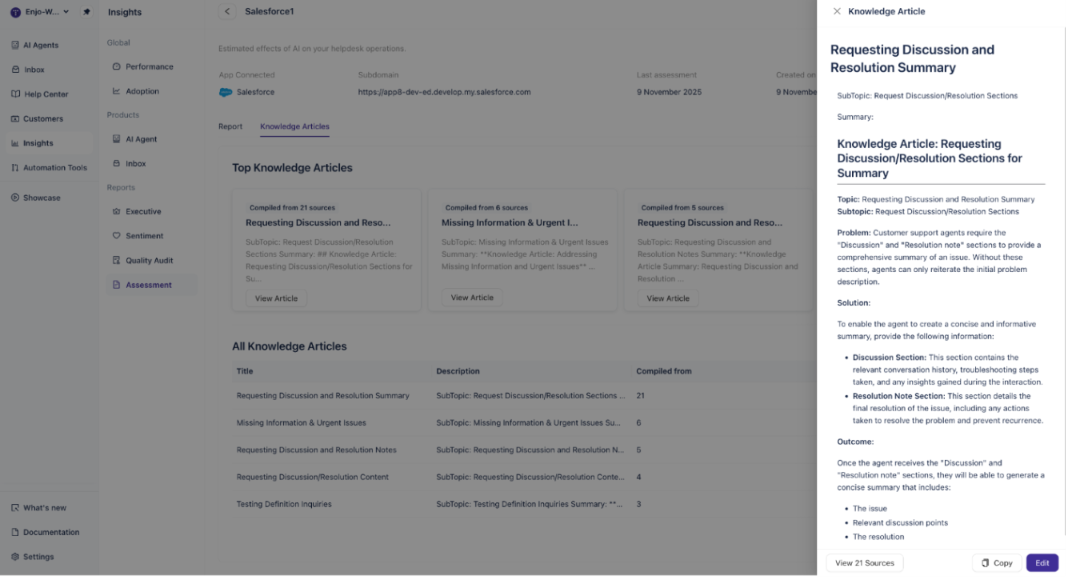
Once generated, select View Article to see the result.
Each article includes a problem summary and a suggested solution, built from the resolutions found across the source tickets/cases. Select View Sources to see every ticket/case that contributed to the article.
💡 Tip: Treat generated articles as a starting point. Review and edit them before adding them to your AI Agent's knowledge base.
Use or edit the article
From the article view, you can:
Select Copy to copy the article content for use elsewhere.
Select Edit to refine the wording before saving it.
Once you're happy with an article, you can add it to your AI Agent's knowledge base so it can use the resolution to handle similar requests going forward.