.png)
Azure Devops
In this article, you'll learn how to connect Azure DevOps work items to your AI Agent so it can use work item data to answer questions.
Before you start
Your Azure DevOps account must be connected to Enjo before completing these steps. See Connect Azure DevOps if you haven't set that up yet.
Add Azure DevOps as a Knowledge source
Go to AI Agents and select the agent you want to configure.
Open the Knowledge tab and click on sources.
Click Add Knowledge.
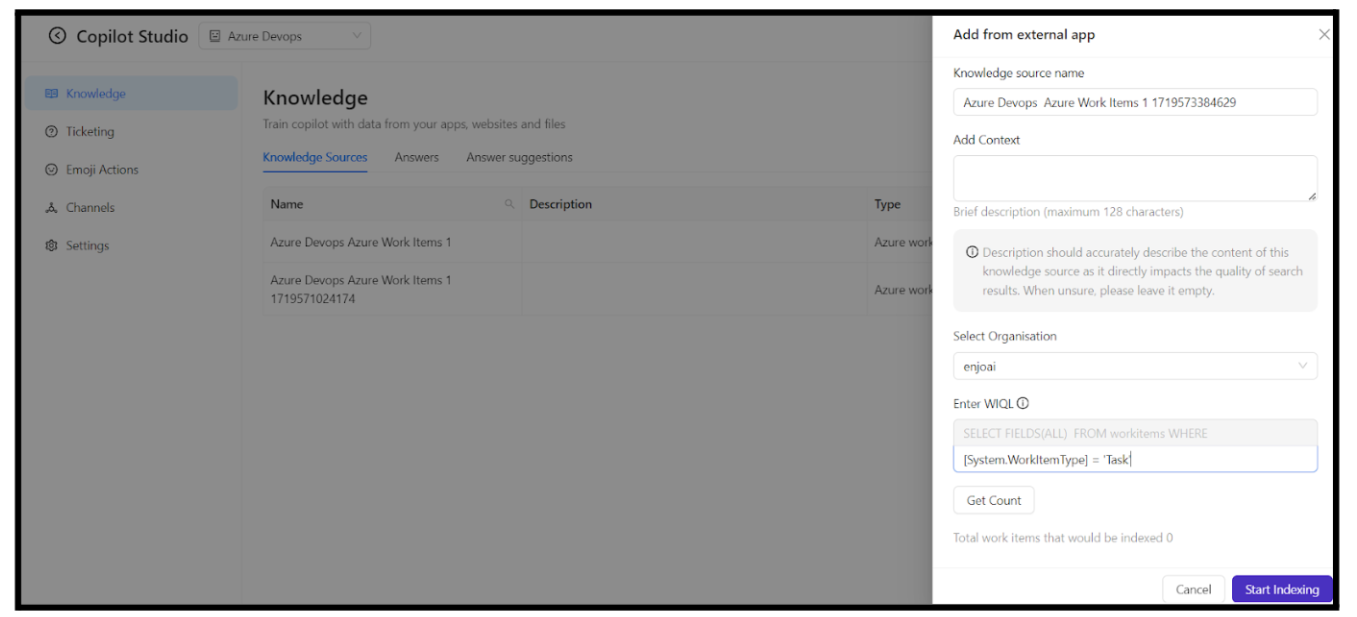
Select Azure Work Items from the drawer that opens.
Select your Azure DevOps connection and click Next.
Select your Azure DevOps organization from the dropdown.
Enter a WIQL query to define which work items to index. WIQL (Work Item Query Language) lets you filter work items by type, status, project, or any other field. See WIQL syntax reference for guidance.
Click Start Indexing.
Enjo begins indexing the matching work items. Once complete, the knowledge source status updates to Done under the Knowledge tab.
💡 TIP: Use your WIQL query to scope indexing to only the work items relevant to your AI Agent. Indexing all work items without filtering can reduce response accuracy.
How the AI Agent uses work item data
When a user asks a question in a connected channel or during testing in the Playground, the AI Agent searches the indexed work items for relevant information and generates a response. The response includes a citation and a direct link back to the source work item in Azure DevOps.
💡 Test your agent in the Playground after indexing is complete to verify it is responding correctly based on your Azure DevOps content. See Playground.
What's next
Connect Azure DevOps — Set up your Azure DevOps connection if you haven't already.
Bulk Testing — Validate AI responses across your knowledge sources at scale.