.png)
Microsoft Teams as a Knowledge Source
In this article, you'll learn how to connect a Microsoft Teams channel to your AI Agent so it can use Teams conversation history to answer questions.
Before you start
Your Microsoft Teams account must be connected to Enjo before completing these steps. If you haven't set that up yet flow Microsoft Integration guide.
Add Microsoft Teams as a knowledge source
Go to AI Agents and select the agent you want to configure.
Open the Knowledge tab.
Click Add Knowledge.
Select Apps and choose Microsoft Teams from the list.
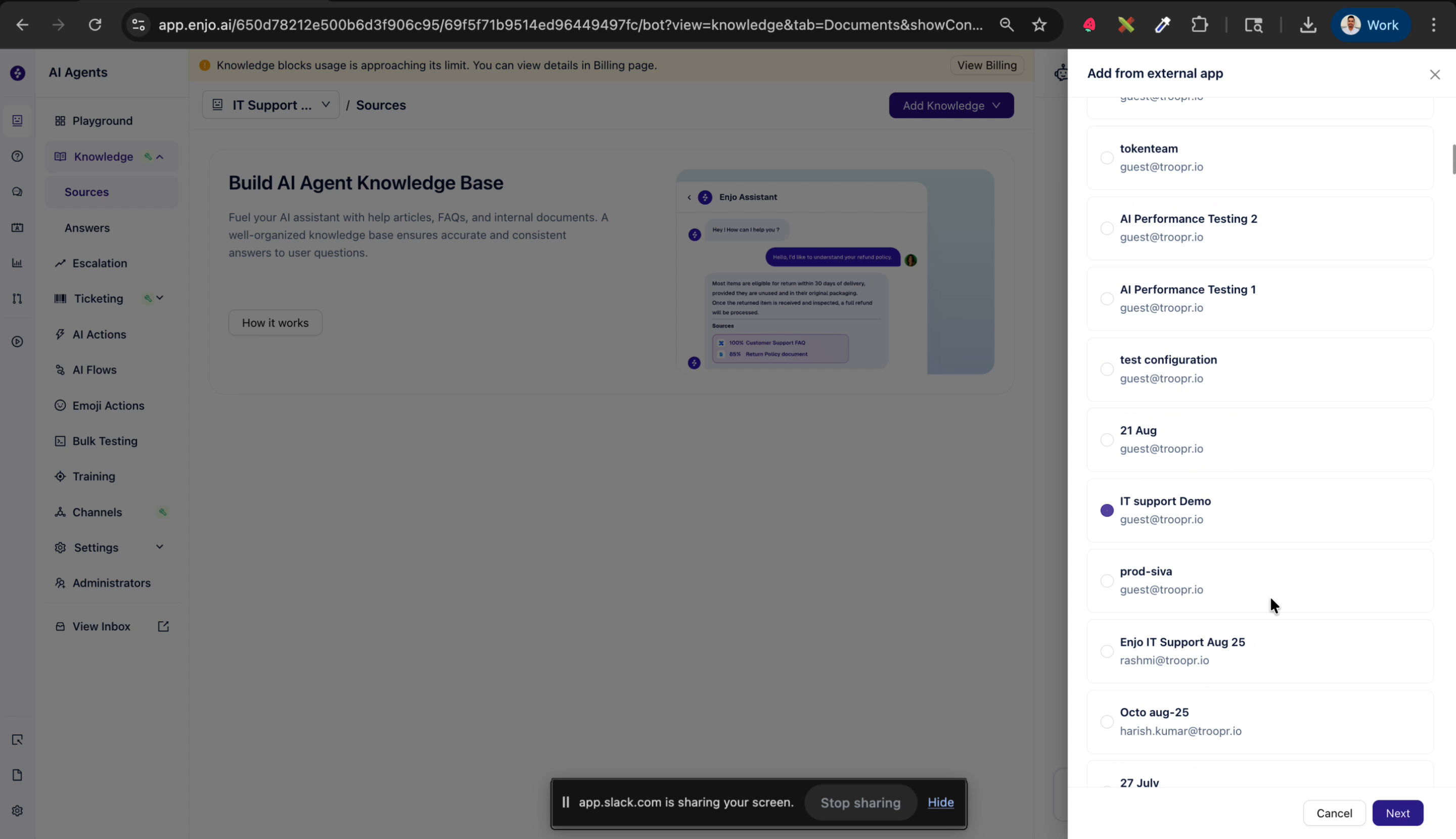
Select your Microsoft Teams connection and click Next.
Choose the team and channel you want to index.
Choose or create a knowledge source
Add to an existing knowledge source Select an existing knowledge source from the list and click Add.
Create a new knowledge source
Click Create a new knowledge source.
Enter a name for the knowledge source for example, IT Support Teams.
Optionally add metadata key-value pairs to help organise and filter the source.
Click Next.
Configure channels and time period
Select one or more channels to include in this knowledge source. Click Add new to add more channels.
Select the time period for indexing messages:
Last 30 days
Last 60 days
Last 90 days
Click Start Indexing.
💡 Select a longer time period if your Teams channels contain historical conversations that are relevant to the questions your AI Agent needs to answer.
Monitor indexing status
Once indexing starts, the knowledge source appears in the Knowledge tab with:
The source name you provided
The indexing status
The Microsoft Teams logo indicating the source type
The number of knowledge blocks created
Click View Detail to see more information including the channel name and indexing status. Once complete, the status updates to Done.
Verify the knowledge source
Test your AI Agent in the Playground by asking a question that should be answerable from the indexed Teams channel. The response will include a citation linking back to the specific Teams channel the information was sourced from.
💡 If the AI Agent is not returning answers from Teams content, check that indexing is complete and the correct channel was selected. See Playground for testing guidance.
What's next
AI Agent Knowledge — Manage all knowledge sources connected to your agent.
Bulk Testing — Validate AI responses across your knowledge sources at scale.