.png)
Setup Copilot Answers
Connect a Microsoft Copilot Studio agent as a fallback action so your AI Agent can retrieve answers from your existing Copilot Studio knowledge base when Enjo's own knowledge sources don't have a match.
How this works
When a user submits a question, the AI Agent searches Enjo's connected knowledge sources first. If no answer is found, the agent checks whether a configured action matches the query. If a Microsoft Copilot Studio action is triggered, the question is sent to your Copilot Studio agent in real time and its response is returned to the user.
This is a System Action: it executes in real time during resolution, unlike knowledge sources which are indexed and synced on a schedule. Use this when your team already maintains content in Microsoft Copilot Studio and does not want to duplicate it in Enjo.
If neither Enjo's knowledge sources nor the Copilot Studio action resolves the question, the AI Agent follows your configured escalation rules and routes the conversation to a human agent in Inbox with full context.
Note: This action requires your Copilot Studio agent to be published to the Microsoft Teams channel. Confirm this before starting setup.
Prerequisites
An AI Agent configured in your Enjo workspace.
A Microsoft Copilot Studio agent already deployed in Microsoft Teams with knowledge sources configured.
Admin access to AI Agent configuration in Enjo.
Steps
Step 1: Open AI Actions
Go to Settings, then select AI Actions from the left sidebar.
Step 2: Create an AI Action
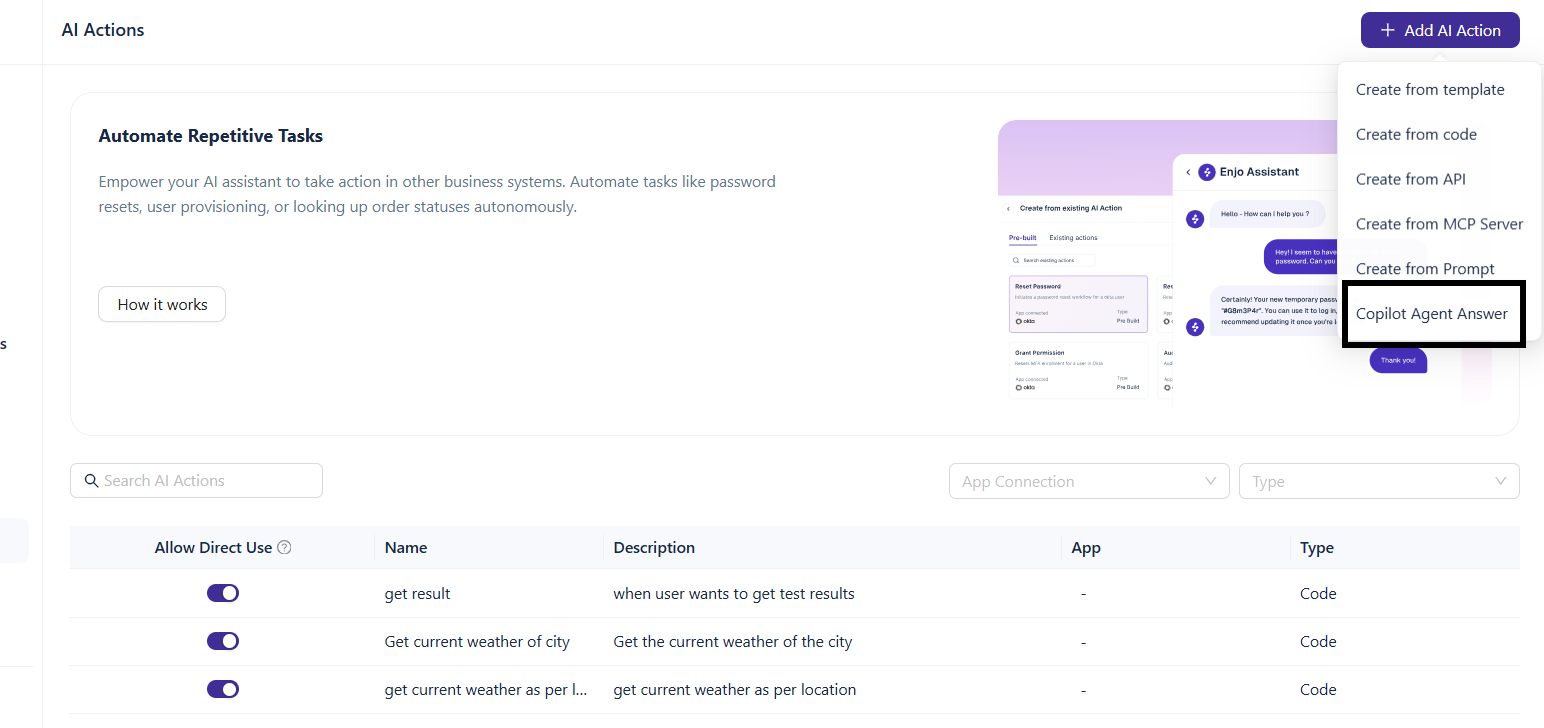
Click Add AI Action and select Copilot Agent Answers as the action type.
Step 3: Set agent access
Choose who can use this action.
Workspace: all AI Agents can access this action
Restricted: only AI Agents you explicitly assign can access this action
Step 4: Prepare your Copilot Studio agent
Before connecting, configure your Copilot Studio agent for manual authentication via Azure.
Create an App Registration following the Microsoft Copilot Studio documentation
In your agent settings, go to Security, then Authentication. Select Authenticate Manually (Entra ID V2). Make sure Require users to sign in is unchecked
Under the Service Provider section, enter your App Registration credentials (Client ID and Secret for client credentials type). Set the scope to
profile openid User.ReadGo to Security, then Web channel security. Copy the Secret
Publish your agent to apply changes
💡Tip: The most common setup failure is forgetting to publish the Copilot Studio agent after saving authentication changes. Always publish before attempting to connect in Enjo.
Step 5: Connect the Copilot agent
Click Connect Copilot. Your published Copilot Studio agent will appear in the dropdown. Select it.
Step 6: Name and describe the action
Give the action a name and description. The AI Agent uses these to decide when to invoke it.
Name: Answer From Knowledge
Description: Get the answer for a user query from the connected Copilot Studio knowledge base
Step 7: Define trigger questions
Add representative questions that should trigger this action. The AI Agent uses these examples to route matching queries to Copilot Studio. For Example:
"How do I connect Jira?"
"How do I set up Enjo?"
Add enough examples to cover the topic area your Copilot Studio agent is authoritative on.
Step 8: Save and test
Save the configuration, then open the Playground to submit a trigger question and verify the full resolution path end to end.
Resolution order
Priority | Source | Outcome |
|---|---|---|
1 | Enjo knowledge sources | Answer returned if found |
2 | Configured actions (including Copilot Studio) | Question sent to Copilot Studio; answer returned if found |
3 | Escalation | Routed to human agent in Inbox with full conversation context |
If Copilot Studio does not have an answer for the query, no response is returned from this action and escalation rules apply.
Avoid duplicating content across Enjo and Copilot Studio
Connecting a Copilot Studio agent as an action lets you surface your existing Microsoft knowledge base in Enjo without re-ingesting or maintaining duplicate content. Your Copilot Studio knowledge stays as the source of truth for its topic area; Enjo handles routing, fallback, and escalation across the full resolution workflow.