
Finding and Filtering Conversations
In this article, you'll learn how to open the Inbox, navigate the conversation list, search, sort, switch views, and use filters to find what needs attention.
Opening the Inbox
Log in to the Enjo dashboard.
Select Inbox from the left sidebar.
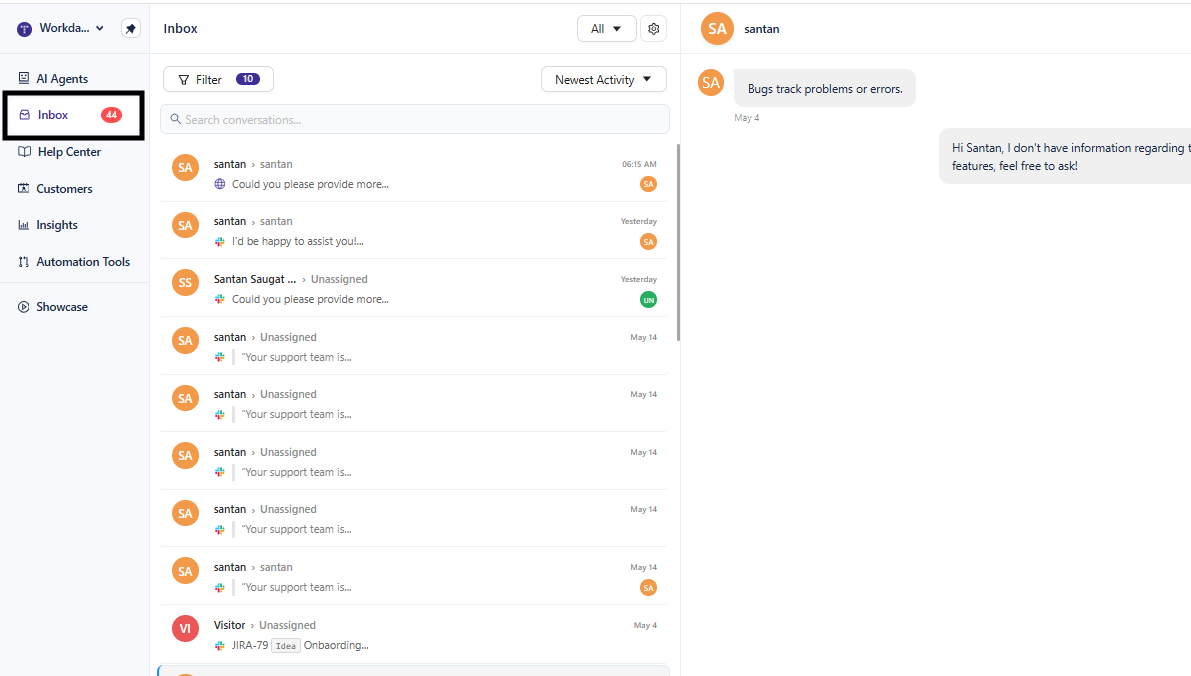
The badge next to Inbox shows the count of open conversations currently waiting for a response.
The conversation list
The main panel shows a scrollable list of conversations. Each row displays:
Customer name and avatar
Assignee (agent name, or
Unassigned)Date of last activity
Preview of the most recent message
Status badge (
OpenorResolved)Channel icon indicating where the conversation originated
Click any row to open the conversation in the detail view.
Switching views and inboxes
At the top of the Inbox, open the All dropdown to access two controls: Switch view and Switch Inbox.
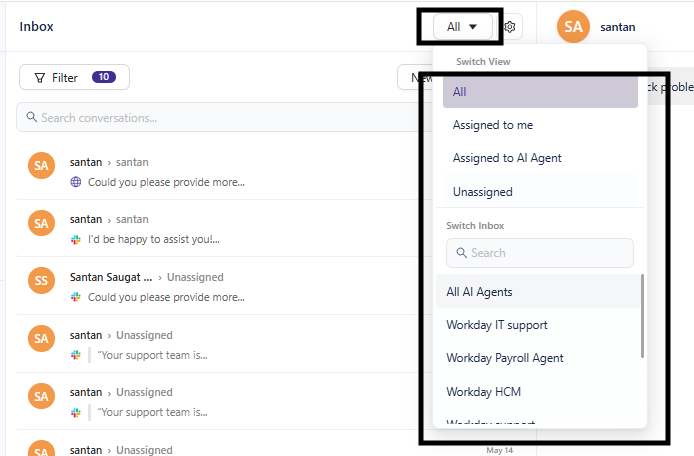
Switch view
Change which subset of conversations is displayed:
View | Shows |
|---|---|
All | Every conversation across all channels |
Assigned to me | Conversations assigned to you |
Assigned to agent | Conversations assigned to a specific agent |
Unassigned | Conversations not yet assigned to any team member |
Switch Inbox
If your workspace runs multiple AI Agents — for example, separate agents for IT, HR, and Customer Service — use Switch Inbox to move between them. Select an inbox name to change the active inbox. All conversations for that AI Agent appear in the main view.
Searching conversations
Use the search bar at the top of the conversation list to find specific conversations. Search matches against customer names, message content, and conversation metadata.
Sorting conversations
Use the sort control next to the Filter button to change the order of the conversation list:
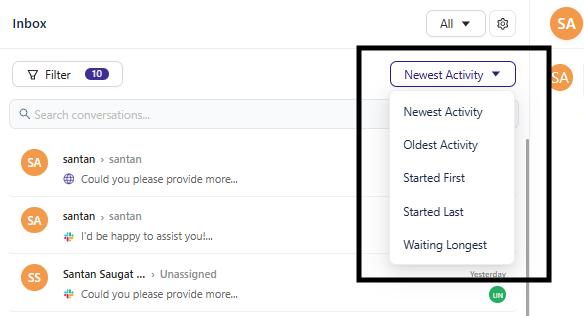
Sort option | Order |
|---|---|
Newest activity | Most recently active conversations appear first |
Oldest activity | Oldest conversations appear first |
Waiting longest | Conversations with the longest time since a response appear first |
Filtering conversations
Click Filter to open the filter panel. Active filters show a count badge on the button. Filters are grouped into three categories.
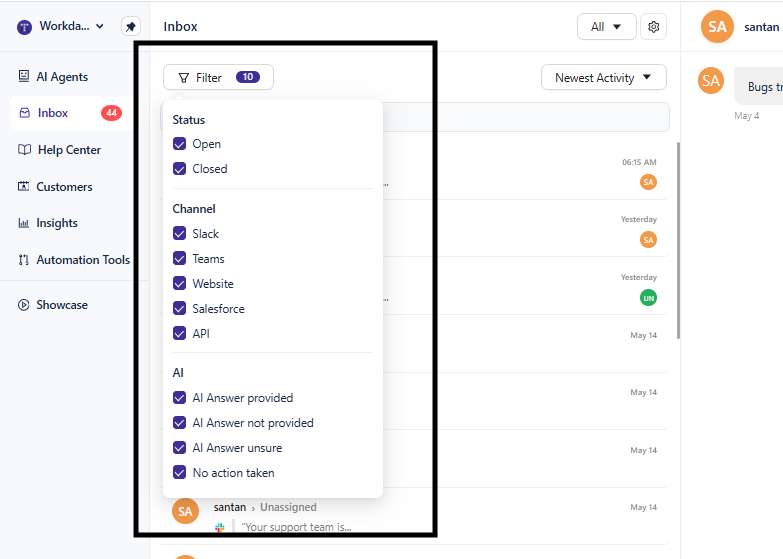
Status
Filter | Shows |
|---|---|
Open | Conversations still in progress |
Closed | Conversations marked Resolved |
Both | All conversations regardless of status |
Channel
Filter | Source |
|---|---|
Slack | Slack workspace |
Teams | Microsoft Teams |
Website | Web chat widget |
Salesforce | Salesforce Service Cloud |
API | Direct API connections |
AI
Filter | Meaning |
|---|---|
AI Answer provided | The AI Agent gave a response |
AI Answer not provided | The AI did not respond |
AI Answer unsure | The AI flagged uncertainty |
No action taken | The AI took no action |
💡 Filters combine with AND logic across categories. For example, selecting
Open+Slack+AI Answer not providedshows only open Slack conversations where the AI did not respond.
What's next
Working with Conversations — Reply, resolve, and manage open conversations.
Assigning Conversations — Route conversations to agents manually or automatically.