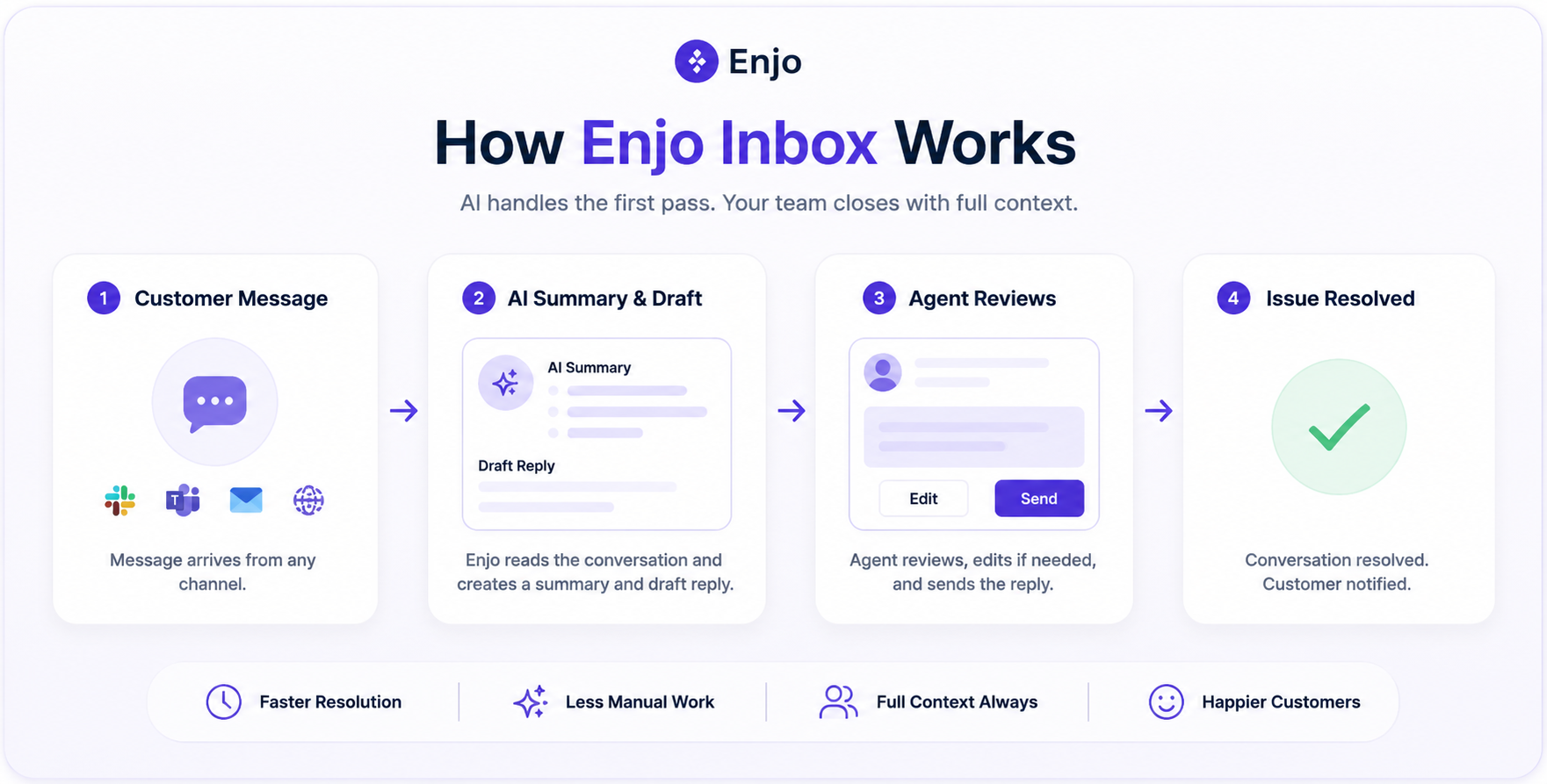
In this article, you'll learn what the Inbox is, how conversations arrive in it, and how it fits into the rest of Enjo.
In this article, you'll learn how to set up the Inbox by configuring your workspace and connecting the channels that route conversations to it — web chat, Slack, and Microsoft Teams.
Before you start
You need an Admin role to configure channels and connect apps.
An AI Agent must exist in your workspace. The AI Agent and its web chat channel are created automatically during onboarding.
To connect Slack or Microsoft Teams, you need permission to authorize apps in that workspace.
How it works
The Inbox is where human agents handle conversations. It does not connect to channels directly — conversations reach the Inbox through the channels configured on your AI Agent. When you connect a channel such as web chat, Slack, or Microsoft Teams to the AI Agent, conversations from that channel become available in the Inbox.
How conversations reach the Inbox
Conversations arrive through two paths:
AI escalation — When an AI Agent cannot resolve a request or confidence is low, it escalates to the Inbox. The AI creates a linked ticket and hands off with full conversation context.
Direct inbound — A customer reaches out through a connected channel and the conversation lands in the Inbox directly for a human agent to handle.
During onboarding, you choose which part of Enjo to set up first:
Help center portal — A customer-facing knowledge base with article search and self-service.
AI Agent + Inbox — AI chat for handling requests, paired with a shared Inbox for your human support team.
Select AI Agent + Inbox.
Select Continue.
Set up your workspace
On the Bring your team in screen, enter the email addresses of teammates you want to invite and assign each a role.
Select Invite and continue, or select Skip to invite teammates later.
Your workspace is now ready. Next, configure the channels that feed the Inbox.
Review available channels
The Inbox draws conversations from the channels connected to your AI Agent. Go to AI Agents > Channels to see connected channels and add new ones.
Web chat is connected by default. You can add the following channels:
Microsoft Teams
Slack
Website (web chat)
Test the web chat channel
Go to AI Agents > Channels.
Select the Website channel.
Select Test to open the test web chat.
The test web chat opens so you can send a message and confirm the channel is working.
💡 For full web chat setup and styling options, see the web chat configuration guide.
Connect Slack
Go to AI Agents > Channels.
Select Connect channels, then select Slack.
Select Add new.
Enter a name for the connection, then select Connect.
When the approval screen loads, select Allow to authorize the connection with Enjo.
Wait for your Slack workspace name to appear, then select Next.
Select New Channel, enter a channel name, then select Done.
Note: When selecting connection visibility, Workspace lets all AI Agents access the connected knowledge sources, while Restricted limits access to assigned AI Agents only.
The Slack channel is now connected to your AI Agent.
Confirm conversations reach the Inbox
Send a message from the connected Slack channel.
Go to Inbox.
The conversation appears in the Inbox, labeled with its source channel. Conversations from your other connected channels such as web chat and Microsoft Teams appear in the same place.