In this article, you'll learn how to connect Box to Enjo including naming the connection, setting visibility, granting permissions, and managing the connection after setup.
Before you start
Admin access to your Enjo workspace with permission to manage app integrations
A Box account with access to the files and folders you want Enjo to index
The ability to sign in to Box during the authorization step
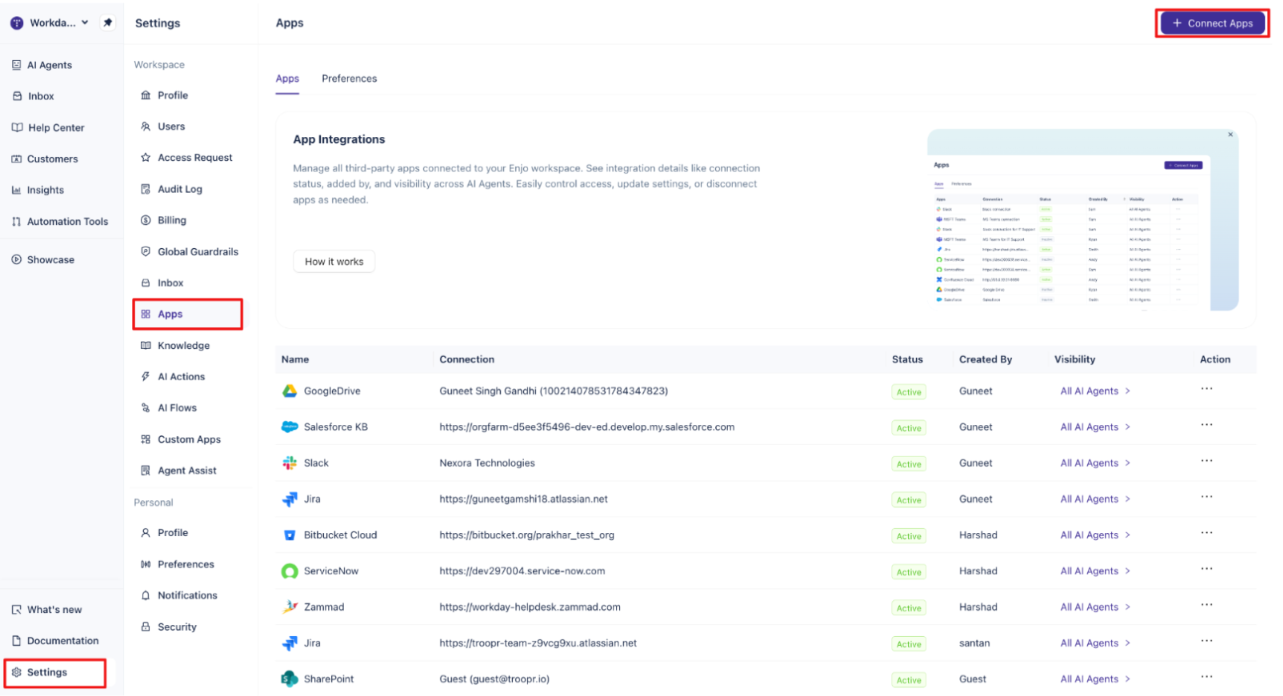
Go to Settings in the lower-left navigation, then select Apps. This is where all connected third-party apps live, along with their connection status, visibility, and ownership.
Step 2: Start a new Box connection
On the Apps screen, click + Connect Apps in the top-right corner. A list of available apps appears. Scroll to find Box and click it.
In the side panel that opens, click + Add new to begin a new connection.
Step 3: Name the connection and set visibility
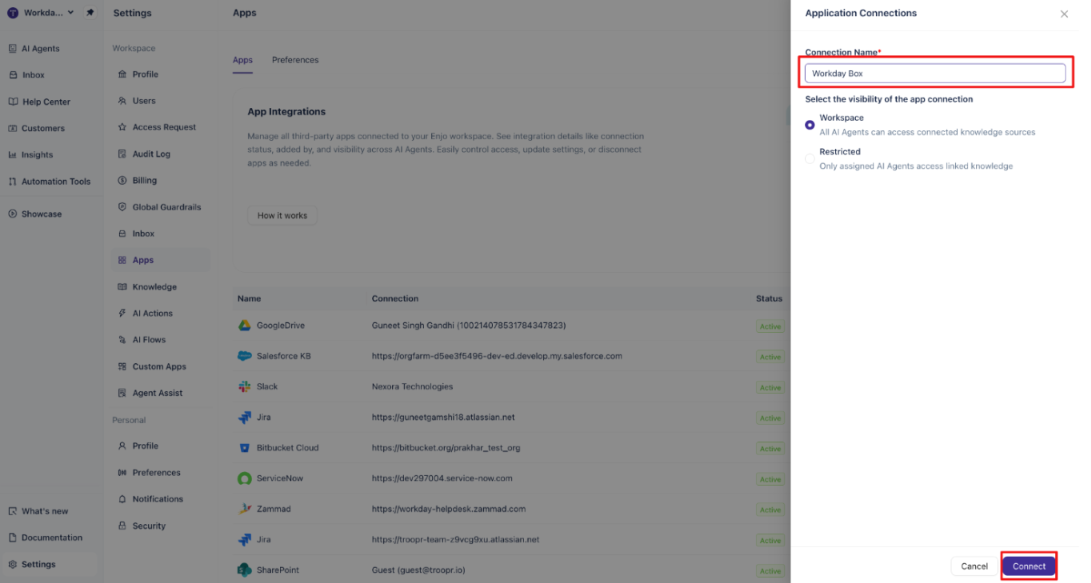
Enter a clear connection name (for example, Marketing Box or Engineering Box). The name helps you identify the account later if you connect more than one Box workspace.
Next, choose how the connection is exposed to your AI Agents:
Workspace — All AI Agents in the workspace can access the connected knowledge sources.
Restricted — Only AI Agents you explicitly assign the connection to can access the linked knowledge.
💡 Choose Restricted if you plan to scope Box content to a specific AI Agent. You can change this setting later.
Click Connect to continue.
Step 4: Grant Box permissions
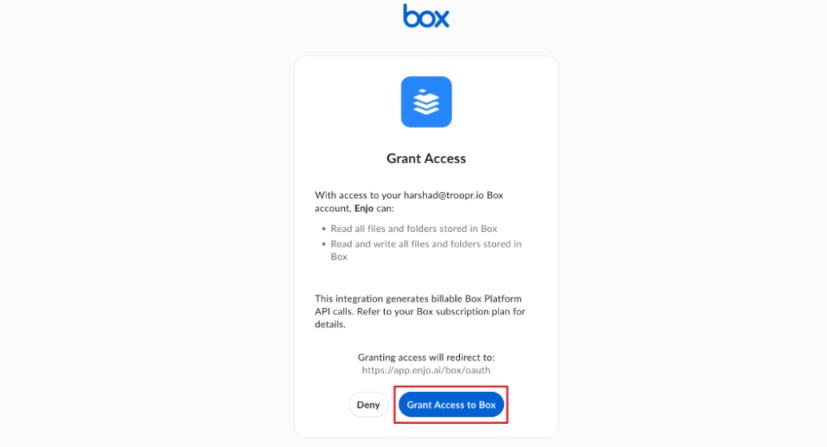
You are redirected to Box to authorize the connection. If you're already signed in, Box goes directly to the permission screen. Otherwise, sign in first.
Box requests permission for Enjo to read the files and folders in your account. Review the permissions, then click Grant access to Box.
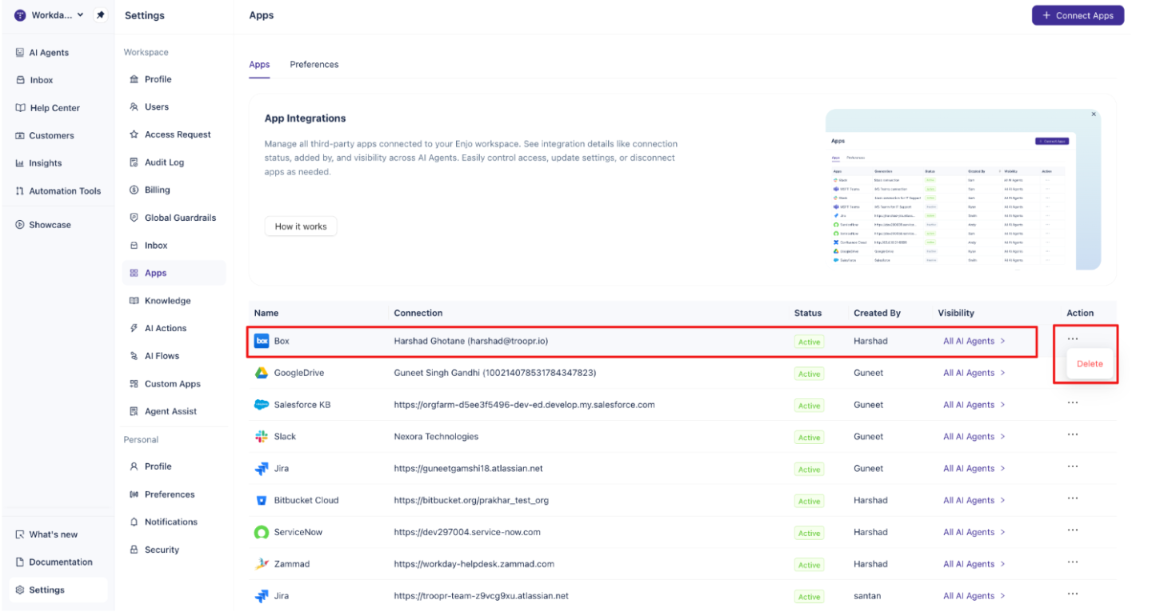
Once authorized, you are returned to Enjo and the new connection appears in the Apps list with a status of Active.
ℹ️ Enjo uses read-only access to ingest Box content for indexing. Files are not modified in Box.
Step 5: Manage the connection
After the connection is established, the Apps list shows your Box connection with:
Connection name
Status
Created by
Visibility
From this row you can update visibility, rename the connection, or delete the account when it's no longer needed.
⚠️ Before deleting the Box connection, remove all indexed Box content from your AI Agent's knowledge base.
What's next
Connect more knowledge sources to broaden what your AI Agent can answer from:
Google Drive — Index Google Workspace documents and files as a knowledge source for your AI Agent.
SharePoint — Connect Microsoft SharePoint to make your Microsoft 365 content available to your AI Agent.
Confluence Cloud — Sync your Confluence spaces so your AI Agent can draw on your team's wiki content when answering requests.
Notion — Connect Notion pages and databases to give your AI Agent access to your Notion workspace content.
.png)