.png)
AI Agent Answer Behavior
The Answer Behavior settings in Enjo give you control over how your AI agent responds in different scenarios, whether it's handling questions it's not confident about, dealing with gaps in your knowledge base, or giving users the tools to rate and refine answers over time.
This guide walks you through each Answer Behavior setting, explains what it does, and shows you how to configure it for your team
Before You Begin
Make sure you have the following before getting started:
Admin or workspace owner access in Enjo
At least one AI agent already created in your workspace
Your AI agent connected to a channel (Slack or Microsoft Teams) if you want to preview settings live
Step 1: Open Your AI Agent Settings
Start by navigating to the AI agent you want to update.
Log in to the Enjo platform and go to AI Agents from the left navigation.
Find the agent you want to configure and click on its name to open it.
In the left sidebar, click Settings to expand the settings menu.
Select Behavior from the submenu.
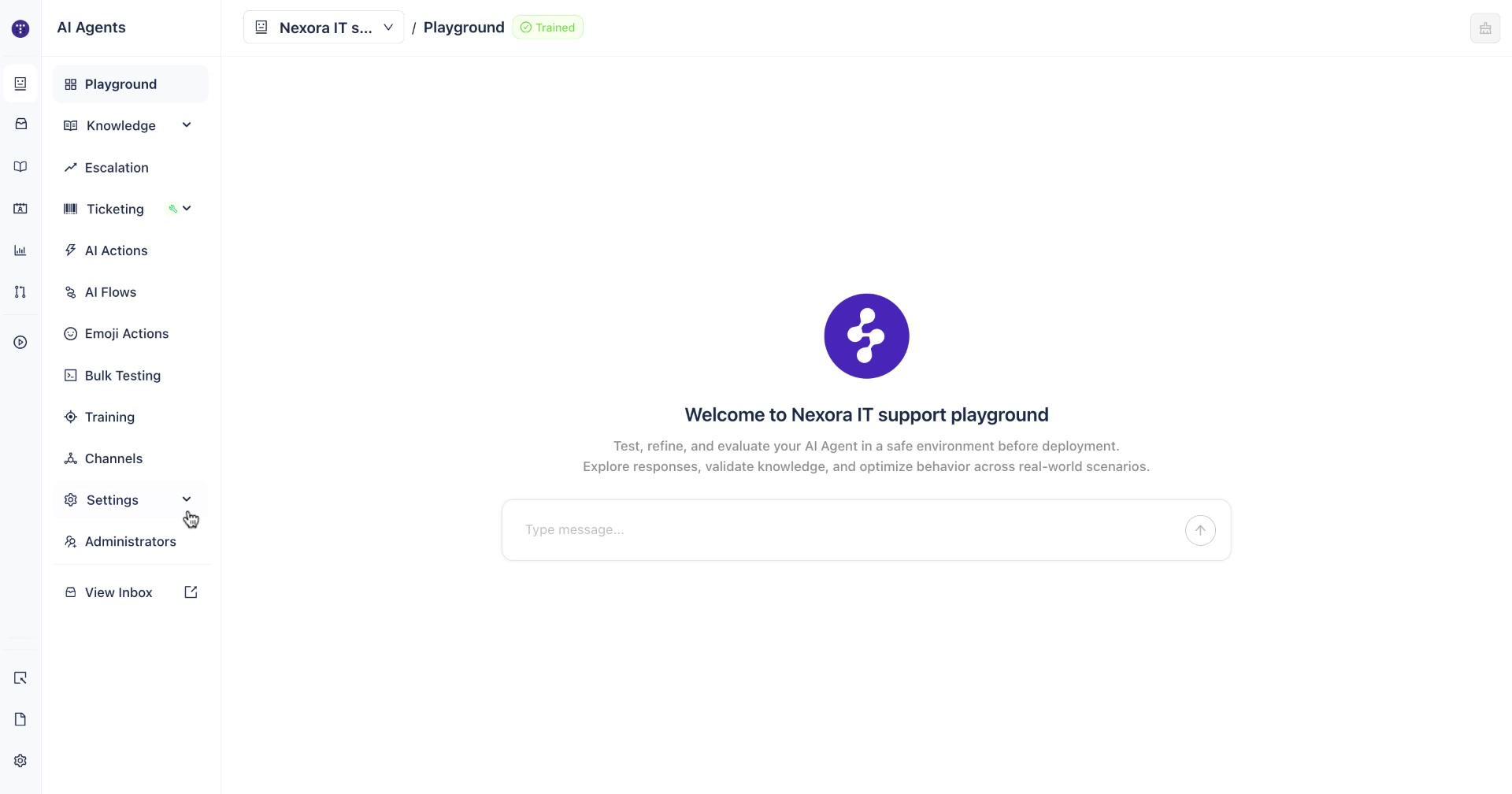
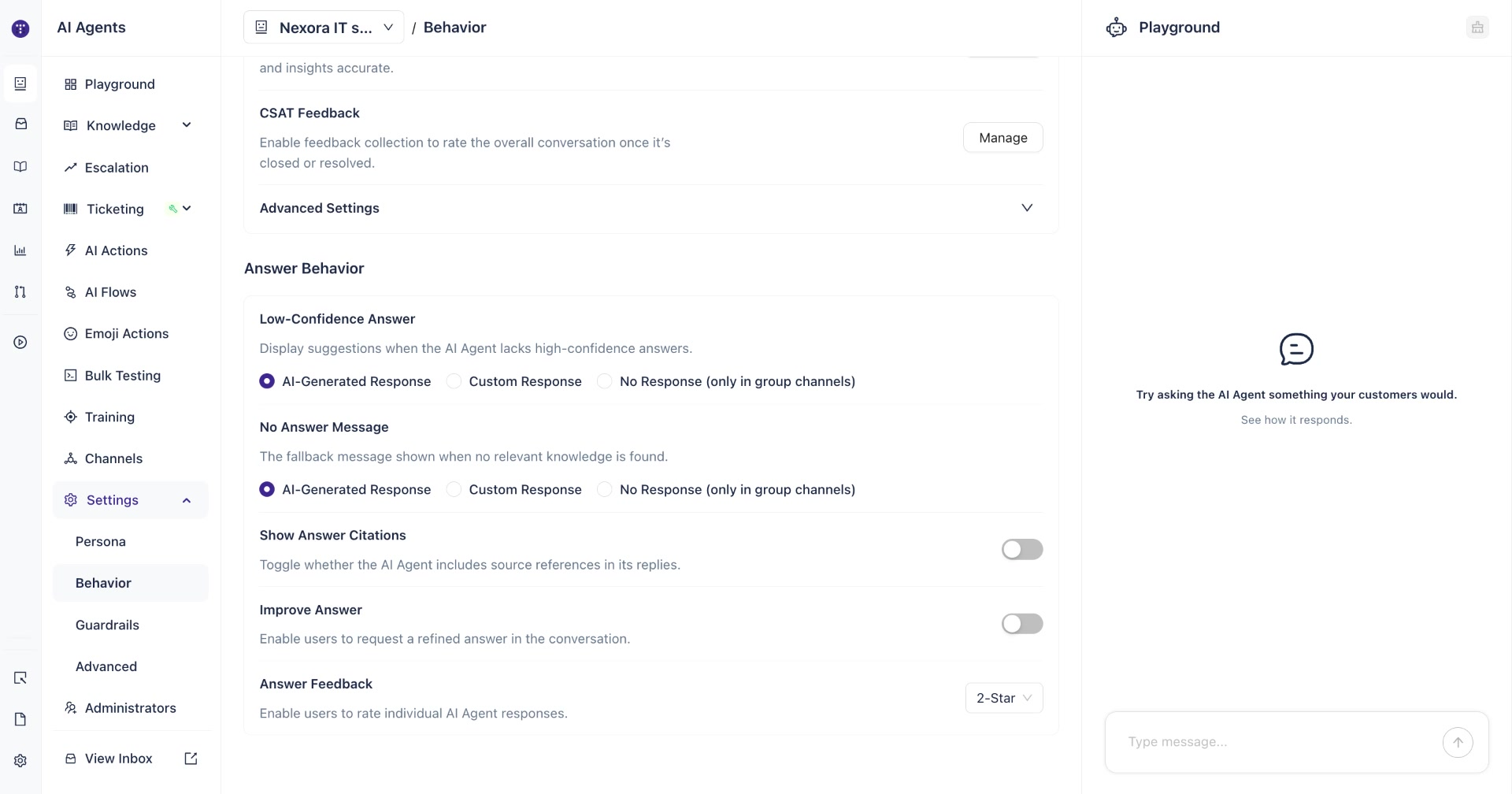
Once you're on the Behavior tab, scroll down to find the Answer Behavior section. This is where all the settings in this guide are located.
Step 2: Configure Low-Confidence Answer
The Low-Confidence Answer setting controls what happens when your AI agent finds a potential match in your knowledge base but isn't certain enough to respond with full confidence.
You have three options:
AI-Generated Response — The agent automatically crafts a response using what it found, even if the match is partial.
Custom Response — You write a specific message that will be shown to users whenever this situation occurs. This is useful if you want a consistent, branded message.
No Response (only in group channels) — The agent stays silent rather than risking an inaccurate reply.
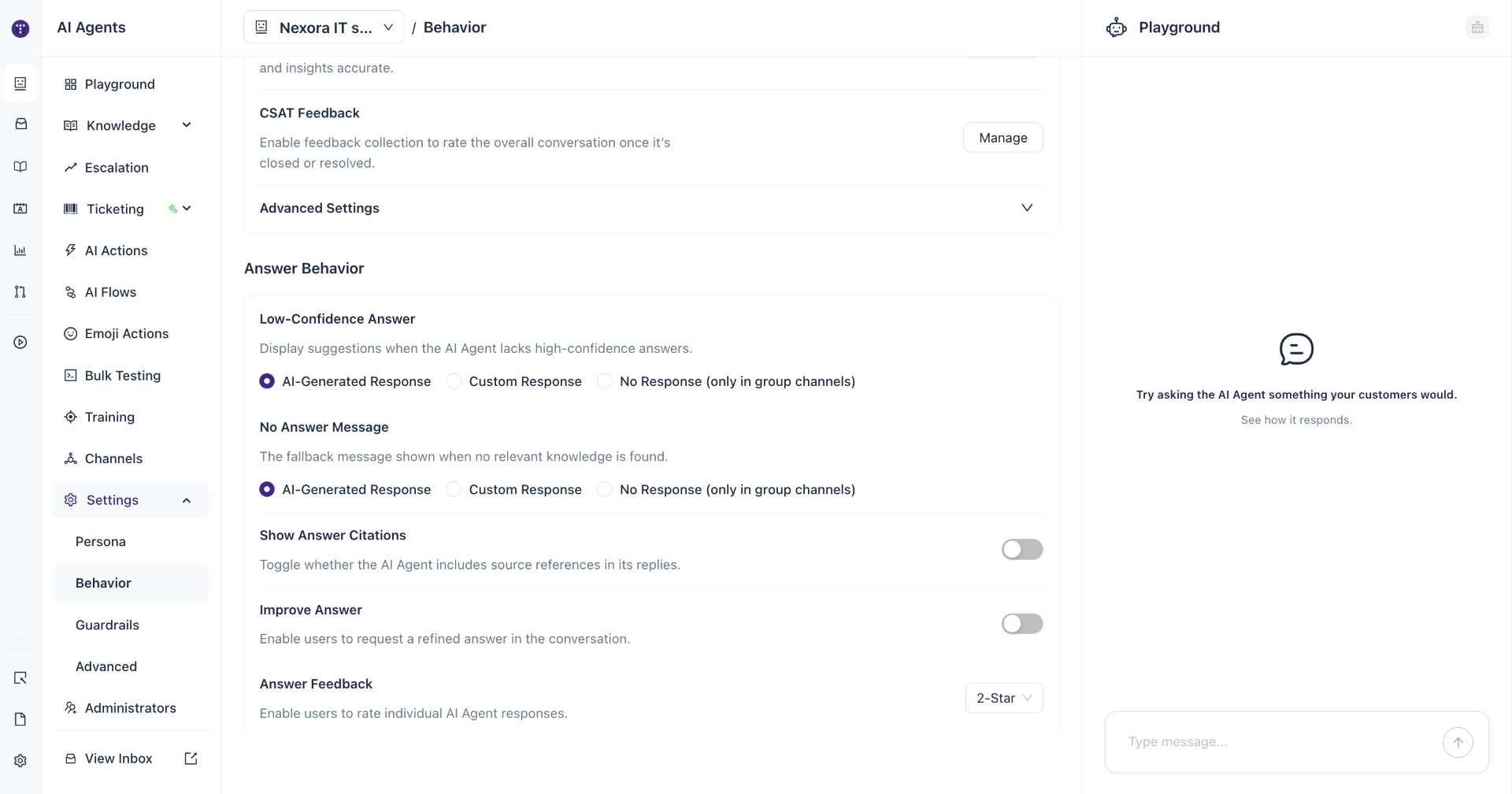
Tip: If you choose Custom Response, a text field will appear where you can write your fallback message. For example: "We don't have an exact answer right now, but the sources below might offer some helpful guidance."
Step 3: Configure No Answer Message
The No Answer Message setting defines what the AI agent says when it cannot find any relevant information in your knowledge base at all — not even a low-confidence match.
The same three options are available here:
AI-Generated Response — The agent produces a helpful fallback, typically suggesting the user contact a relevant team or check other resources.
Custom Response — You set a fixed message that will be shown whenever no answer is found.
No Response (only in group channels) — The agent does not reply at all.
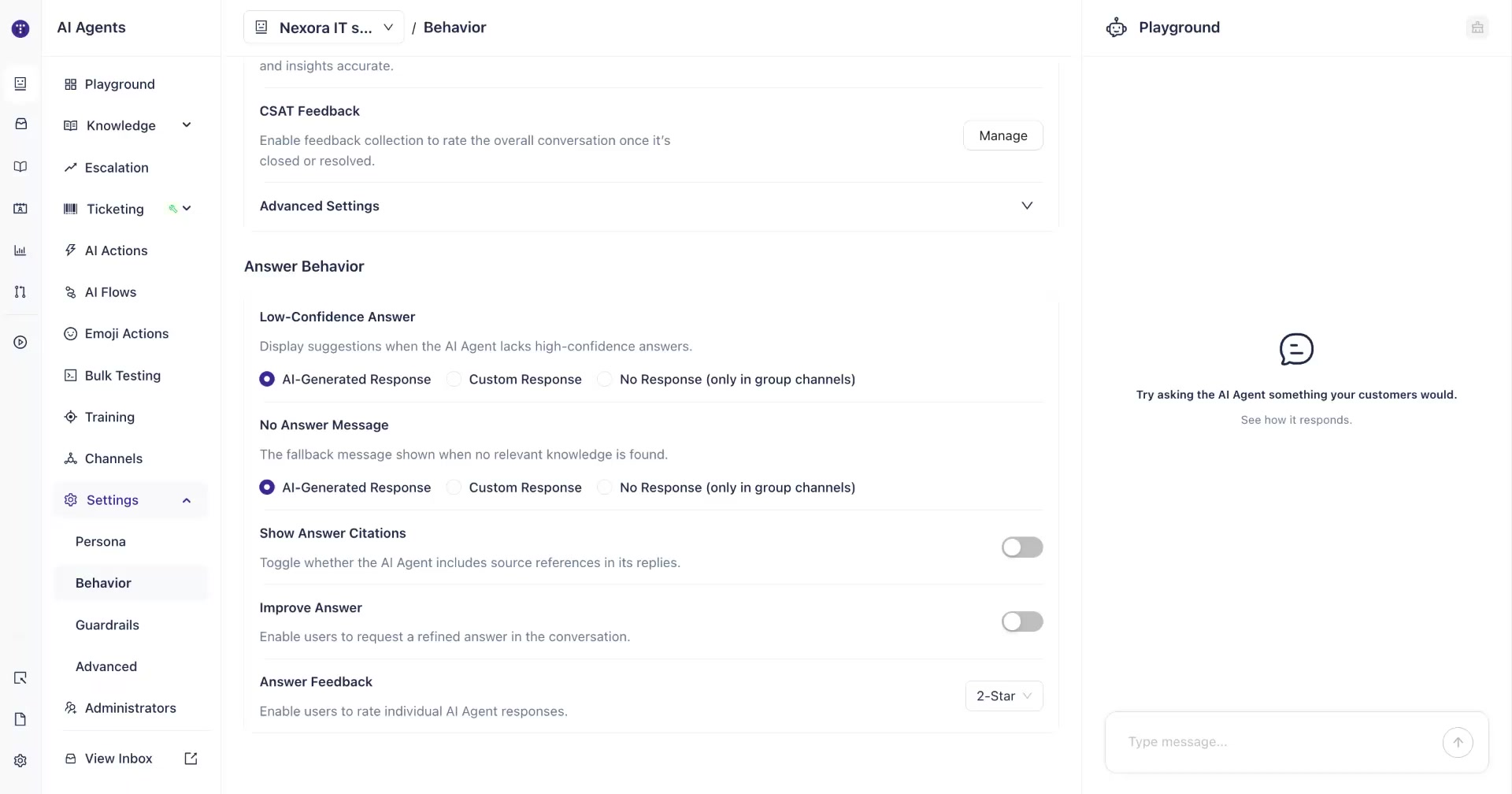
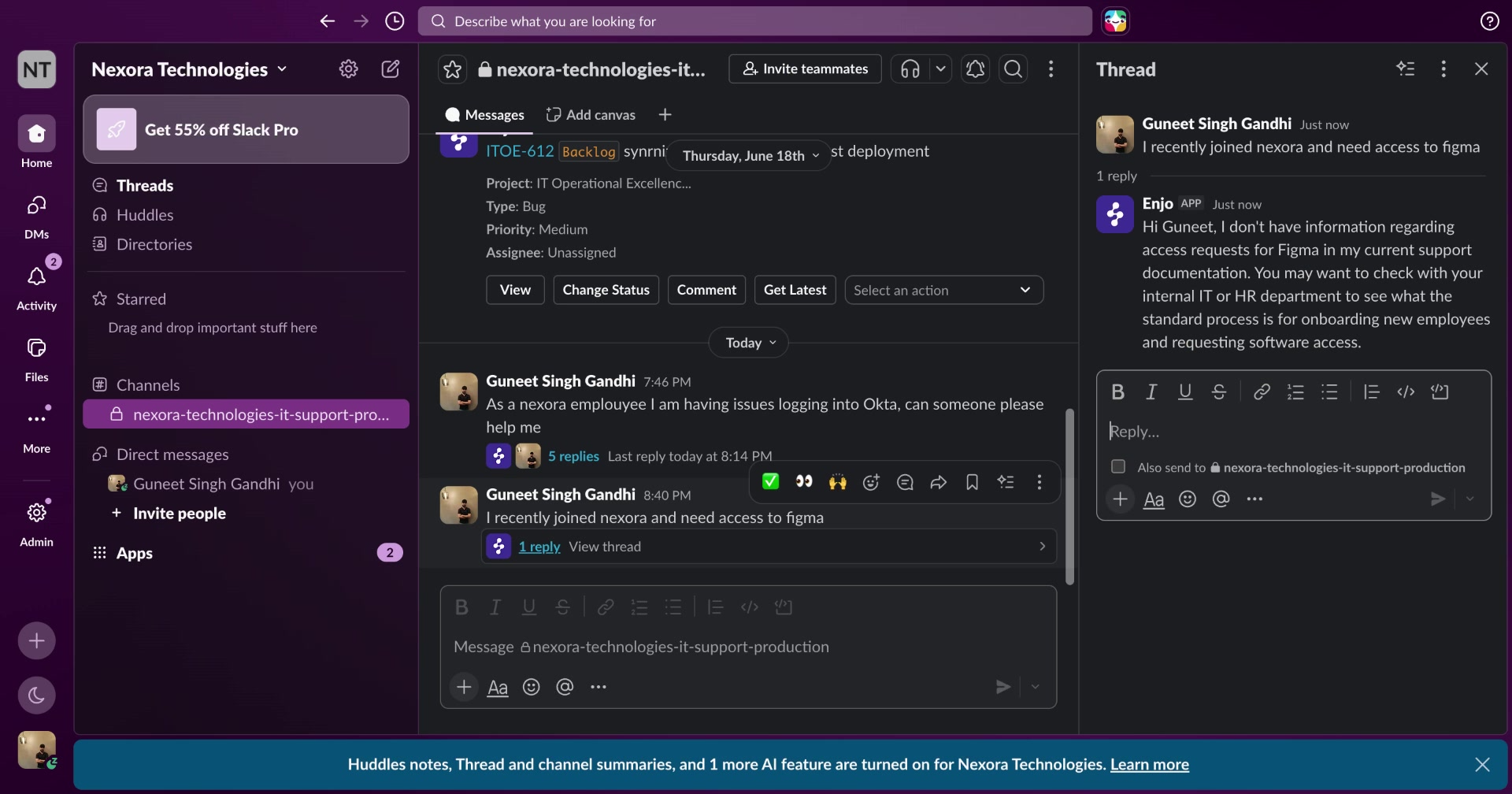
Here's an example of how the AI-Generated Response looks in Slack when a user asks about something not covered in your knowledge base:
Step 4: Enable Show Answer Citations
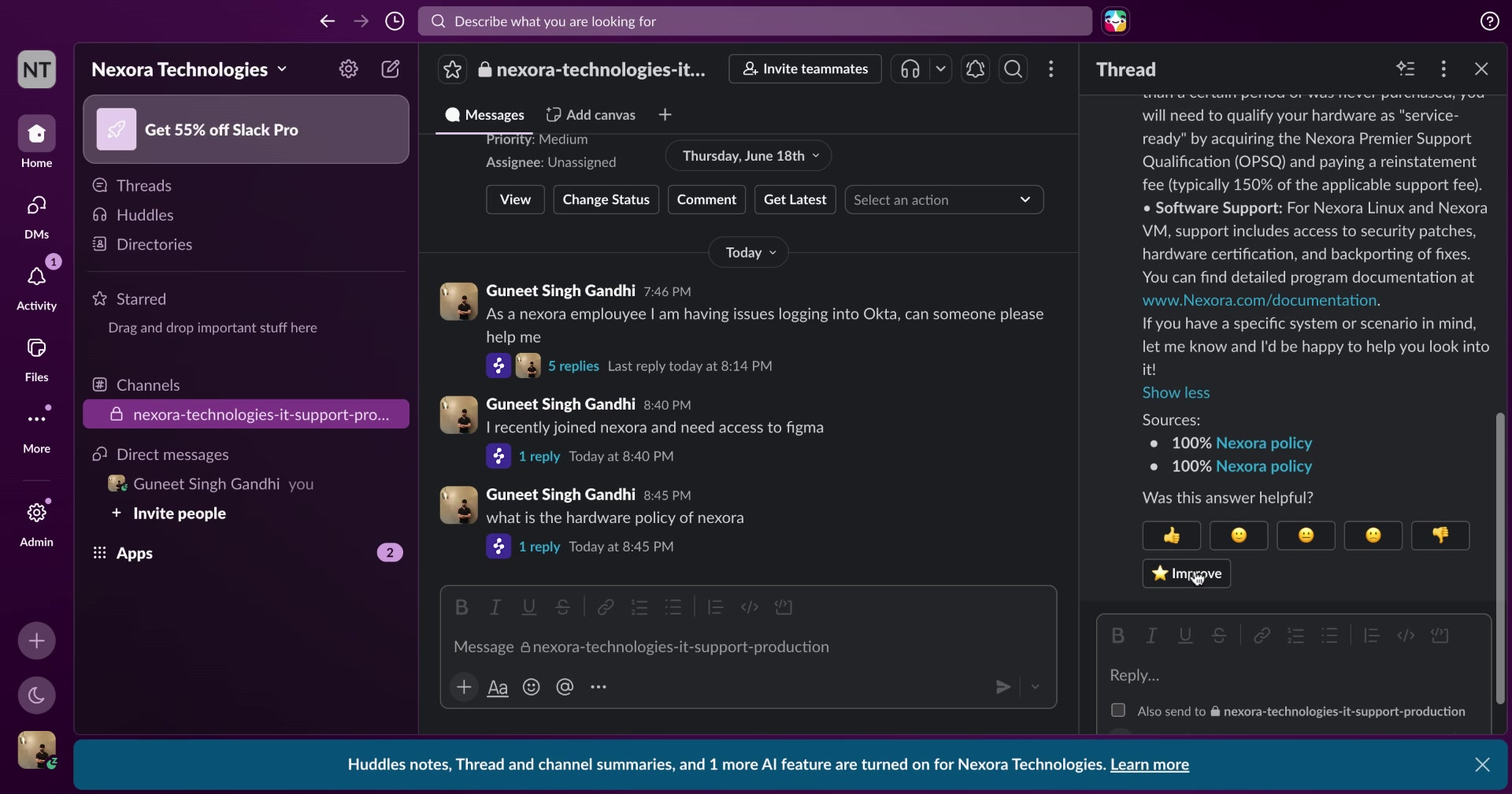
When Show Answer Citations is turned on, the AI agent includes a Sources section below each answer, showing the knowledge base documents it referenced to generate the response.
To enable it, toggle the Show Answer Citations switch to on.
Screenshot: Show Answer Citations toggle — enabled
Once enabled, users will see source links directly in the AI agent's reply. Clicking a source opens the exact document or page in your knowledge base that the agent used.
Step 5: Enable Improve Answer
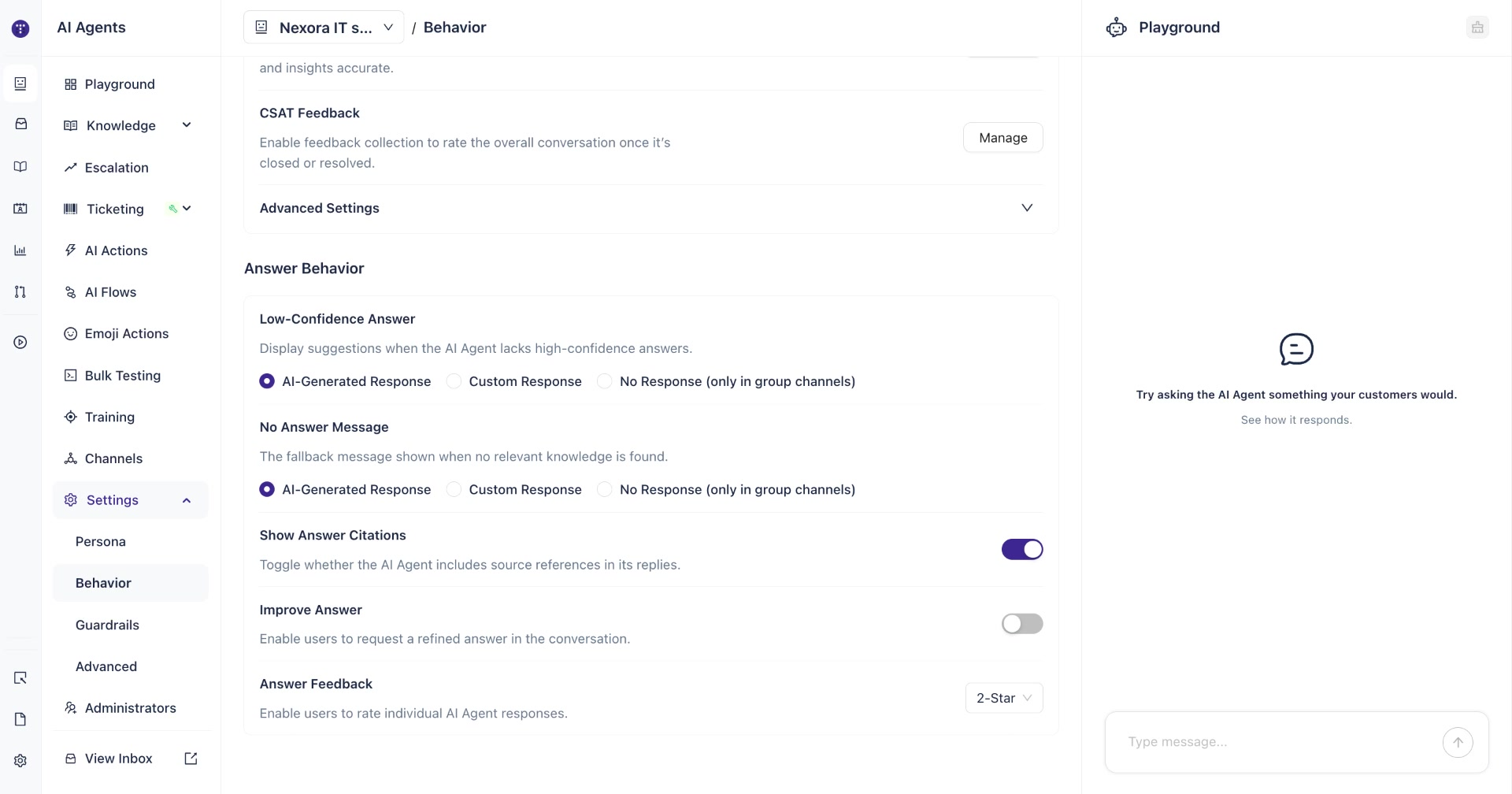
The Improve Answer setting lets users suggest corrections or refinements to the AI agent's responses directly from the channel — without needing access to the Enjo platform.
When this is enabled, an Improve button appears below each AI-generated answer. Clicking it opens a form where the user can:
Review and edit the current answer
Add alternative phrasings of the question (up to five)
Submit the update for admin review
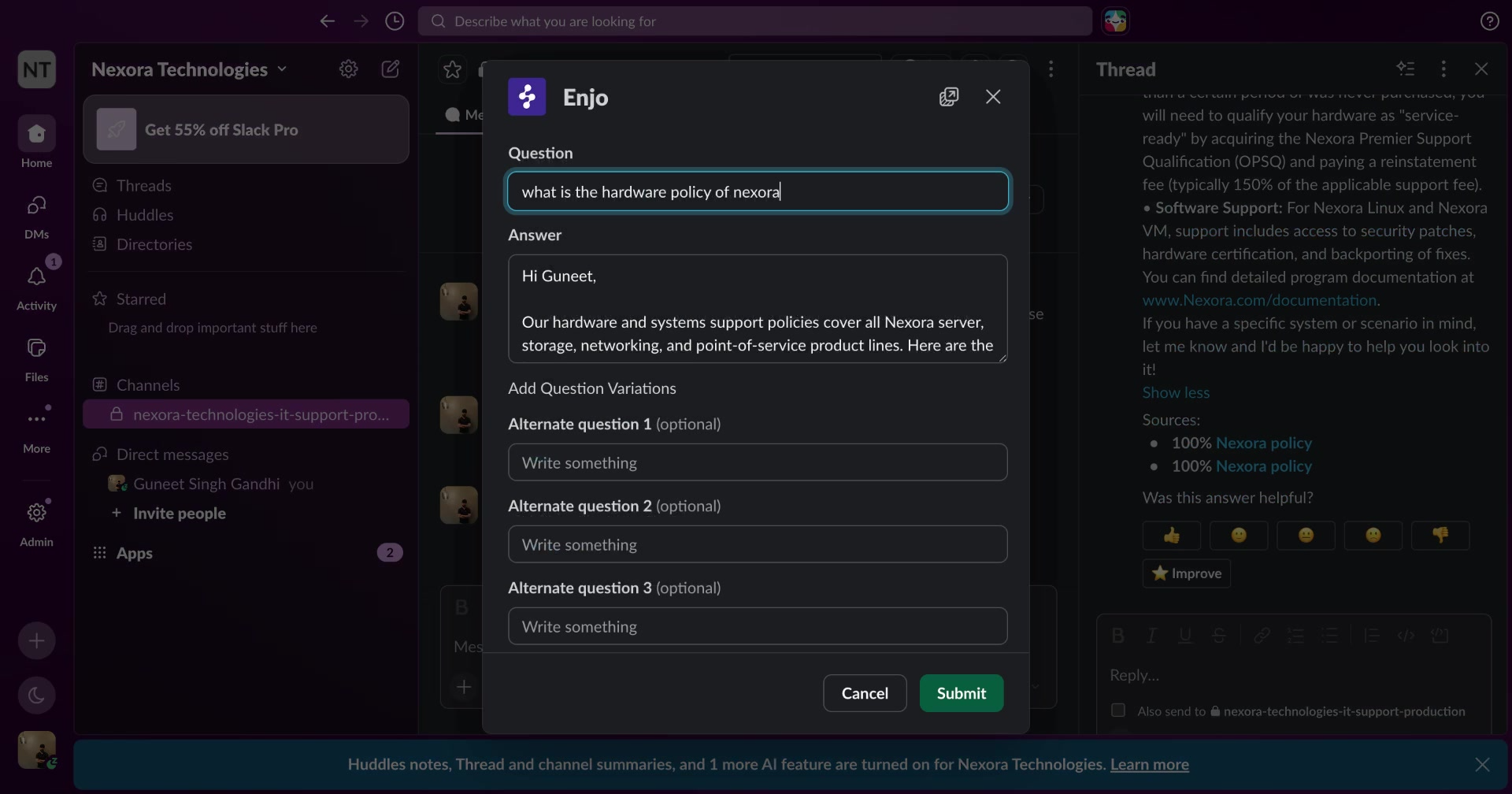
Important: Suggestions submitted via the Improve Answer button are not applied immediately. An admin must review and approve them first. Once approved, the AI agent will use the updated answer for similar questions going forward.
Step 6: Configure Answer Feedback
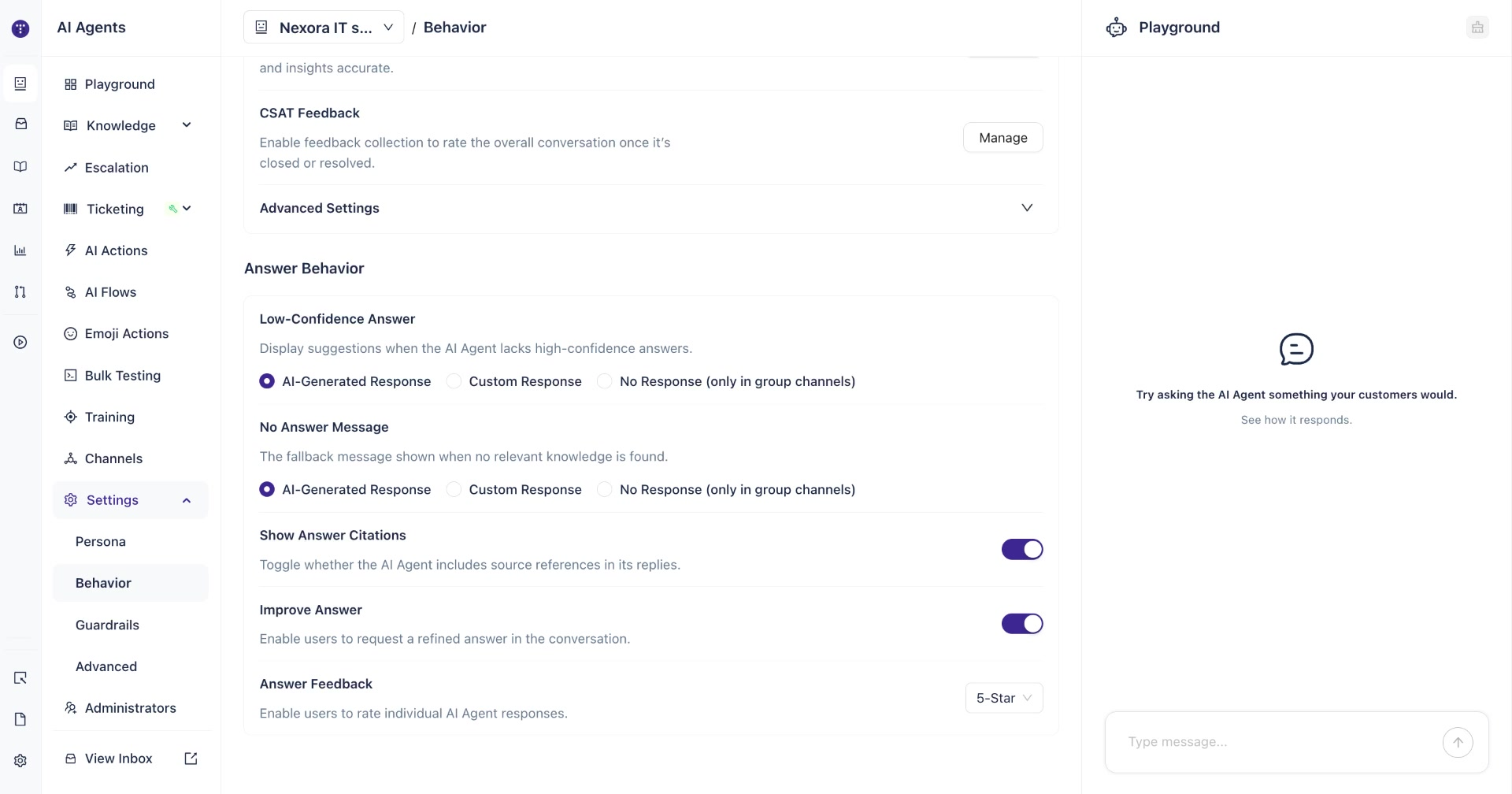
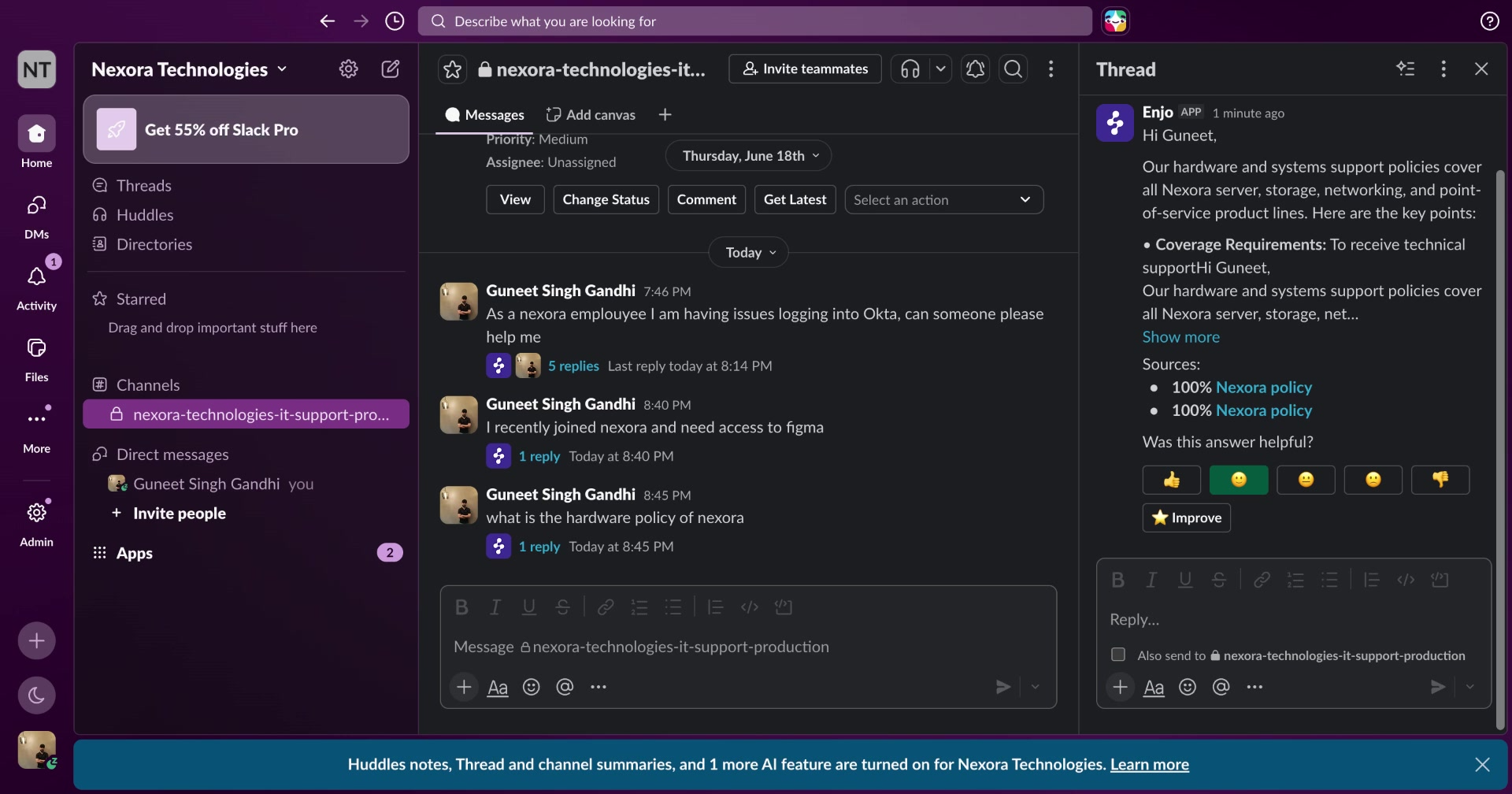
The Answer Feedback setting allows users to rate individual AI agent responses. This gives you ongoing visibility into how well your agent is performing.
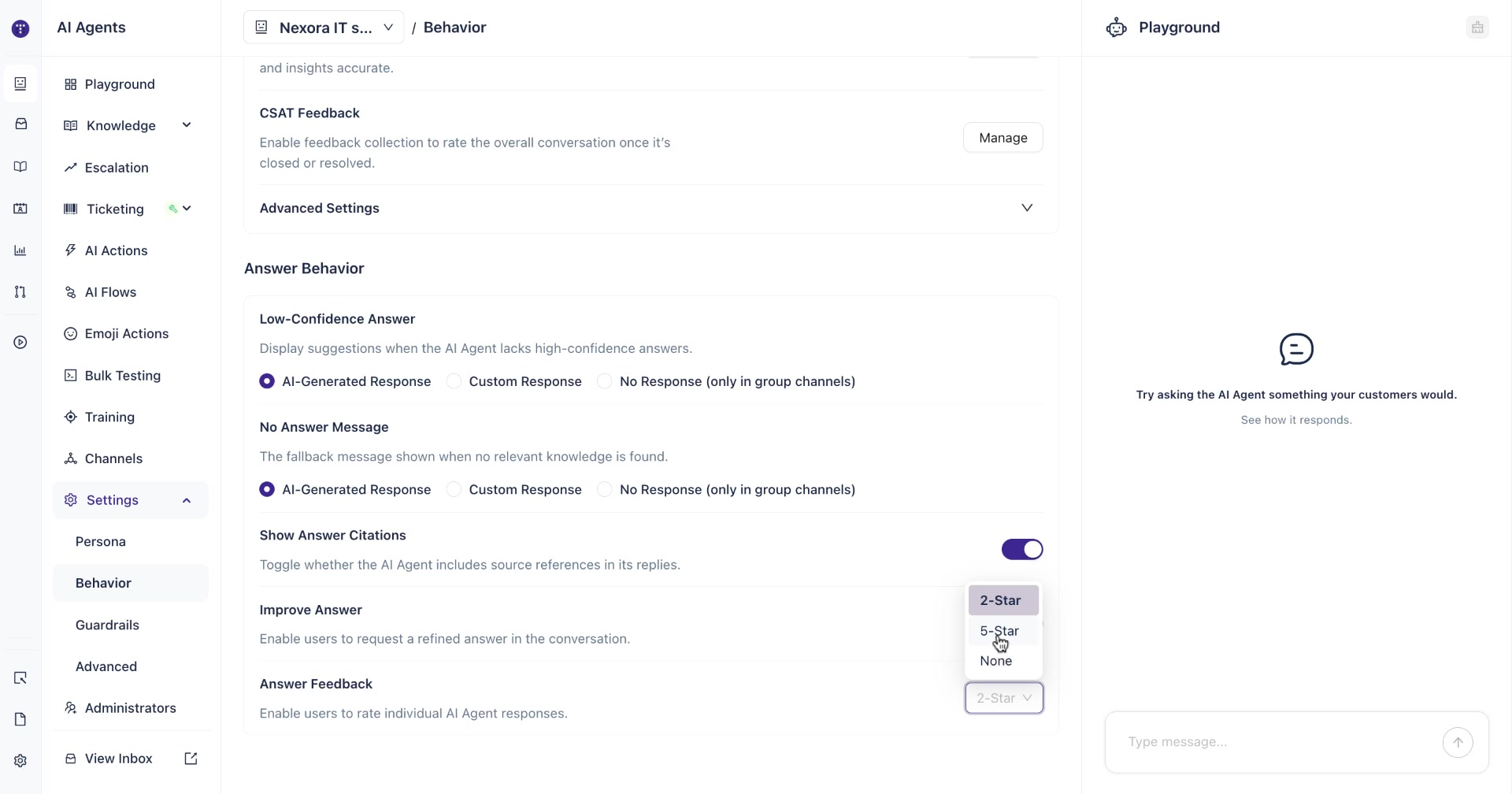
You can choose from three rating formats:
2-Star — A simple thumbs up / thumbs down rating.
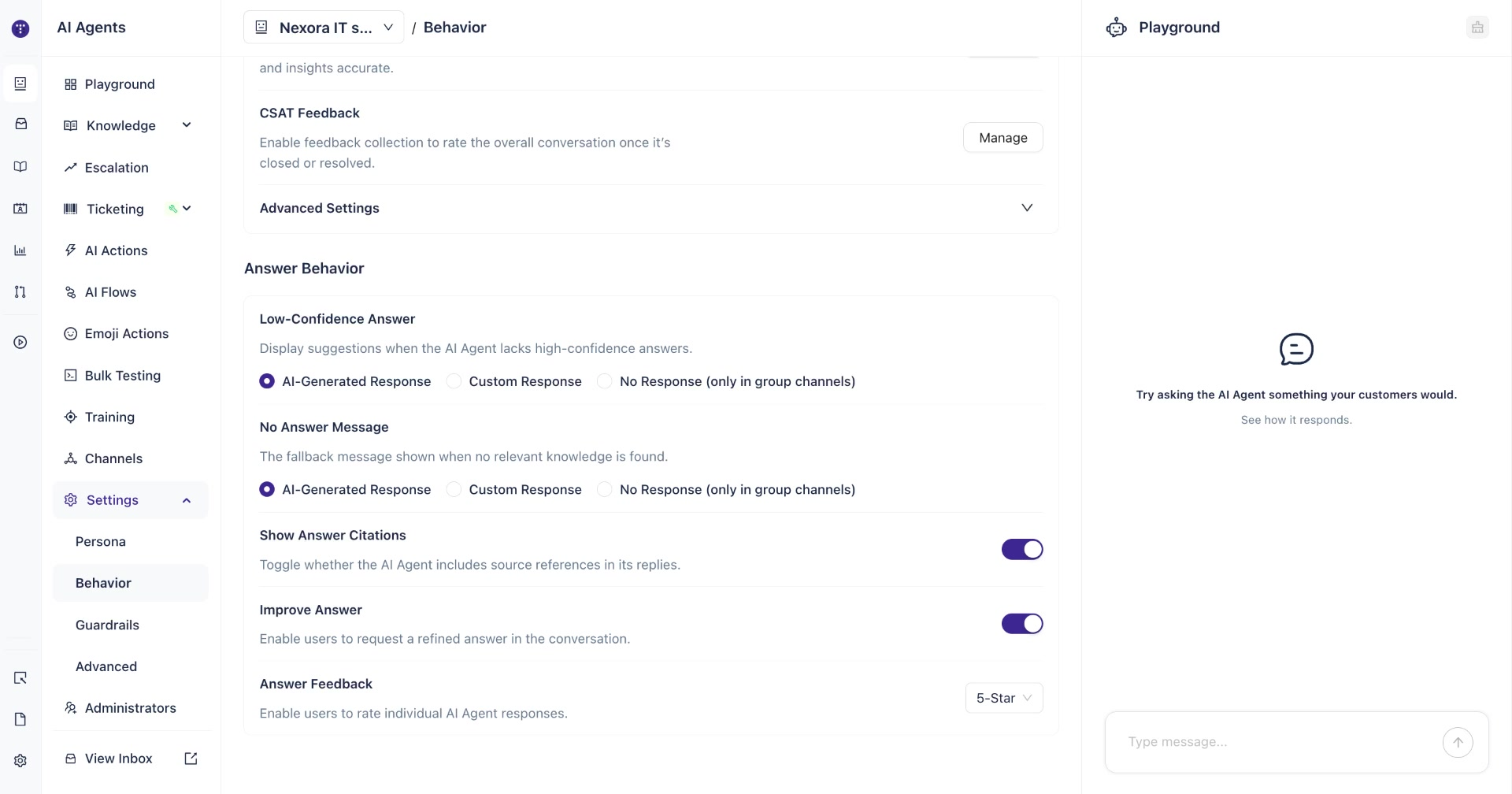
5-Star — A five-point emoji scale ranging from negative to positive.
None — Feedback is disabled entirely.
To set the rating format, click the dropdown next to Answer Feedback and select your preferred option.
Once configured, users will see the rating prompt directly in the Slack or Teams thread after each response. They can also leave a short comment along with their rating.
What's Next
Guardrails — Define what your AI agent will and won't respond to, keeping it on-topic and safe for your users.
Advanced— Fine-tune lower-level settings like knowledge relevance threshold and image inference.