
AI Agent Instructions
In this article, you'll learn how to use the Instructions tab to control how your AI Agent answers: its answer length, tone, grounding and language, and the custom instructions you add for your team's own preferences.
Before you start
To change custom instructions, you need to be an admin of the AI Agent, with the Manage AI Agents permission. Other people can see the list but can't change it.
If you used Enjo before Agent Studio: Answer Style and Answer Language used to be on the Persona tab. They now live on the Instructions tab.
How it works
The Instructions tab has two cards:
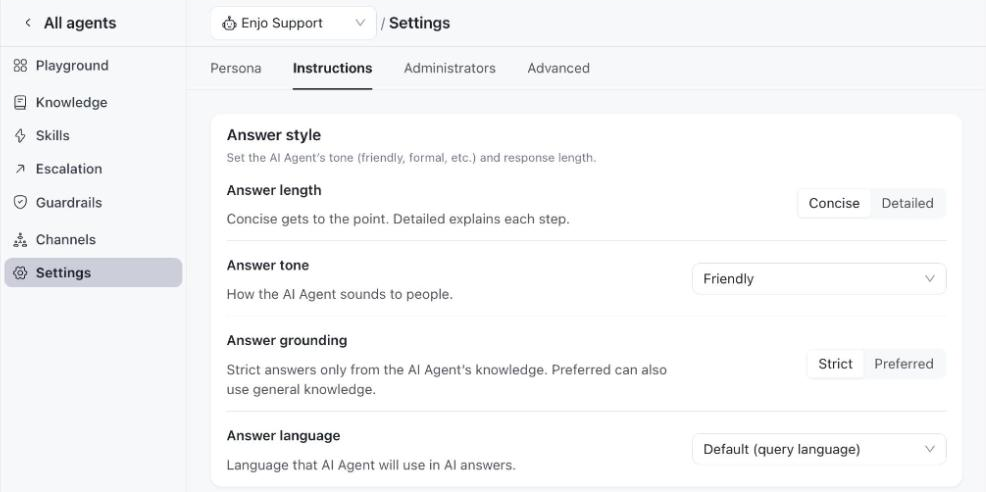
Answer style — four settings that apply to every answer: length, tone, grounding and language.
Custom instructions — a numbered list of preferences you write in plain language, such as how to order steps or how to end an answer.
ℹ️ Custom instructions are preferences, not settings. When one conflicts with Answer style, the answer language, grounding, or security and permission rules, those always win. Between custom instructions, the higher item in the list takes priority.
Step 1: Open the Instructions tab
In the left menu, click Agent Studio and open the AI Agent.
Click Settings, then the Instructions tab.
Step 2: Set the answer style
Pick an option for each setting. Changes save as soon as you make them.
Answer length — Concise gets to the point. Detailed explains each step.
Answer tone — how the AI Agent sounds to people: Friendly, Professional, Neutral or Empathetic.
Answer grounding — Strict answers only from the AI Agent's knowledge. Preferred can also use general knowledge.
Answer language — Default (query language) answers in the language the question was asked in. To always answer in one language, pick it from the list. You can type to search.
💡 Unless you change them, AI Agents use Concise, Friendly, Strict and Default (query language).
Step 3: Add a custom instruction
Under Custom instructions, click Add instruction.
In Instruction, describe the preference in plain language. One sentence works best, and you can use up to 1,000 characters.
Click Add instruction. The instruction goes to the end of the list, switched on.
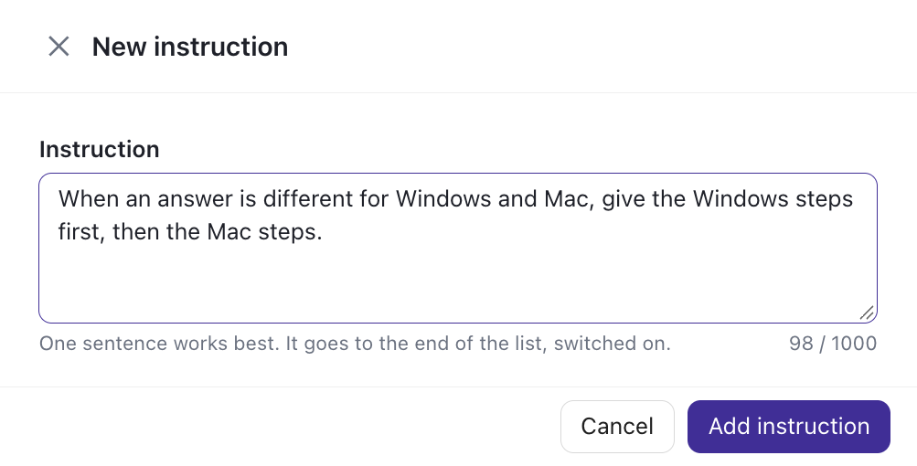
You can add up to 50 instructions. Enjo won't add an instruction that's already in the list.
💡 Write each preference as its own instruction, so you can reorder it or turn it off on its own.
Step 4: Order and manage your instructions
Instructions are numbered, and higher items take priority. Put the most important ones at the top.
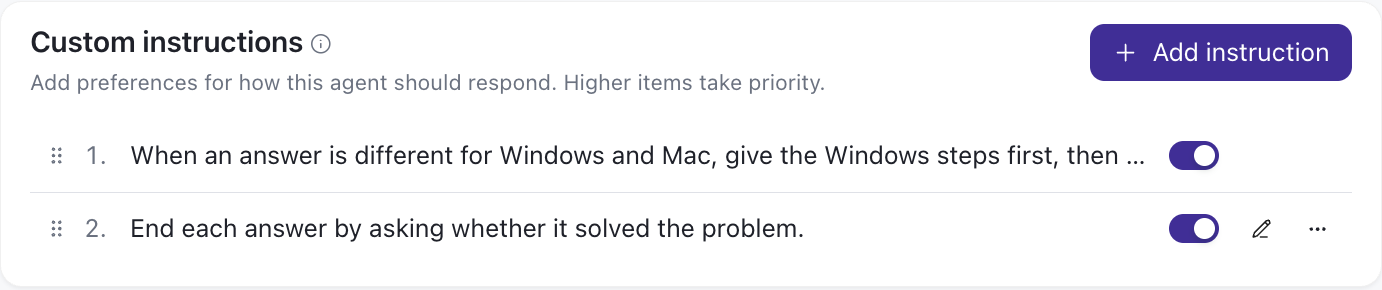
Reorder: drag an instruction by its handle (⠿), or click ⋯ and choose Move up or Move down.
Turn off: use the switch to stop an instruction applying without deleting it. Switch it back on at any time.
Edit: click the pencil icon, change the text, and click Save.
Delete: click ⋯ › Delete, then confirm. The instruction stops applying at once.
Search: once the list has 7 or more instructions, use Search instructions to find one. You can't drag to reorder while searching.
💡 To pause an instruction for a while, turn it off instead of deleting it.
What's next
AI Agent Persona — Set your AI Agent's name, avatar, role and team.
AI Agent Testing — Ask test questions in the Playground to see how your instructions shape answers.
Guardrails — Block sensitive, restricted or malicious content in questions and answers.